
Understanding Network Settings and Why You Might Need to Reset Them
Network settings on your phone control how it connects to the internet, Wi-Fi networks, and cellular networks. These settings can sometimes become misconfigured, leading to issues with your phone's connectivity. If you're experiencing problems with your phone's internet connection or Wi-Fi, resetting the network settings can often resolve the issue. In this article, we'll walk you through the process of resetting network settings on your phone and highlight five useful things to know before you do.
How to Reset Network Settings on Your Phone
The process of resetting network settings varies slightly depending on the type of phone you have. Here are the general steps for Android and iOS devices:
Android Devices
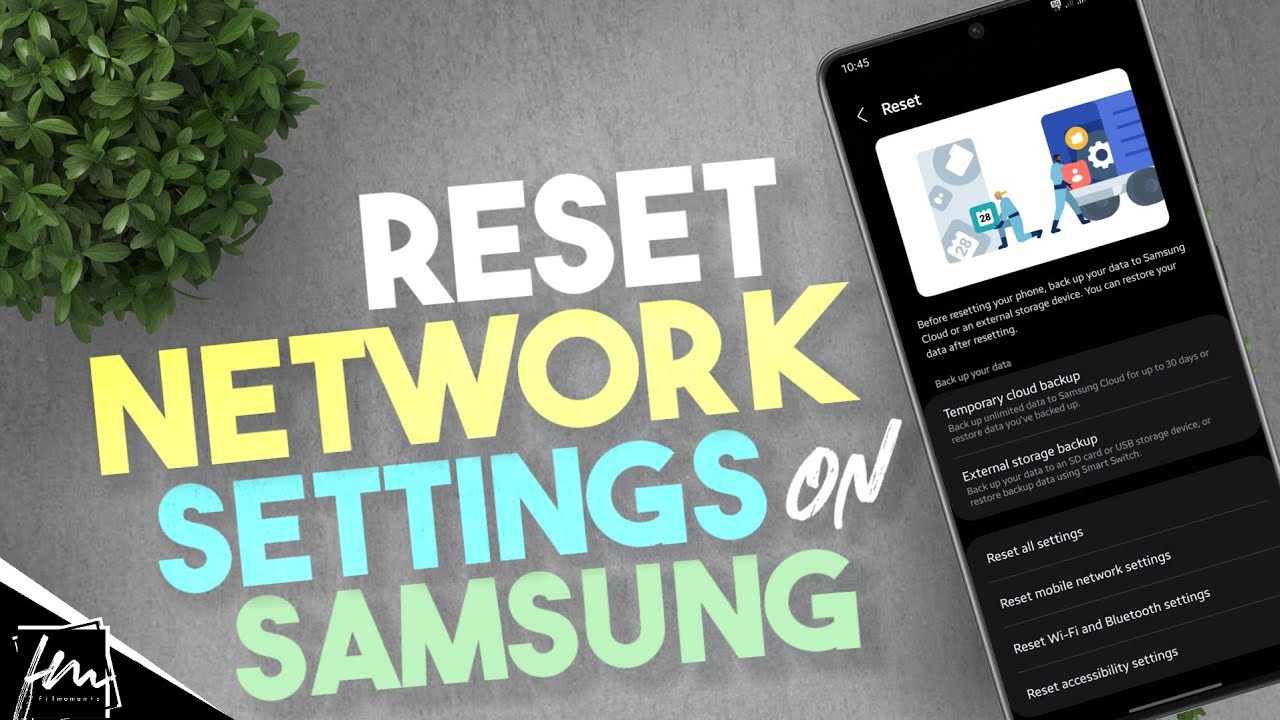
- Go to your phone's Settings app.
- Scroll down and select System or General management.
- Look for Reset or Reset options.
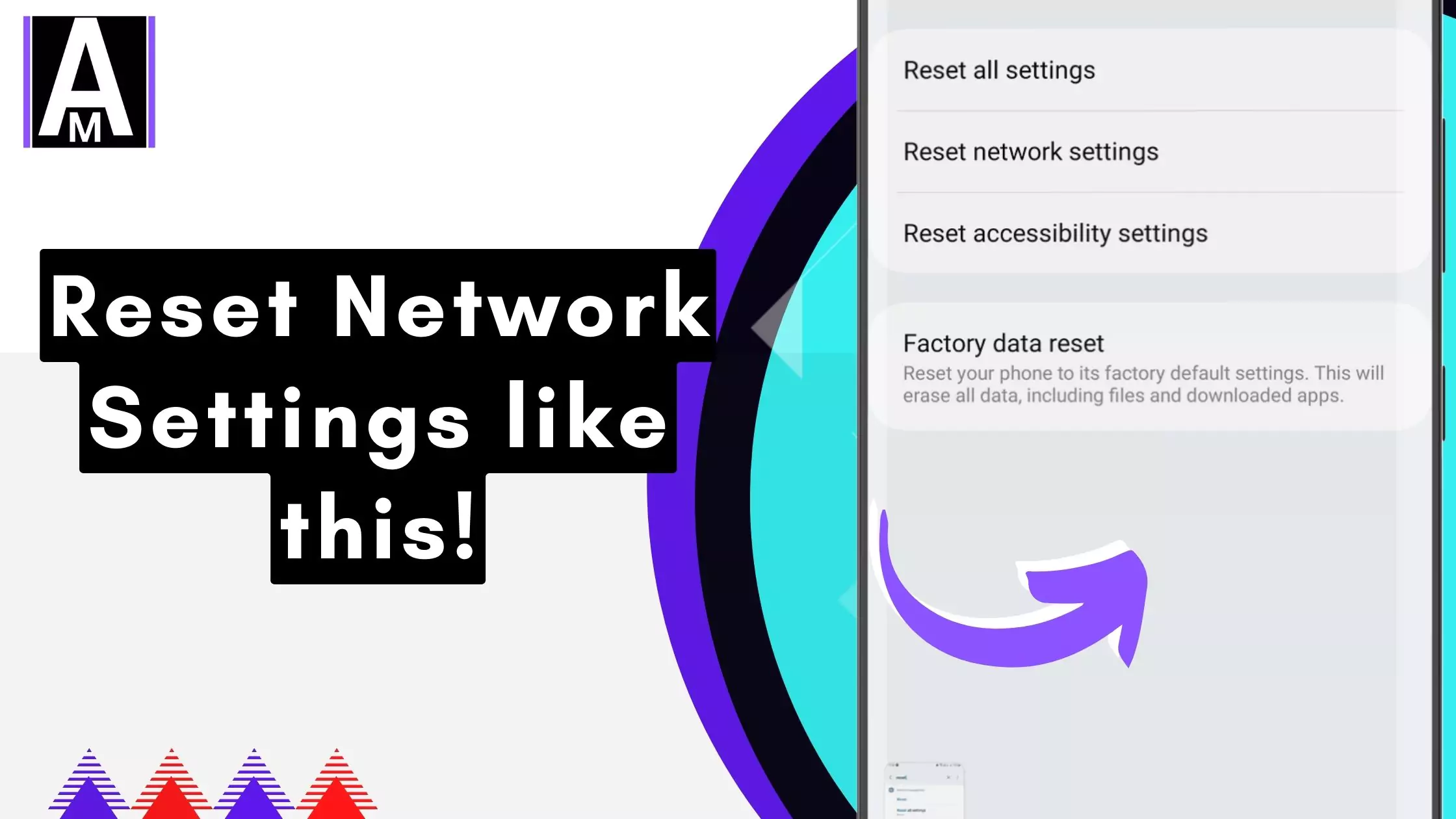
- Select Reset network settings or Reset Wi-Fi, mobile & Bluetooth.
- Confirm that you want to reset the network settings.
iOS Devices
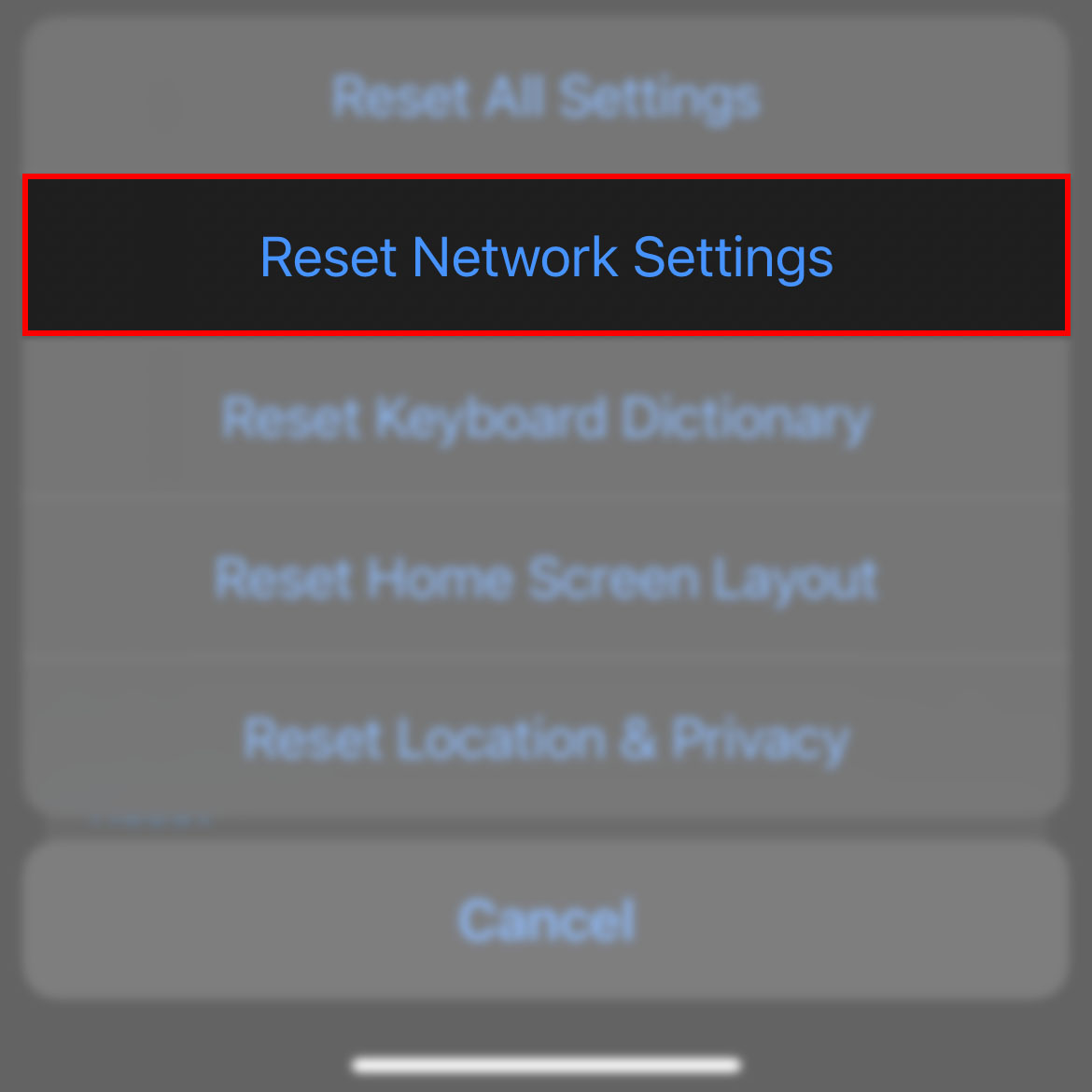
- Go to your phone's Settings app.
- Select General.
- Tap Reset.
- Choose Reset Network Settings.
- Enter your phone's passcode to confirm.
What Happens When You Reset Network Settings?
When you reset network settings on your phone, several things happen:
Your phone's Wi-Fi networks are forgotten, and you'll need to reconnect to them.
Your phone's cellular network settings are reset, which can sometimes resolve issues with your mobile internet connection.
Any saved Bluetooth devices are disconnected, and you'll need to reconnect them.
Benefits of Resetting Network Settings
Resetting network settings can resolve a range of issues, including:
Slow internet speeds: If your phone's internet connection is slow or unreliable, resetting network settings can help.
Wi-Fi connectivity issues: If you're having trouble connecting to Wi-Fi networks, resetting network settings can often resolve the issue.
Dropped calls or no signal: If you're experiencing issues with your phone's cellular connection, resetting network settings can sometimes help.
Precautions to Take Before Resetting Network Settings
Before you reset your network settings, there are a few things to keep in mind:
Make sure you know your Wi-Fi passwords: You'll need to reconnect to your Wi-Fi networks after resetting your network settings, so make sure you have your passwords handy.
Check for software updates: Make sure your phone is running the latest software before resetting network settings.
Be aware of any custom network configurations: If you've set up custom network configurations, such as static IP addresses or VPN settings, these may be lost when you reset your network settings.
Troubleshooting Common Network Issues
Resetting network settings can resolve a range of common network issues. Here are a few examples:
Can't connect to Wi-Fi: If you're having trouble connecting to Wi-Fi networks, try resetting your network settings.
Mobile internet is slow or unreliable: If your phone's internet connection is slow or unreliable, try resetting your network settings.
Bluetooth devices won't connect: If you're having trouble connecting to Bluetooth devices, try resetting your network settings.
Frequently Asked Questions
Here are a few frequently asked questions about resetting network settings:
Will resetting network settings erase my data?: No, resetting network settings will not erase any data on your phone.
Will I need to set up my phone again?: No, you won't need to set up your phone again, but you will need to reconnect to Wi-Fi networks and Bluetooth devices.
- How often should I reset network settings?: You shouldn't need to reset network settings regularly. Only reset them if you're experiencing issues with your phone's connectivity.
Final Check
Resetting network settings on your phone can be a simple and effective way to resolve issues with your phone's connectivity. Before you reset your network settings, make sure you understand what will happen and take any necessary precautions. With these tips and a little practice, you'll be able to troubleshoot and resolve common network issues in no time.
Related: Crafting the Perfect Username: Aesthetic Short Name Ideas
Related: Online Course Platforms: What Actually Makes Sense?
