

Understanding GoDaddy Website Builder Templates
When you create a website using GoDaddy's website builder, you're presented with a range of templates to choose from. These templates serve as the foundation for your website's design and layout. However, as your business evolves or your design preferences change, you may want to switch to a different template. This is where understanding how to change your GoDaddy website builder template becomes essential.
Why Change Your GoDaddy Website Builder Template?
There are several reasons why you might want to change your GoDaddy website builder template:
Fresh look and feel: A new template can give your website a fresh, updated look and feel that better aligns with your brand or business.
Improved user experience: Some templates offer better navigation, mobile responsiveness, or other features that enhance the user experience.
New features: Templates may offer different features, such as e-commerce integration, blog support, or social media links.
Preparing for a Template Change
Before you change your GoDaddy website builder template, consider the following:
Backup your content: Make sure to backup your existing content, including text, images, and other media, to prevent loss during the template switch.
Assess your current design: Take note of the elements you like and dislike about your current template. This will help you choose a new template that better meets your needs.
Plan your content: Consider how your content will be affected by the template change. You may need to reformat or reposition certain elements.
Step-by-Step Guide to Changing Your GoDaddy Website Builder Template
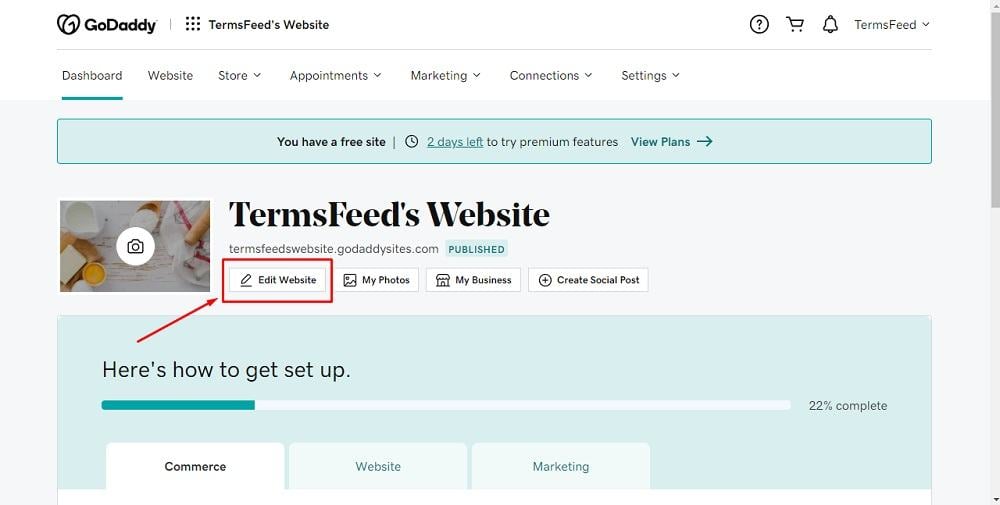
Changing your GoDaddy website builder template is a relatively straightforward process. Here's a step-by-step guide:
- Log in to your GoDaddy account: Access your GoDaddy account and navigate to your website builder dashboard.
- Select your website: Choose the website you want to edit from the list of available websites.
- Click on "Design": In the top navigation menu, click on "Design" to access the design editor.
- Click on "Templates": In the design editor, click on the "Templates" tab on the left-hand side.
- Browse available templates: Browse through the available templates and select one that you'd like to use.
- Apply the template: Click "Apply" to apply the new template to your website.
What to Expect After Changing Your Template
After applying a new template, you may notice some changes to your website's design and layout. Here are a few things to keep in mind:
Content may need to be repositioned: Depending on the new template, you may need to reposition certain elements, such as text, images, or widgets.
Design elements may be affected: Some design elements, such as colors, fonts, or spacing, may be affected by the new template.
Best Practices for a Seamless Template Transition
To ensure a seamless template transition, follow these best practices:
Test your website: Thoroughly test your website after applying the new template to ensure everything is working as expected.
Review your content: Review your content to ensure it's still accurate and up-to-date.
Make adjustments as needed: Make any necessary adjustments to your design, layout, or content.
Common Mistakes to Avoid When Changing Your GoDaddy Website Builder Template
When changing your GoDaddy website builder template, avoid the following common mistakes:
Not backing up your content: Failing to backup your content can result in lost data during the template switch.
- Not testing your website: Not testing your website after applying the new template can lead to unnoticed issues or errors.
Comparison of GoDaddy Website Builder Templates
| Template | Features | Benefits |
|---|---|---|
| <strong>Basic</strong> | Simple design, easy navigation | Easy to use, great for small websites |
| <strong>Premium</strong> | Advanced features, customizable design | More flexibility, suitable for larger websites |
| <strong>E-commerce</strong> | Integrated e-commerce features, payment gateways | Ideal for online stores, supports payment processing |
Frequently Asked Questions
Q: Will changing my GoDaddy website builder template affect my SEO?
Changing your template shouldn't directly affect your SEO. However, make sure to review your website's content and meta tags to ensure they're still accurate and up-to-date.
Q: Can I change my template more than once?
Yes, you can change your template as many times as you need. However, keep in mind that frequent changes may affect your website's consistency and user experience.
Q: Do I need to re-add my content after changing my template?
In most cases, your content will be preserved after changing your template. However, you may need to reposition or reformat certain elements.
Q: Can I use a custom template with GoDaddy website builder?
GoDaddy website builder offers a range of pre-designed templates. However, you can also use custom templates by uploading your own design files.
Conclusion
Changing your GoDaddy website builder template can be a great way to refresh your website's design and improve user experience. By following the steps outlined in this guide and best practices, you can ensure a seamless template transition. Take control of your website's design and make the most of GoDaddy's website builder templates.
