
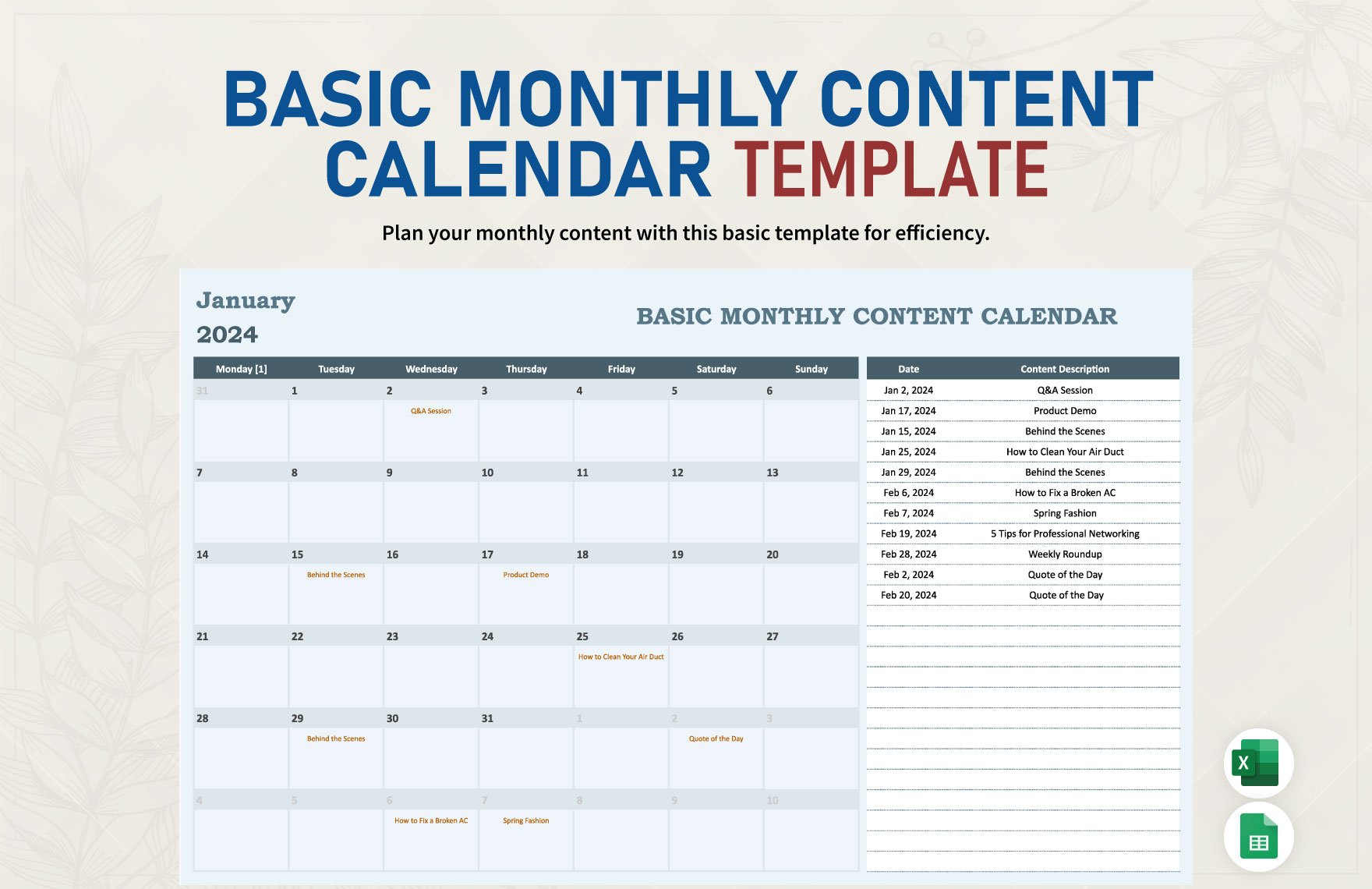
Getting Started with Your Content Calendar Template
Creating a content calendar template in Excel can seem daunting, but it's a straightforward process that can greatly benefit your content planning and organization. A content calendar is essential for managing and scheduling content across various platforms, ensuring consistency, and improving productivity. In this guide, we'll walk you through creating a basic yet effective content calendar template in Excel that you can use for free.
Understanding Your Content Calendar Needs
Before diving into Excel, it's crucial to understand what you need from your content calendar. Consider the types of content you'll be planning (blog posts, social media updates, videos, etc.), the frequency of posts, and the teams involved. This will help you determine the layout and features of your template. For example, a simple calendar might suffice for a small business, while a larger organization might require more detailed tracking of topics, keywords, and engagement metrics.
Setting Up Your Excel Template
- Open Excel and Create a New Workbook: Start with a blank workbook. You can choose from various templates, but for a content calendar, it's best to start from scratch.
- Define Your Columns: Common columns include:
Adjust these based on your needs.
Creating a Basic Content Calendar Template
For a simple content calendar, you can use Excel's built-in features like tables and conditional formatting to make your template both functional and visually appealing.
- Insert a Table: Select your data range and go to
Insert>Table. This helps in managing and filtering your data easily. - Use Conditional Formatting: Highlight cells based on status (e.g., green for published, yellow for draft) to quickly visualize your content's progress.
- Add a Dropdown for Content Types: Use
Data>Data Validationto create a dropdown menu for selecting content types, ensuring consistency.
Advanced Features for Your Content Calendar
To make your template more powerful:
- Integrate with Other Tools: If you're using tools like Google Calendar or Trello, consider integrating them with your Excel template for broader functionality.
- Use Excel Formulas: For example, you can use the
TODAY()function to highlight upcoming content or deadlines. - Macro for Automation: If you're comfortable with VBA, you can automate repetitive tasks, like formatting or data entry.
Tips for Effective Content Calendar Management
- Regularly Update Your Calendar: Make it a habit to update your calendar weekly or daily, depending on your content frequency.
- Collaborate with Your Team: Share your calendar with team members and encourage feedback.
- Review and Adjust: Periodically review your content strategy and adjust your calendar template as needed.
Comparison of Content Calendar Tools
| Tool | Cost | Features | Ease of Use |
|---|---|---|---|
| Excel | Free | Highly customizable, | Medium |
| Integrates with other tools | |||
| Google Sheets | Free | Collaborative, cloud-based | Easy |
| Trello | Freemium | Visual boards, integrations | Easy |
| Asana | Freemium | Task management, | Medium |
| reporting |
While there are many tools available for content calendar management, Excel remains a popular choice due to its flexibility and cost-effectiveness.
"The key to a successful content calendar isn't the tool you use, but how you use it. Consistency, collaboration, and a clear strategy are what truly drive results." - Content Marketing Expert
FAQs

Q: Can I use Excel for free?
Yes, you can use Excel for free through the web version, which offers basic functionality. For advanced features, consider purchasing a subscription.
Q: How do I share my Excel content calendar with my team?
You can share your Excel file via email or cloud storage services like OneDrive or Google Drive, ensuring your team has access and can collaborate.
Q: Can I import data from my content calendar into other tools?
Yes, most content calendar tools and Excel allow you to export data in formats like CSV or Excel, making it easy to share information across platforms.
Q: What are some common mistakes to avoid in content calendar planning?
Avoid overcommitting, not allowing enough time for content creation, and failing to adjust your strategy based on performance data.
Conclusion
Creating a content calendar template in Excel for free is a practical and effective way to manage your content strategy. With its customizable features and widespread availability, Excel provides a versatile tool for planning, organizing, and executing your content marketing efforts. By following this guide and tailoring your template to your needs, you'll be well on your way to enhancing your content planning process and achieving your marketing goals.
