
Getting Started with Free Time Management Templates in Excel
Effective time management is crucial for achieving goals, reducing stress, and improving work-life balance. One powerful tool that can help is Excel, with its vast array of templates designed to streamline time management tasks. In this guide, we'll explore how to find, use, and customize free time management templates in Excel to enhance your productivity.
Choosing the Right Template
With numerous templates available, selecting the one that best suits your needs can be daunting. Here are some popular free time management templates in Excel:
- Daily Schedule Template: Ideal for managing daily tasks and appointments.
- Weekly Schedule Template: Suitable for planning tasks over a week.
- Gantt Chart Template: Perfect for project management and tracking progress over time.
- Time Tracking Template: Great for logging how much time is spent on tasks.
When choosing a template, consider what you need to manage: daily routines, long-term projects, or specific tasks. Look for templates that are well-structured, easy to understand, and customizable.
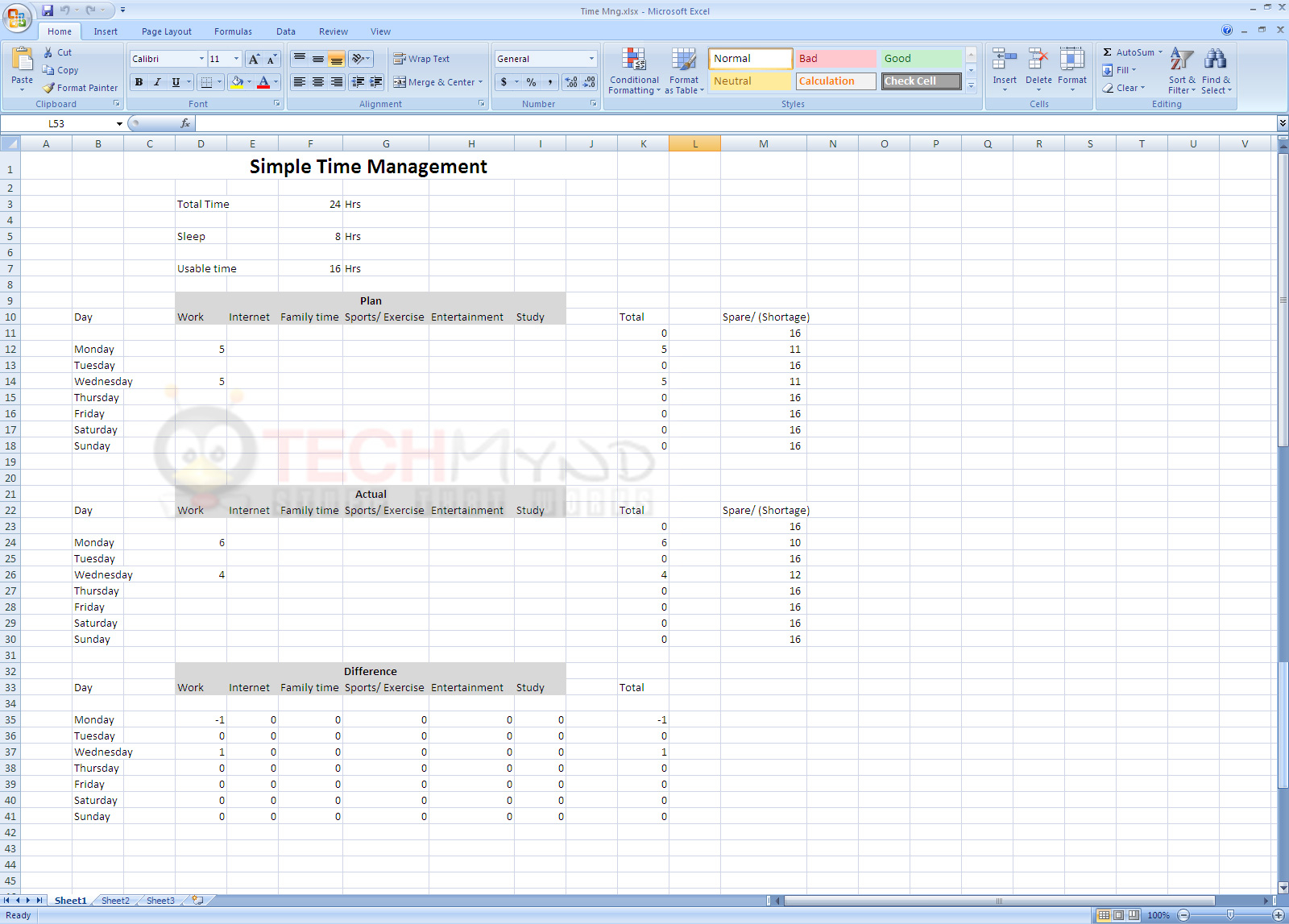
Customizing Your Template
Once you've selected a template, customize it to fit your specific needs. Here are steps to personalize your template:
- Identify Your Needs: Determine what you want to achieve with your template. Do you need to track time spent on tasks, or plan your daily schedule?
- Modify Categories and Labels: Change categories and labels to match your tasks and activities.
- Adjust Time Blocks: Modify time blocks to fit your schedule, whether it's in hours, days, or weeks.
- Add or Remove Sections: Include or exclude sections based on your requirements. For example, if you're using a project management template, you might need to add more task fields.

Using Your Template Effectively
To get the most out of your template, follow these best practices:
- Update Regularly: Keep your template up-to-date. Regular updates ensure that your schedule and task list reflect your current situation.
- Be Realistic: Set achievable goals and time allocations. Overestimating what you can do in a day can lead to disappointment and burnout.
- Review and Adjust: Regularly review your progress and adjust your template as needed. Life and work demands change, and your template should too.
Comparing Popular Time Management Templates
| Template Type | Best for | Features |
|---|---|---|
| Daily Schedule | Daily task management | Time slots, task lists |
| Weekly Schedule | Weekly planning | Day-wise task allocation |
| Gantt Chart | Project management | Timeline view, task dependency |
| Time Tracking | Time spent on tasks | Log entries, summary reports |
Insight: Overcoming Common Challenges
One common challenge with using templates is getting overwhelmed by too many features or feeling stuck with a template that doesn't quite fit. To overcome this:
- Start Simple: Begin with a basic template and gradually add complexity as you become more comfortable.
- Seek Inspiration: Look at how others use templates. YouTube tutorials, blogs, and forums can provide valuable insights.
Building Trust: Why Excel Templates Work
Excel templates have been a staple of productivity for years, and for good reason. They offer:
- Flexibility: Customize them to fit any need.
- Accessibility: Most people have access to Excel, making it easy to share and collaborate.
- Cost-Effectiveness: Many templates are free or low-cost, providing a high return on investment.
Frequently Asked Questions
Q: Can I use these templates for team projects?
Yes, many templates, especially Gantt charts and project management templates, are designed with team projects in mind. You can share the file with your team and collaborate in real-time.
Q: Are there any security concerns with using free templates?
Generally, free templates from reputable sources like Microsoft's official template gallery are safe. However, always ensure you're downloading from a trusted site to avoid malware.
Q: Can I use Excel templates on a Mac?
Yes, Excel for Mac supports most templates designed for Windows. However, some features might behave slightly differently.
Q: How do I make my template more visually appealing?
Use Excel's built-in formatting tools to change colors, fonts, and add borders. Visual appeal can make your template more engaging and easier to use.
Final Tips and Next Steps
To wrap up, the key to successful time management with Excel templates is to find a template that fits your needs, customize it to your workflow, and use it consistently. Experiment with different templates and features until you find what works best for you. With a little practice, you'll be managing your time more effectively and achieving your goals in no time.
Related: Best Online Course Platforms
