

The Weight of Junk Files
Computers, like homes, accumulate clutter over time. Junk files, temporary data, and forgotten downloads consume valuable storage space, slowing down your machine and making it harder to find what you need. If you're struggling with a sluggish computer, it might be time to clean house. In this article, we'll explore the why and how of junk file removal, helping you reclaim your computer's speed and efficiency.
Identifying the Culprits: What Are Junk Files?
Junk files are unnecessary data that accumulate on your computer, taking up space and resources. They can include:
Temporary files created by applications and the operating system
Cache files from web browsers and other programs
Log files and error reports
Unused or redundant data
Leftover files from uninstalled applications
These files may seem harmless, but they can add up quickly, consuming gigabytes of storage space and slowing down your computer.

Tools of the Trade: Built-in and Third-Party Options
Fortunately, cleaning out junk files is a relatively straightforward process. Your computer's operating system likely comes with built-in tools to help. For example:
Windows users can use the Disk Cleanup utility to remove temporary files, system files, and other items they don't need.
Mac users can use the Storage tab in About This Mac to identify large files and delete them.
However, for more thorough cleaning and advanced features, you may want to consider third-party tools like CCleaner, Glary Utilities, or BleachBit. These programs can:
Scan your computer for junk files and offer suggestions for removal
Automate the cleaning process
Provide detailed reports on storage usage and file types
When choosing a third-party tool, consider factors like user reviews, system compatibility, and the types of files you want to remove.
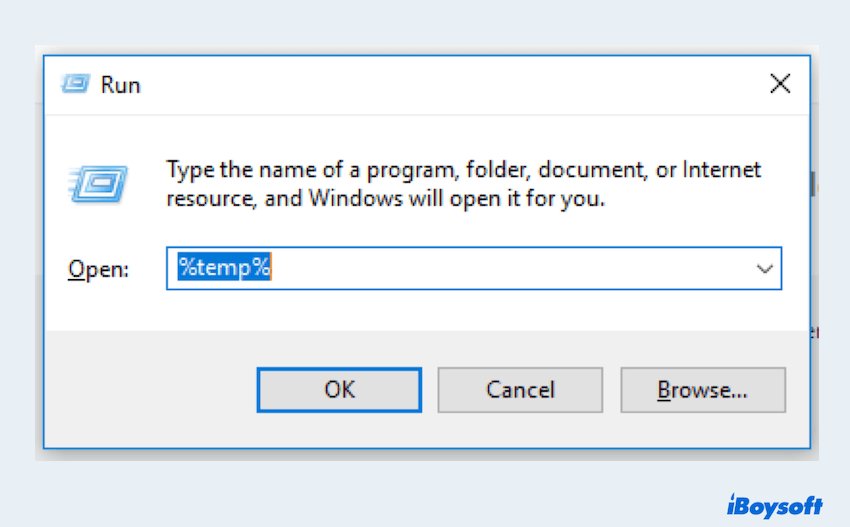
Step-by-Step Guide to Cleaning Your Computer
Ready to get started? Here's a practical guide to cleaning your computer:
- Backup your data: Before you begin, make sure to backup any important files or data to an external drive or cloud storage service.
- Use built-in tools: Start with your operating system's built-in cleanup tools, like Disk Cleanup on Windows or the Storage tab on Mac.
- Scan for junk files: Run a third-party tool, like CCleaner, to identify and remove junk files.
- Review and remove: Carefully review the files suggested for removal and delete them.
- Empty the Recycle Bin: Make sure to empty the Recycle Bin to permanently remove deleted files.
Tradeoffs and Considerations
When cleaning your computer, it's essential to consider the tradeoffs:
Speed vs. thoroughness: Built-in tools may be slower but are often safer, while third-party tools can be faster but may require more caution.
Automation vs. manual control: Automated tools can save time but may also remove files you want to keep.
Security vs. convenience: Removing junk files can improve security, but be cautious not to delete essential system files.
Building Trust: Best Practices for Regular Maintenance
Cleaning your computer of junk files is not a one-time task; it's an ongoing process. To keep your computer running smoothly:
Schedule regular cleanups: Set aside time each week or month to clean your computer.
Monitor storage space: Keep an eye on your storage usage and address issues before they become major problems.
Update your operating system and software: Regular updates often include performance improvements and security patches.
Frequently Asked Questions
Q: Will cleaning junk files harm my computer?
No, cleaning junk files will not harm your computer. In fact, it can improve performance, free up storage space, and enhance security.
Q: How often should I clean my computer?
It's a good idea to schedule regular cleanups, ideally every 1-3 months, depending on your usage.
Q: Can I use multiple cleanup tools?
While you can use multiple tools, be cautious not to over-clean or duplicate efforts. Stick to one or two trusted tools and review their suggestions carefully.
Q: What if I'm not tech-savvy?
Don't worry! Cleaning junk files is relatively straightforward. Follow the steps outlined above, and consider seeking help from a friend or professional if needed.
A Cleaner Computer Awaits
By understanding the importance of junk file removal and following the steps outlined in this article, you can:
Free up valuable storage space
Improve your computer's performance
- Enhance security and reduce the risk of data breaches
Take control of your computer's maintenance and enjoy a faster, more efficient machine.
