
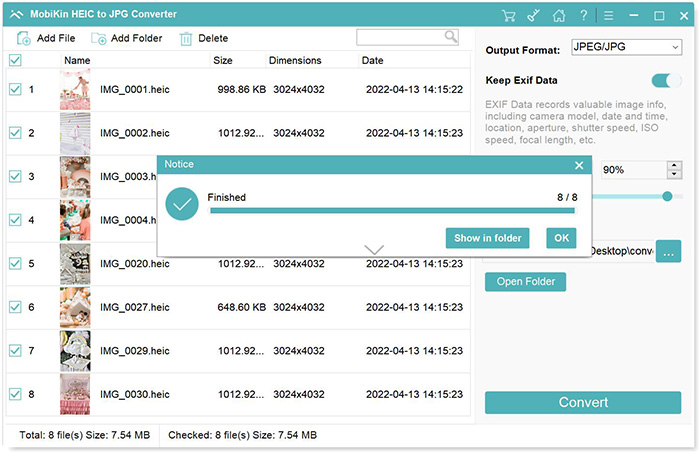
Converting HEIC files to JPG can be a daunting task, especially if you're concerned about losing image quality. With the rise of iOS 11, Apple introduced the High Efficiency Image Container (HEIC) format, which offers better compression and image quality. However, compatibility issues with certain devices and platforms have made it necessary to convert HEIC files to JPG.
Understanding HEIC and JPG Formats
Before diving into the conversion process, it's essential to understand the basics of both HEIC and JPG formats. HEIC is a container format that stores one or more images and is designed to reduce file sizes while maintaining image quality. On the other hand, JPG (or JPEG) is a widely used image format that uses lossy compression to reduce file sizes.
Key Differences Between HEIC and JPG
| <strong>Format</strong> | <strong>Compression</strong> | <strong>Image Quality</strong> | <strong>Compatibility</strong> |
|---|---|---|---|
| HEIC | Lossless | High | Limited |
| JPG | Lossy | Medium to High | Wide |
Why Convert HEIC to JPG?
There are several reasons why you might want to convert HEIC files to JPG:
Compatibility: JPG is a widely supported format, and converting HEIC files ensures they can be viewed and shared across various devices and platforms.
Web Optimization: Many websites and online platforms are optimized for JPG files, making it easier to upload and share images in this format.
Methods for Converting HEIC to JPG
There are several methods to convert HEIC files to JPG, including using online tools, desktop software, and mobile apps.
Online Tools
Online tools like Convertio, CloudConvert, and HEICtoJPG offer a quick and easy way to convert HEIC files to JPG. These tools are free, and you can upload your files directly to the website for conversion.
Pros: Convenient, easy to use, and no software installation required.
Cons: Limited control over conversion settings, and large files may take time to upload and process.
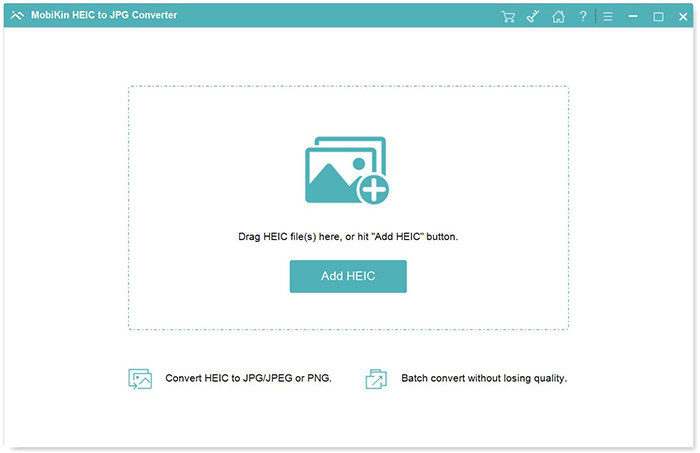
Desktop Software
Desktop software like Adobe Photoshop, GIMP, and IrfanView offer more control over the conversion process. You can adjust settings like image quality, resolution, and color depth to achieve the desired output.
Pros: Offers advanced features and control over conversion settings.
Cons: Requires software installation, and may have a learning curve.
Mobile Apps
Mobile apps like HEIC Converter, iMazing HEIC Converter, and Image Converter offer a convenient way to convert HEIC files on your iOS or Android device.
Pros: Portable, easy to use, and convenient for on-the-go conversions.
Cons: Limited control over conversion settings, and may have in-app purchases or ads.
Step-by-Step Conversion Guide
Here's a step-by-step guide using an online tool:
- Choose an Online Tool: Select a reputable online tool like Convertio or CloudConvert.
- Upload Your File: Upload your HEIC file to the website.
- Select Conversion Settings: Choose JPG as the output format and adjust settings like image quality and resolution if needed.
- Convert and Download: Click the convert button and wait for the process to complete. Download your converted JPG file.
Tips for Quality Retention
To ensure quality retention during conversion:
Use High-Quality Sources: Start with high-quality HEIC files to ensure the best possible output.
Adjust Conversion Settings: Adjust conversion settings like image quality and resolution to achieve the desired output.
Use Reputable Tools: Use reputable tools and software to minimize the risk of quality loss.
Common Mistakes to Avoid
When converting HEIC files to JPG:
Avoid Over-Compression: Avoid over-compressing your images, as this can lead to quality loss.
- Don't Use Low-Quality Tools: Avoid using low-quality tools or software that may compromise image quality.
Frequently Asked Questions
Q: What is the best way to convert HEIC to JPG without losing quality?
The best way to convert HEIC to JPG without losing quality is to use a reputable online tool or desktop software that offers advanced features and control over conversion settings.
Q: Can I convert HEIC files to JPG on my iPhone?
Yes, you can convert HEIC files to JPG on your iPhone using mobile apps like HEIC Converter or iMazing HEIC Converter.
Q: Is it possible to convert multiple HEIC files to JPG at once?
Yes, many online tools and desktop software offer batch conversion features that allow you to convert multiple HEIC files to JPG at once.
Q: Will converting HEIC to JPG reduce image quality?
Converting HEIC to JPG may reduce image quality if you're not using the right tools or settings. However, using a reputable tool and adjusting conversion settings can help minimize quality loss.
Conclusion
Converting HEIC files to JPG without losing quality requires the right tools and techniques. By understanding the basics of both formats, choosing the right conversion method, and following tips for quality retention, you can achieve seamless conversion and maintain image quality. Whether you're a professional photographer or a casual user, this guide has provided you with the knowledge and confidence to convert HEIC files to JPG with ease.
Related: A Practical Guide to Moving Apps to SD Card Easily
Related: should i unfollow someone after argument
Related: What to Know About Free Online Design Tools for Non
