
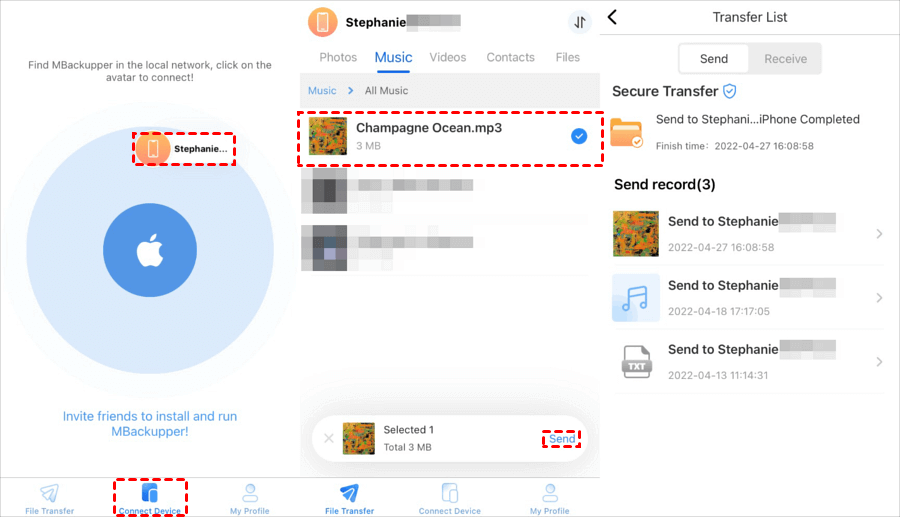
Transferring files from your phone to your PC can be a frustrating experience, especially when you're in a hurry. We've all been there - you're on a deadline, and you need to get a file from your phone to your PC, but you're not sure how to do it quickly and easily. In this article, we'll explore the best methods for fast file transfer, including cable, wireless, and cloud options.
Cable Transfer: The Classic Approach
One of the most straightforward ways to transfer files from your phone to your PC is using a cable. This method is reliable and fast, but it does require a few minutes of setup. Here's how to do it:
Connect your phone to your PC using a USB cable.
On your phone, select the file you want to transfer and choose the "Share" or "Send" option.
Select "USB" or "File Transfer" as the transfer method.
On your PC, your phone should appear as a connected device. Open it and navigate to the file you want to transfer.
Drag and drop the file into a folder on your PC.
This method is fast and easy, but it does require a cable. If you're always on the go, you might not always have a cable handy.
Wireless Transfer: Cutting the Cord
Wireless transfer is a convenient option for those who don't want to deal with cables. There are several wireless transfer methods available, including Bluetooth, Wi-Fi Direct, and wireless file transfer apps.
Bluetooth Transfer
Bluetooth transfer is a simple and widely available option. Here's how to do it:
Make sure Bluetooth is enabled on both your phone and PC.
On your phone, select the file you want to transfer and choose the "Share" or "Send" option.
Select "Bluetooth" as the transfer method.
Search for available devices and select your PC.
On your PC, accept the file transfer request.
Bluetooth transfer is easy, but it can be slow. Transfer speeds are typically limited to around 1-2 Mbps.
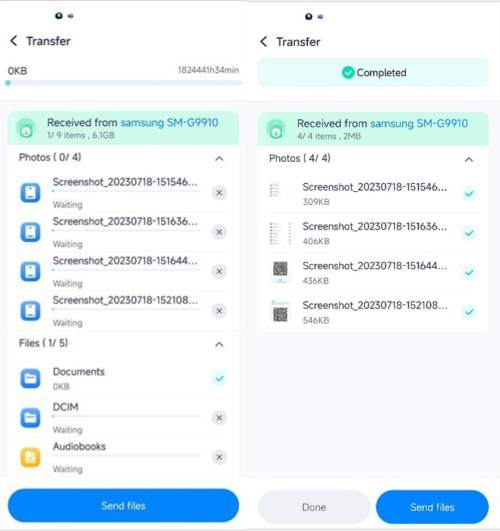
Wi-Fi Direct Transfer
Wi-Fi Direct is a faster wireless transfer option. Here's how to do it:
Make sure Wi-Fi Direct is enabled on both your phone and PC.
On your phone, select the file you want to transfer and choose the "Share" or "Send" option.
Select "Wi-Fi Direct" as the transfer method.
Search for available devices and select your PC.
On your PC, accept the file transfer request.
Wi-Fi Direct transfer speeds are much faster than Bluetooth, typically reaching up to 100 Mbps.
Wireless File Transfer Apps
There are several wireless file transfer apps available, including AirDroid, Pushbullet, and SHAREit. These apps allow you to transfer files between your phone and PC using a wireless connection.
Here's a comparison table:
| App | Transfer Speed | Features |
|---|---|---|
| AirDroid | Up to 10 Mbps | File transfer, remote access, messaging |
| Pushbullet | Up to 5 Mbps | File transfer, notification sync, messaging |
| SHAREit | Up to 20 Mbps | File transfer, cross-platform compatibility |
These apps are convenient and easy to use, but they do require an internet connection.
Cloud Storage: The Convenient Option
Cloud storage is a great option for those who want to transfer files between devices without the hassle of cables or wireless connections. Services like Google Drive, Dropbox, and OneDrive allow you to store files in the cloud and access them from any device.
Here's how to use cloud storage for file transfer:
Upload the file to your cloud storage service from your phone.
On your PC, log in to your cloud storage service and download the file.
Cloud storage is convenient, but it does require an internet connection. Transfer speeds depend on your internet connection speed.
Security and Reliability
When transferring files, security and reliability are top priorities. Here are some tips to keep in mind:
Always use a secure connection, whether it's a cable or wireless transfer.
Make sure your devices are updated with the latest software and security patches.
Use antivirus software to scan files for malware.
Practical Tips and Tricks
Here are some practical tips and tricks to help you transfer files faster:
Use a high-quality cable for cable transfer.
Make sure your devices are close together for wireless transfer.
- Use a cloud storage service with a fast upload and download speed.
Frequently Asked Questions
Q: How can I transfer files from my Android phone to my PC?
You can transfer files from your Android phone to your PC using a USB cable, wireless transfer apps, or cloud storage services.
Q: What is the fastest way to transfer files from my iPhone to my PC?
The fastest way to transfer files from your iPhone to your PC is using a cable or wireless transfer apps like AirDroid or Pushbullet.
Q: Can I transfer files between my phone and PC without an internet connection?
Yes, you can transfer files between your phone and PC without an internet connection using a cable or wireless transfer methods like Bluetooth or Wi-Fi Direct.
Q: How do I transfer large files from my phone to my PC?
You can transfer large files from your phone to your PC using cloud storage services like Google Drive, Dropbox, or OneDrive.
Final Tips
Transferring files from your phone to your PC doesn't have to be a hassle. With the right method and a few practical tips, you can transfer files quickly and easily. Whether you prefer a cable, wireless transfer, or cloud storage, there's a solution that suits your needs. Take control of your file transfer process today and say goodbye to frustrating transfers.
