
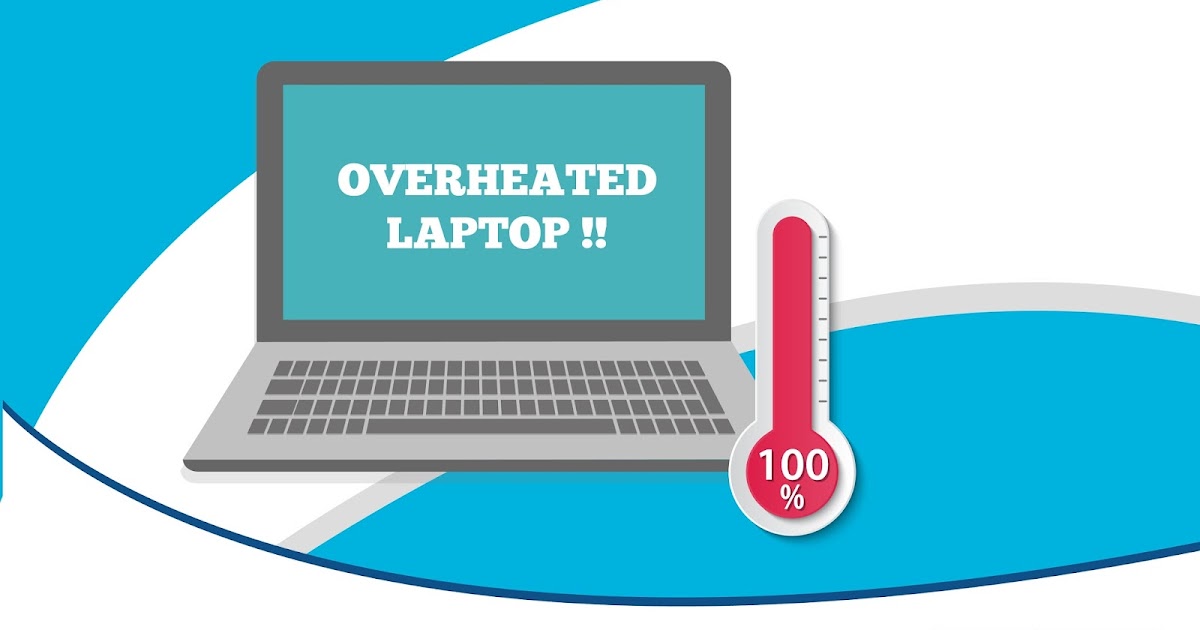
Laptop overheating is a common issue that can cause damage to your device, slow down its performance, and even lead to complete system failure. If you're experiencing overheating issues with your laptop, you're not alone. In this article, we'll explore the causes of laptop overheating, its symptoms, and most importantly, provide you with quick and effective solutions to fix the problem.
Understanding Laptop Overheating
Laptop overheating occurs when the device's internal temperature rises to abnormal levels, causing the laptop to shut down or slow down. This can happen due to a variety of reasons, including dust buildup, malfunctioning fans, and poorly designed laptop cooling systems.
What Causes Laptop Overheating?
There are several reasons why laptops overheat. Some of the most common causes include:
Dust buildup in the laptop's vents and fans
Malfunctioning or worn-out fans
Poorly designed laptop cooling systems
High-performance activities such as gaming or video editing
Blocked air vents or obstructed airflow
Old or outdated laptop hardware
Symptoms of Laptop Overheating
If your laptop is overheating, you may notice some of the following symptoms:
Sudden shutdowns or restarts
Slow performance or lag
Overheating warning messages
Noisy fans or loud whirring sounds
Hot or warm laptop exterior
Quick Fixes for Laptop Overheating
Fortunately, there are several quick and effective solutions to fix laptop overheating. Here are some DIY fixes to help you get started:
Cleaning Dust from Laptop Vents and Fans
One of the most common causes of laptop overheating is dust buildup in the vents and fans. Cleaning out the dust can help improve airflow and reduce the temperature. Here's how to do it:
- Turn off your laptop and unplug it from the power source.
- Locate the vents and fans on your laptop. You can usually find them on the bottom or sides of the device.
- Use compressed air to blow out the dust and debris from the vents and fans.
- Use a soft brush or a cotton swab to gently clean out any stubborn dust particles.
Improving Airflow
Improving airflow around your laptop can help reduce the temperature. Here are some tips to help you improve airflow:
Place your laptop on a flat and stable surface.
Keep your laptop away from obstructions such as books, papers, or clothing.
Use a laptop stand or riser to elevate the device and improve airflow.
Updating Laptop Drivers and BIOS
Outdated drivers and BIOS can cause laptop overheating. Here's how to update them:
- Check your laptop manufacturer's website for updates.
- Download and install the latest drivers and BIOS.
- Restart your laptop and test if the overheating issue persists.
Using Cooling Pads or External Fans
Cooling pads or external fans can help reduce laptop temperature. Here are some options:
Cooling pads: These are flat pads with built-in fans that you can place under your laptop.
External fans: These are separate fans that you can connect to your laptop via USB.
Advanced Solutions for Laptop Overheating
If the quick fixes don't work, you may need to consider more advanced solutions. Here are some options:
Replacing Thermal Paste
Thermal paste is a substance that helps dissipate heat from the laptop's processor to the heat sink. If the thermal paste is old or dried out, it can cause overheating. Here's how to replace it:
- Check your laptop's manual or online documentation to see if replacing thermal paste is recommended.
- Purchase a thermal paste replacement kit.
- Follow the manufacturer's instructions to replace the thermal paste.
Upgrading Laptop Hardware
Upgrading your laptop's hardware can help improve performance and reduce overheating. Here are some options:
Upgrading to a newer processor or graphics card.
Adding more RAM or storage.
Prevention is the Best Cure
Preventing laptop overheating is always better than fixing it. Here are some tips to help you prevent overheating:
Regularly clean out dust from the vents and fans.
Use a laptop stand or riser to improve airflow.
Avoid blocking air vents or obstructing airflow.
Keep your laptop's software and drivers up to date.
Laptop Overheating Comparison: Causes and Solutions
| Cause | Solution |
|---|---|
| Dust buildup | Clean out dust from vents and fans |
| Malfunctioning fans | Replace fans or use external fans |
| Poorly designed cooling systems | Use cooling pads or external fans |
| High-performance activities | Use a laptop stand or riser to improve airflow |
Laptop Overheating FAQs
Why is my laptop overheating?
Laptop overheating can occur due to a variety of reasons, including dust buildup, malfunctioning fans, and poorly designed laptop cooling systems.
How can I fix laptop overheating?
You can fix laptop overheating by cleaning out dust from the vents and fans, improving airflow, updating drivers and BIOS, and using cooling pads or external fans.
Can I use a laptop cooling pad to fix overheating?
Yes, laptop cooling pads can help reduce laptop temperature by providing additional airflow.
How can I prevent laptop overheating?
You can prevent laptop overheating by regularly cleaning out dust from the vents and fans, using a laptop stand or riser to improve airflow, and keeping your laptop's software and drivers up to date.
Final Check
Fixing laptop overheating requires patience, persistence, and the right techniques. By understanding the causes of overheating and using the solutions outlined in this article, you can keep your laptop running smoothly and prevent damage. Remember to always prioritize prevention and take proactive steps to maintain your laptop's health. With these tips and tricks, you'll be well on your way to becoming a laptop overheating expert.
Related: free email marketing for beginners
Related: Free Budget Planner Template: What Actually Makes Sense?
