

The Duplicate Photo Problem
We've all been there - scrolling through our phone's photo gallery, only to come across multiple copies of the same picture. It's frustrating, especially when you know that storage space could be better used elsewhere. Duplicate photos can accumulate quickly, whether it's from accidental camera snaps, forwarded images, or poorly synced cloud backups. The good news is that removing them is easier than you think.
Finding Duplicates: The Manual Approach
Before we dive into automated solutions, let's consider the manual approach. This method involves scrolling through your gallery, identifying duplicates, and deleting them one by one. While this approach works, it's time-consuming and often impractical, especially if you have thousands of photos on your phone.
Automated Solutions: The Smarter Way
Luckily, there are several automated solutions that can help you identify and remove duplicate photos quickly. One popular option is to use a dedicated duplicate photo finder app. These apps use algorithms to scan your phone's storage, identifying similar or identical images. Some popular options include:
Google Photos (which has a built-in feature to automatically group similar photos)
Duplicate Cleaner
Photo Duplicate Remover
How Duplicate Photo Finder Apps Work
Duplicate photo finder apps typically work by analyzing the visual characteristics of each image on your phone. This can include factors such as:
EXIF data (metadata like camera settings and timestamp)
Image hash (a unique digital fingerprint of the image)
Visual similarity (detecting similar but not identical images)
By analyzing these factors, these apps can accurately identify duplicate photos and provide you with options for removal.
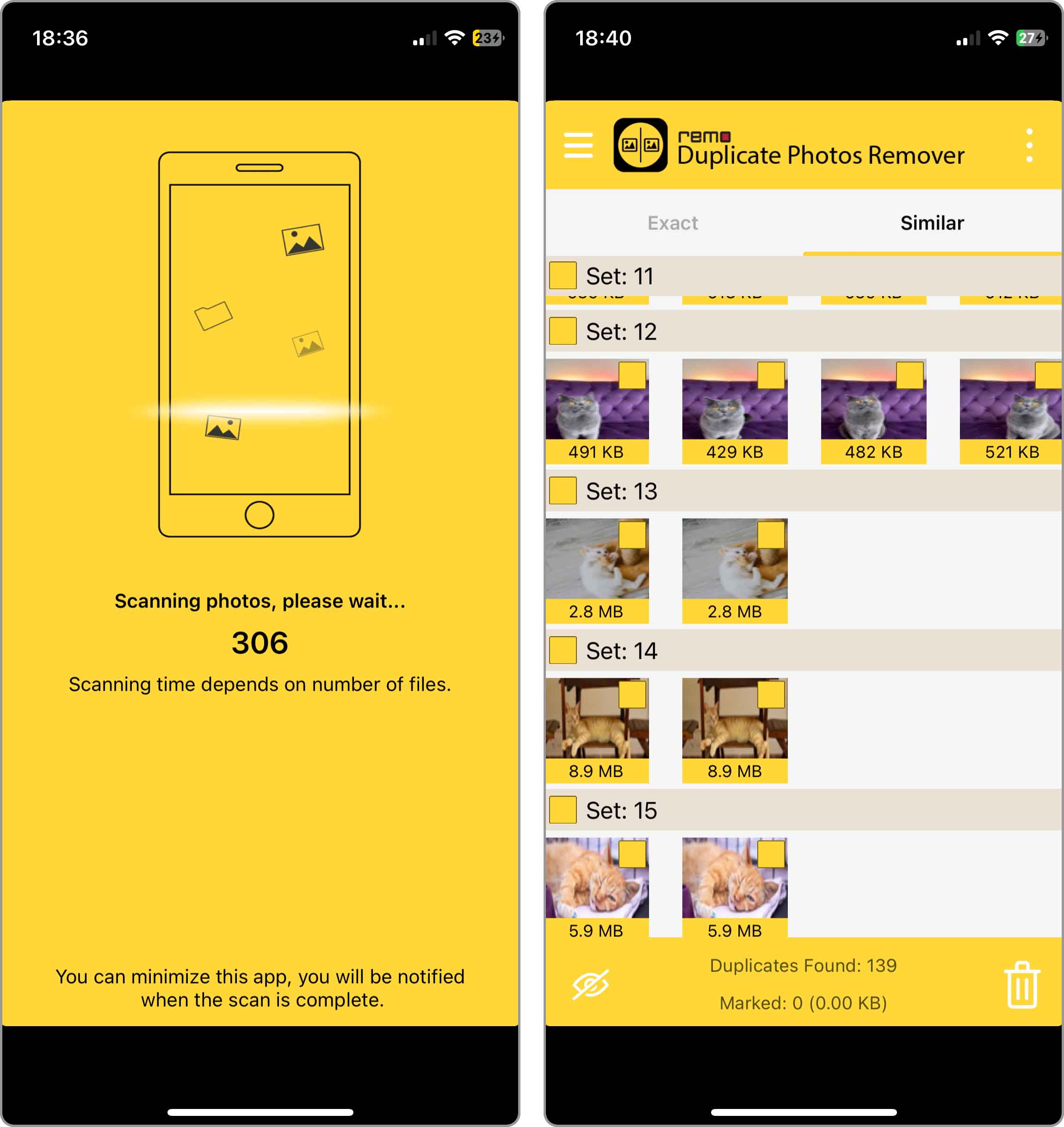
A Step-by-Step Guide to Removing Duplicates with Google Photos
Google Photos is a popular choice for managing and organizing photos on Android devices. Here's a step-by-step guide on how to use it to remove duplicate photos:
- Open Google Photos: Launch the Google Photos app on your Android device.
- Access the "Clean up" feature: Tap on the "Library" tab, then select "Clean up" from the top menu.
- Review suggested duplicates: Google Photos will automatically suggest duplicates for removal. Review the suggestions and select the ones you want to delete.
- Delete duplicates: Tap on the "Delete" button to remove the selected duplicates.
Comparison of Duplicate Photo Finder Apps
| App | Features | Platforms | Pricing |
|---|---|---|---|
| Google Photos | Automatic grouping of similar photos, unlimited storage (compressed), intuitive interface | Android, iOS | Free |
| Duplicate Cleaner | Advanced algorithms, flexible filtering options, support for multiple formats | Android | Free, with in-app purchases |
| Photo Duplicate Remover | Fast scanning, automatic deletion, support for cloud storage | Android, iOS | Free, with in-app purchases |
What to Consider When Choosing a Duplicate Photo Finder App
When selecting a duplicate photo finder app, consider the following factors:
Ease of use: Choose an app with an intuitive interface that's easy to navigate.
Accuracy: Opt for an app with advanced algorithms that can accurately identify duplicates.
Platform support: Select an app that supports your device's operating system.
Additional features: Consider apps that offer additional features, such as automatic organization or cloud storage integration.
The Benefits of Regular Digital Decluttering
Removing duplicate photos is just one aspect of digital decluttering. Regularly cleaning up your phone's storage can have several benefits, including:
Improved performance: A clutter-free phone can run more smoothly and efficiently.
Increased storage space: Deleting unnecessary files and duplicates can free up valuable storage space.
Reduced stress: A organized digital life can reduce stress and make it easier to find what you need.
Maintaining a Duplicate-Free Photo Gallery
To maintain a duplicate-free photo gallery, consider implementing the following habits:
Regularly review and delete duplicates: Set aside time each month to review and delete duplicates.
Use cloud storage: Consider using cloud storage services like Google Drive or iCloud to store and access your photos.
Use a consistent naming convention: Use a consistent naming convention for your photos to avoid duplicates.
Frequently Asked Questions
Q: Can I recover deleted photos?
Yes, most phones have a recycle bin or trash folder where deleted photos are stored temporarily. Check your phone's settings to see if this feature is available.
Q: Will deleting duplicates affect my phone's storage space?
Yes, deleting duplicates can free up storage space on your phone. However, the impact will depend on the number and size of the duplicates.
Q: Can I use multiple duplicate photo finder apps?
Yes, you can use multiple apps to find and remove duplicates. However, be cautious not to delete important photos.
Q: How can I prevent duplicates from accumulating in the future?
To prevent duplicates, consider using a consistent naming convention, avoiding accidental camera snaps, and regularly reviewing and deleting duplicates.
Final Tips and Best Practices
Removing duplicate photos is just the first step towards a more organized digital life. Here are some final tips and best practices to keep in mind:
Regularly back up your photos: Consider using cloud storage services or external hard drives to back up your photos.
Use a photo management app: Consider using a photo management app like Google Photos or Adobe Lightroom to organize and edit your photos.
- Be mindful of storage space: Regularly review your phone's storage space and delete unnecessary files to maintain performance.
By following these tips and best practices, you can maintain a duplicate-free photo gallery and enjoy a more organized digital life.
Related: Taking Control of Your Spending Habits for a Healthier
