
Why You Need a Content Calendar Template in Excel
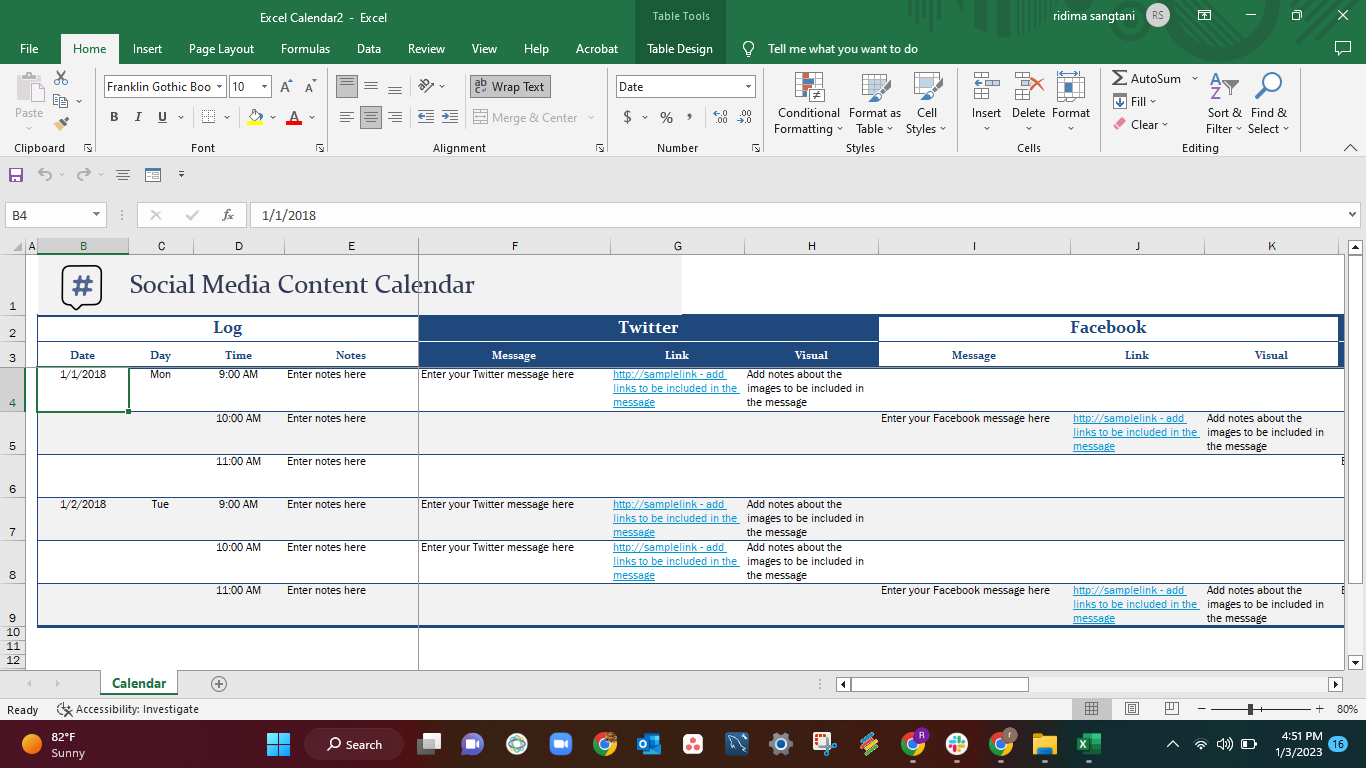
As a content creator or marketer, you understand the importance of planning and organization. A content calendar is an essential tool to help you manage your content strategy, ensure consistency, and improve team collaboration. But, why use a template in Excel? For one, Excel is a widely accessible and familiar tool, making it easy to share and collaborate with team members. Additionally, a template provides a structured framework to help you get started quickly, saving you time and effort.
Setting Up Your Content Calendar Template in Excel
To create a content calendar template in Excel, start by setting up a new spreadsheet. You can use a blank template or modify an existing one to suit your needs. Consider the following columns:
Date
Content Type (e.g., blog post, social media, video)
Topic
Author
Status (e.g., draft, review, published)
Channels (e.g., website, social media, email)
You can add or remove columns as needed to fit your specific content strategy.
Benefits of Using a Content Calendar Template in Excel
Using a content calendar template in Excel offers several benefits:
Improved planning and organization: A content calendar helps you plan and schedule content in advance, ensuring consistency and reducing last-minute scrambles.
Enhanced team collaboration: A shared template in Excel enables team members to access and update the calendar, promoting collaboration and reducing misunderstandings.
Increased productivity: By streamlining your content planning process, you can focus on creating high-quality content and achieving your marketing goals.
Creating a Content Calendar Template in Excel: A Step-by-Step Guide
Here's a step-by-step guide to creating a basic content calendar template in Excel:
- Open a new Excel spreadsheet and give it a title, such as "Content Calendar."
- Create columns for the following information: Date, Content Type, Topic, Author, Status, and Channels.
- Set up a format for each column, such as date, text, or dropdown menus.
- Create a header row with column titles and freeze it for easy reference.
- Add a few sample rows to test your template and make adjustments as needed.
Tips and Variations for Your Content Calendar Template
Consider the following tips and variations to customize your content calendar template:
Add a notes column: Include a column for notes or comments to provide additional context for each piece of content.
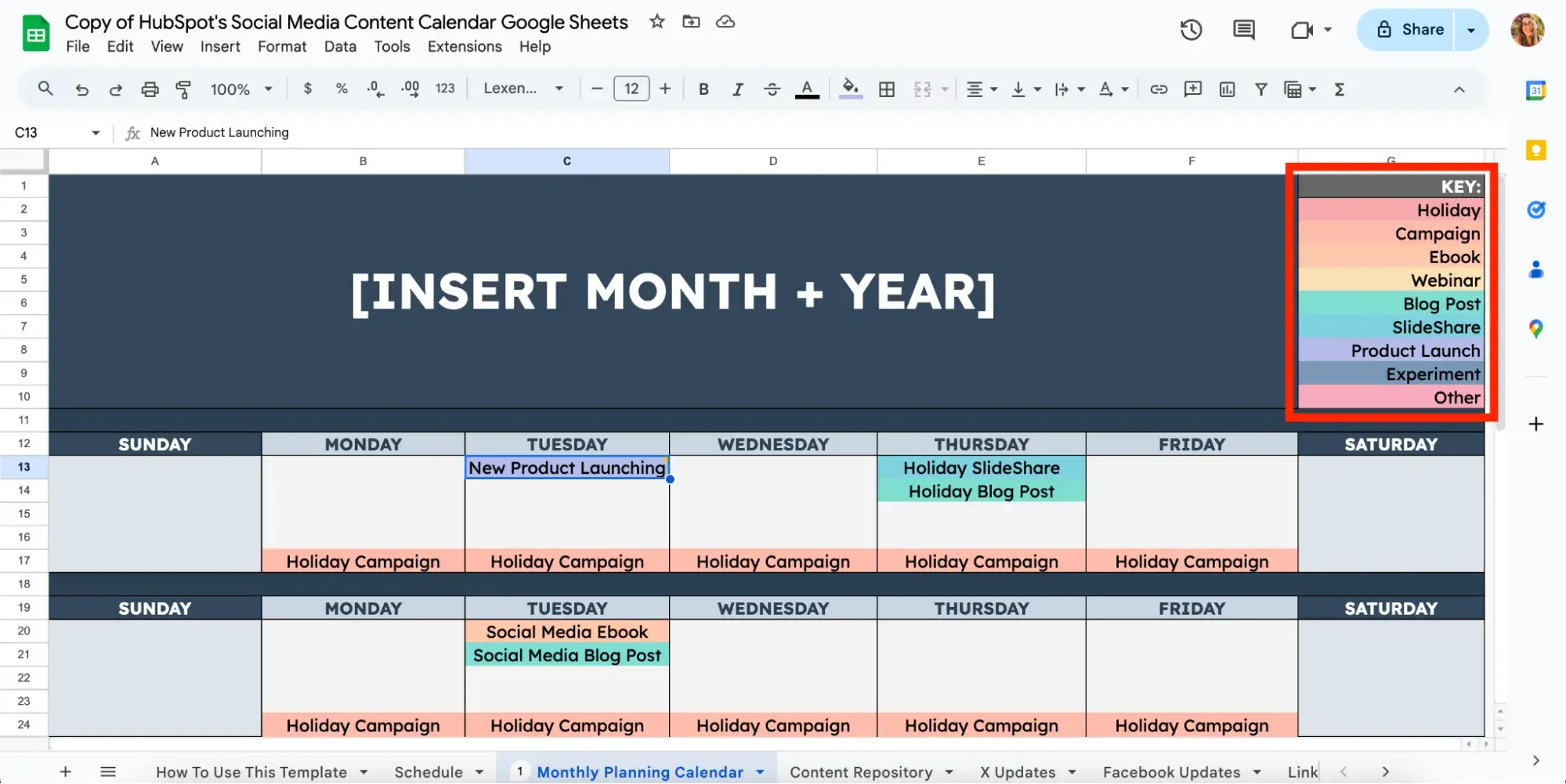
Use conditional formatting: Apply conditional formatting to highlight important information, such as upcoming deadlines or published content.
Create a dropdown menu: Use a dropdown menu to select content types, authors, or channels, making it easier to standardize your entries.
Integrate with other tools: Consider integrating your content calendar with other tools, such as project management software or social media scheduling platforms.
Comparison of Content Calendar Tools
While Excel is a popular choice for creating a content calendar, other tools are available. Here's a brief comparison:
| Tool | Ease of Use | Collaboration Features | Cost |
|---|---|---|---|
| Excel | High | Medium | Low |
| Google Sheets | High | High | Free |
| Trello | Medium | High | Free-$12.50/month |
| Asana | Medium | High | $9.99-$24.99/month |
Common Mistakes to Avoid When Creating a Content Calendar
When creating a content calendar, avoid the following common mistakes:
Not setting clear goals: Failing to define your content strategy and goals can lead to a disorganized calendar.
Not involving team members: Failing to involve team members in the planning process can lead to misunderstandings and missed deadlines.
Not updating regularly: Failing to regularly update the calendar can lead to outdated information and decreased effectiveness.
FAQs
Here are some frequently asked questions about content calendar templates in Excel:
Q: What is a content calendar template in Excel?
A content calendar template in Excel is a pre-designed spreadsheet that helps you plan, organize, and schedule content.
Q: How do I create a content calendar template in Excel?
To create a content calendar template in Excel, start by setting up a new spreadsheet and adding columns for relevant information, such as date, content type, topic, author, and status.
Q: What are the benefits of using a content calendar template in Excel?
The benefits of using a content calendar template in Excel include improved planning and organization, enhanced team collaboration, and increased productivity.
Q: Can I customize my content calendar template in Excel?
Yes, you can customize your content calendar template in Excel by adding or removing columns, using conditional formatting, and integrating with other tools.
Conclusion
A content calendar template in Excel is a powerful tool to help you streamline your content planning, improve team collaboration, and boost productivity. By following the steps outlined in this article, you can create a customized template that meets your specific needs. Remember to avoid common mistakes, such as not setting clear goals or not updating the calendar regularly. With a well-designed content calendar template in Excel, you'll be well on your way to achieving your marketing goals.
