
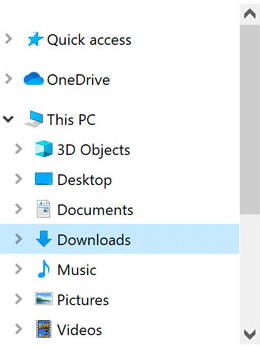
The Downloads Folder Dilemma
You've probably found yourself scrolling through a sea of random files in your downloads folder, wondering what that one document from last year is still lurking there. The downloads folder, a default destination for files from the internet, can quickly become a digital black hole where files disappear, making it hard to find what you need when you need it. But with a few simple strategies, you can turn this chaotic space into a well-organized hub that actually helps you.
Understanding Your Downloads Folder
The downloads folder is where your browser saves files by default. It's convenient, but without regular maintenance, it can become a cluttered mess. Files from various sources—documents, images, videos, and executables—accumulate, making it difficult to locate specific items. This digital disarray not only wastes time but also poses a risk if your computer is accessed by others or if you're working on a shared device.
Setting Up a Downloads Folder Workflow
To manage your downloads folder efficiently, you need a workflow that works for you. Here are steps to get you started:
- Review and Purge: Begin by reviewing the contents of your downloads folder. Delete any files that are clearly unnecessary. This could include outdated documents, irrelevant images, or installation files for software you've long since removed.
- Categorize: Create folders within your downloads folder to categorize files. Common categories might include:
- Utilize Your Browser’s Built-in Features: Many browsers allow you to choose where to save downloads or even prompt you for a location each time. Use these features to direct files to specific folders immediately.

Streamlining Your Downloads
Streamlining your downloads involves making conscious decisions about what you save and where you save it. Here are a few tips:
- Direct Save: When downloading, consider where the file will be most useful. If it's a work document, save it directly to your work folder rather than the downloads folder.
- Use Cloud Storage: Consider using cloud storage services (like Google Drive, Dropbox, or OneDrive) for files you need to access frequently or from multiple devices. This can reduce the clutter in your downloads folder.
- Bookmark Important Files: If you find yourself frequently accessing certain files, bookmark them in your file explorer or create shortcuts on your desktop.
Maintenance is Key
Maintaining your downloads folder requires regular check-ins. Set aside time each week or month to:
- Review new downloads and move them to their designated folders.
- Delete unnecessary files.
- Organize and tidy up.
Comparison: Manual vs. Automated Tools
When it comes to managing your downloads folder, you have two main options: manual management or using automated tools.
| <strong>Method</strong> | <strong>Pros</strong> | <strong>Cons</strong> |
|---|---|---|
| Manual | Control, flexibility, no additional cost | Time-consuming, requires discipline |
| Automated | Saves time, can integrate with existing workflows, often customizable | May require subscription or one-time fee, learning curve |
Automated tools can help by automatically sorting files into designated folders based on file type or other criteria. However, for those on a tight budget or who prefer a hands-on approach, manual management is also effective.
Trusting Your Instincts
The key to efficiently managing your downloads folder is to find a system that you trust and stick to it. Over time, you'll develop a workflow that minimizes clutter and maximizes productivity. Here are a few final tips:
- Consistency is Crucial: Try to download files to their final destination rather than the downloads folder whenever possible.
- Regular Reviews: Make it a habit to regularly review and clean out your downloads folder.
- Backup Important Files: Consider backing up your important files to an external drive or cloud storage to ensure they're safe.
Frequently Asked Questions
Q: How often should I clean out my downloads folder?
It's a good idea to review and clean out your downloads folder at least once a month. However, if you frequently download files, you might need to do it more often.
Q: Can I automate the organization of my downloads folder?
Yes, there are several tools and software available that can automatically sort and organize files in your downloads folder based on file type, date, or other criteria.
Q: What if I accidentally delete a file from my downloads folder?
If you're using a computer, check the recycle bin first. If the file is there, you can easily restore it. For files that are not in the recycle bin, you might need to use file recovery software.
Q: Is it safe to store sensitive files in my downloads folder?
It's generally not recommended to store sensitive files in your downloads folder, especially if others have access to your computer. Consider moving such files to a secure, password-protected folder or encrypting them.
Closing
Managing your downloads folder efficiently is a simple yet impactful way to boost your digital organization and productivity. By implementing a straightforward workflow, regularly maintaining your folder, and leveraging tools when necessary, you can keep your digital life tidy and stress-free. The goal is to create a system that works seamlessly with your habits, ensuring that your downloads folder remains a useful tool rather than a source of digital overwhelm.
Related: Crafting the Perfect Username: Aesthetic Short Name Ideas
Related: 5 Useful Things to Know About Fixing USB Not Recognized
