
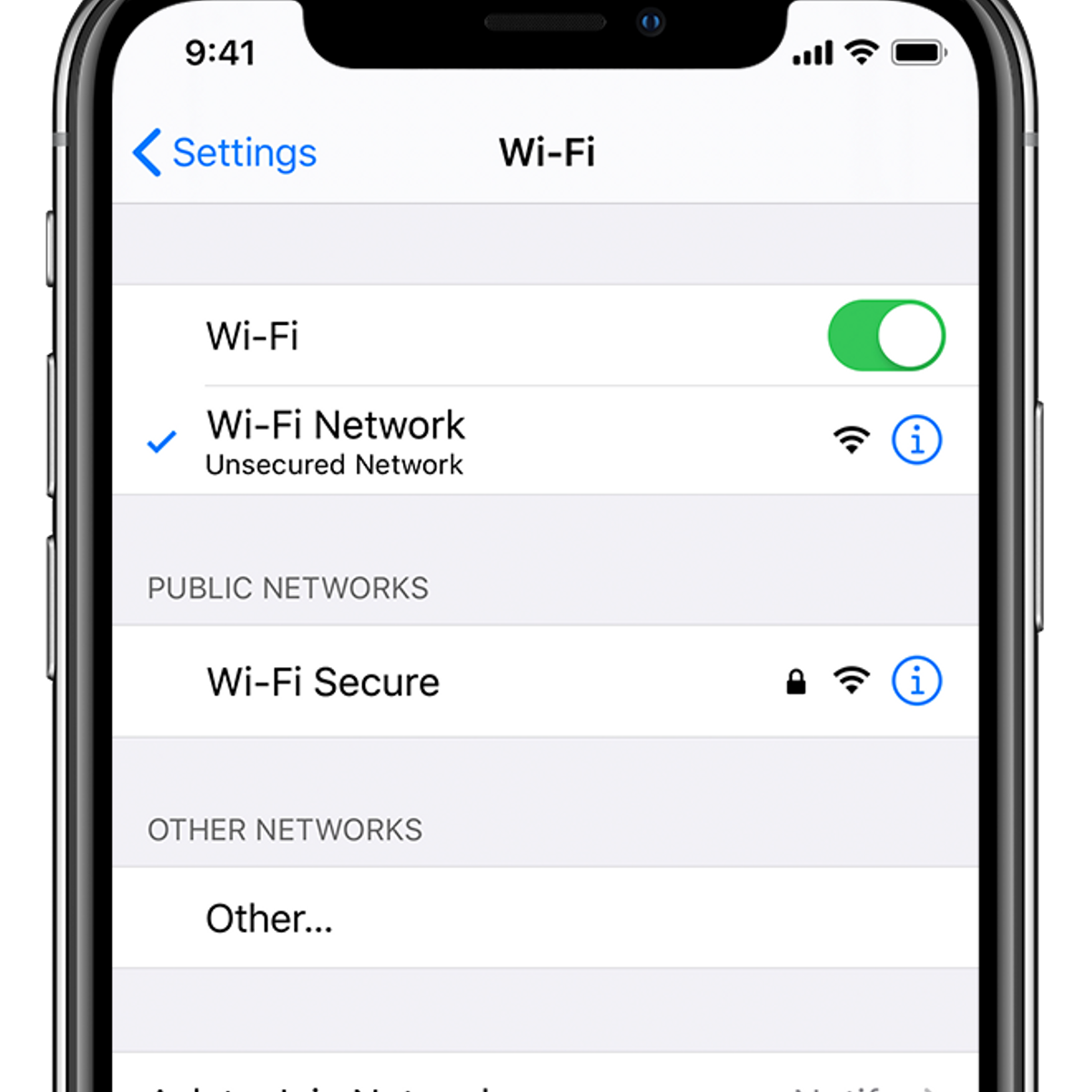
The Unstable Connection Conundrum
We've all been there - your phone suddenly stops connecting to WiFi, leaving you scrambling to figure out what's causing the issue. You're not alone. In today's digitally driven lives, a stable internet connection is more crucial than ever. When your phone refuses to connect to WiFi, it can disrupt your entire workflow, communication, and even entertainment.
Common Causes: More Than Meets the Eye
At first glance, a phone not connecting to WiFi might seem like a straightforward issue. However, there are numerous potential causes, ranging from simple misconfigurations to more complex hardware problems. Here are some common culprits:
- Incorrect WiFi password: This might seem obvious, but it's easy to overlook or misremember the password, especially if you've recently changed it.
- Distance from the router: Physical obstructions and distance can significantly impact signal strength and stability.
- Network congestion: Too many devices connected to the same network can slow down or disrupt your connection.
- Router issues: Outdated firmware, incorrect settings, or hardware malfunctions can prevent your phone from connecting.
- Phone software issues: Bugs, outdated operating systems, or conflicting apps can interfere with your phone's ability to connect to WiFi.
A Step-by-Step Troubleshooting Guide
Given the numerous potential causes, a systematic approach to troubleshooting is essential. Here's a step-by-step guide to help you identify and fix the issue:
Basic Troubleshooting
- Restart your phone and router: This simple step often resolves connectivity issues by resetting both devices.
- Check your WiFi password: Ensure you're entering the correct password, and consider re-entering it or resetting the password if necessary.
- Move closer to the router: Try to minimize physical obstructions and distance between your phone and the router.
Advanced Troubleshooting
- Forget the network: On your phone, go to WiFi settings, select the problematic network, and choose "Forget" or "Forget Network." Then, reconnect to the network with the correct password.
- Check router settings: Ensure your router's firmware is up-to-date, and settings like the network name (SSID) and channel are correctly configured.
- Reset network settings: On your phone, go to Settings > System > Reset > Reset Network Settings (or similar, depending on your device).
A Deeper Dive into Router Issues
Router problems can often be a significant source of WiFi connectivity issues.
Router Firmware and Settings
- Outdated firmware: Regularly update your router's firmware to ensure you have the latest features and security patches.
- Incorrect channel: Use tools like WiFi Analyzer to detect channel overlap and switch to a less crowded channel.
Router Hardware
- Physical damage: Inspect your router for any physical damage or obstructions that could impact performance.
- Overheating: Ensure your router is in a well-ventilated area to prevent overheating.
Phone Software and App Interference
Sometimes, the issue lies with your phone's software or apps.
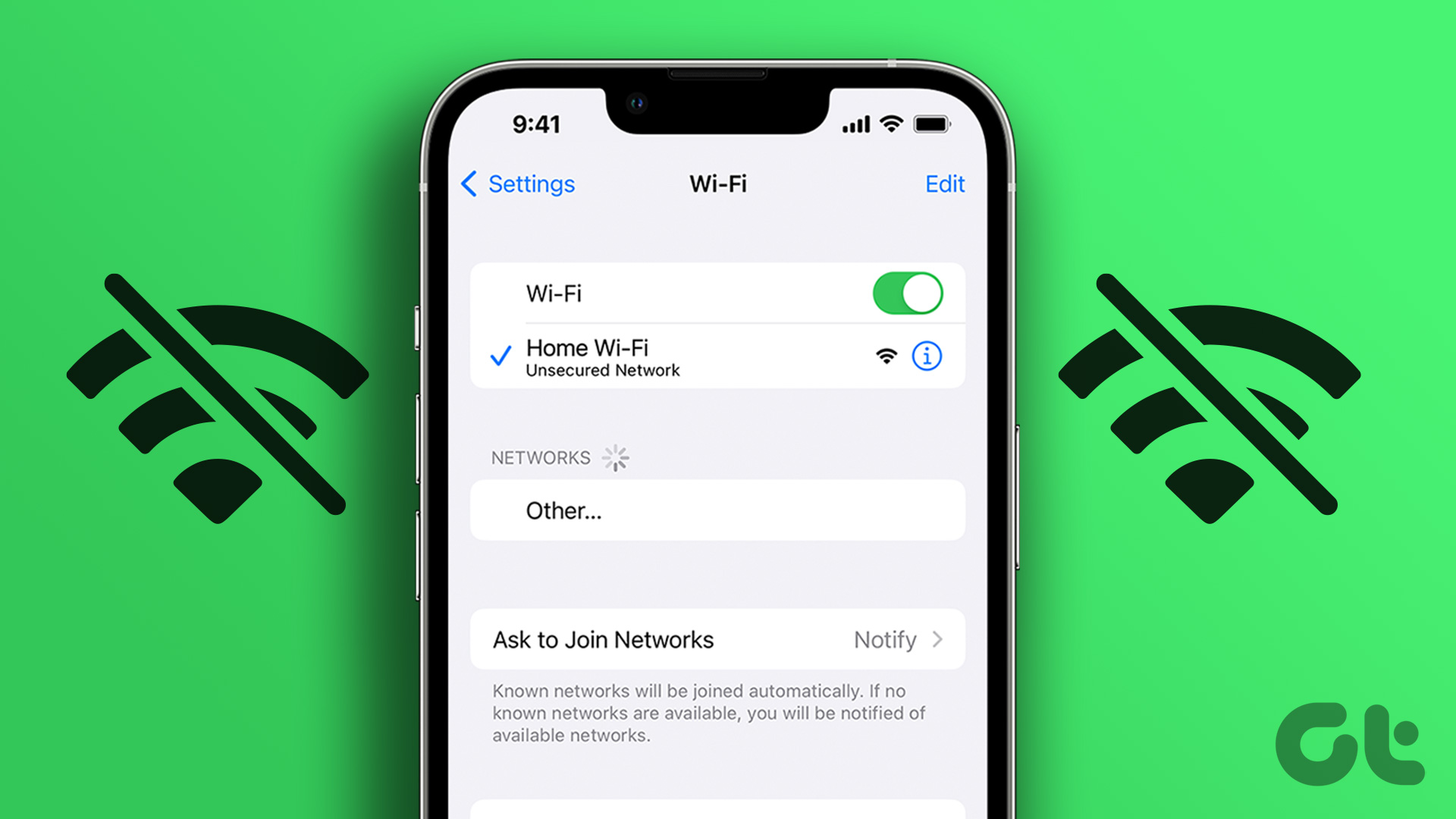
Software Updates
- Keep your OS up-to-date: Regular updates often include bug fixes that can resolve connectivity issues.
App Interference
- Identify problematic apps: Some apps can interfere with your WiFi connection. Try disabling or uninstalling recently installed apps to see if it resolves the issue.
Preventing Future Issues
Prevention is often better than cure. Here are some tips to help maintain a stable WiFi connection:
- Regularly update your devices: Keep your phone and router firmware up-to-date.
- Use strong passwords: Secure your WiFi network with a strong, unique password.
- Monitor network usage: Keep an eye on the number of devices connected to your network.
Comparison of Common Fixes
| Fix | Description | Effectiveness | Ease of Implementation |
|---|---|---|---|
| Restart Devices | Restart phone and router | High | Easy |
| Check/Reset Password | Verify or reset WiFi password | High | Easy |
| Move Closer to Router | Minimize distance and obstructions | Medium | Easy |
| Update Router Firmware | Ensure latest firmware | High | Medium |
| Reset Network Settings | Reset phone network settings | Medium | Medium |
"The key to troubleshooting is not just to identify the problem but to understand the ecosystem in which it occurs. A stable internet connection is a delicate balance of hardware, software, and environmental factors." - Tech Expert
FAQs
Q: Why does my phone keep disconnecting from WiFi?
This could be due to a weak signal, network congestion, or issues with your phone's software or hardware.
Q: How do I get my phone to connect to WiFi?
Try restarting your phone and router, checking your WiFi password, and ensuring you're within range of the router.
Q: Why can't I connect to WiFi even with the correct password?
This might be due to router issues, phone software problems, or MAC address filtering enabled on your router.
Final Checks and Next Steps
If you've tried these steps and still can't connect to WiFi, it may be time to:
- Consult your ISP: There could be issues with your internet service that need professional attention.
- Visit a repair shop: If your phone's hardware is at fault, a professional might be able to diagnose and fix the issue.
By systematically troubleshooting and understanding the potential causes of your phone's WiFi connectivity issues, you can often resolve the problem without needing professional help. Regular maintenance and a few simple checks can go a long way in ensuring a stable and reliable internet connection.
Related: free templates for a resume
Related: What to Know About Online Business Ideas for Beginners
