
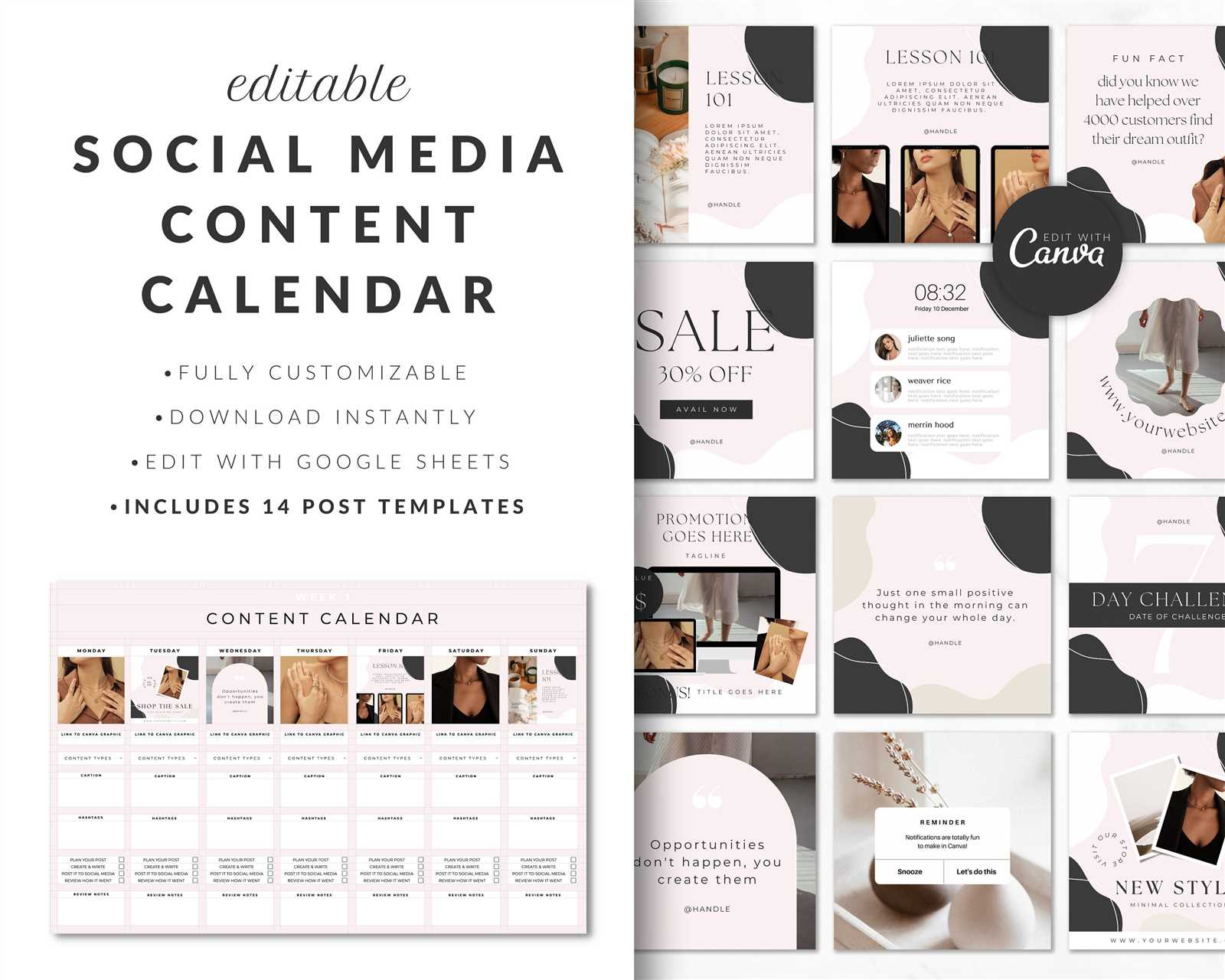
Why You Need a Content Calendar Template
As a content creator, you know how overwhelming it can be to plan and manage your content across multiple platforms. A content calendar template can help you stay organized, ensure consistency, and save time. With a template, you can visualize your content schedule, plan ahead, and make adjustments as needed. In this article, we'll show you how to create a content calendar template in Canva, a popular design platform that's free and easy to use.
Choosing the Right Template
Canva offers a wide range of templates for various purposes, including content calendars. When selecting a template, consider the following factors:
Layout: Choose a template with a clean and simple layout that's easy to read and understand.
Customization: Opt for a template that allows you to customize the design, add or remove sections, and adjust the formatting.
Scalability: Select a template that can grow with your content needs, whether you're planning for a small blog or a large social media presence.
Creating Your Content Calendar Template in Canva
To create a content calendar template in Canva, follow these steps:
- Sign up for Canva: If you haven't already, create a free Canva account.
- Search for templates: Type "content calendar" in Canva's search bar and browse through the results.
- Choose a template: Select a template that fits your needs, or start from scratch with a blank design.
- Customize the template: Add or remove sections, adjust the formatting, and customize the design to suit your brand.
- Add your content: Fill in your content schedule, including the date, platform, content type, and any relevant notes or links.
Essential Sections for Your Content Calendar
A basic content calendar template should include the following sections:
Date: The date or week number for each content piece
Platform: The platform or channel where the content will be published (e.g., blog, Facebook, Twitter, Instagram)
Content Type: The type of content (e.g., blog post, social media post, video, podcast)
Title: The title or headline of the content piece
Status: The status of the content piece (e.g., draft, published, scheduled)

Tips for Using Your Content Calendar Template
Keep it simple: Don't overcomplicate your template with too many sections or columns.
Make it visual: Use colors, icons, or images to make your template more visually appealing and easy to scan.
Review and adjust: Regularly review your content calendar and adjust as needed to ensure it remains relevant and effective.
Comparison of Content Calendar Tools
| Tool | Features | Pricing |
|---|---|---|
| Canva | Customizable templates, drag-and-drop editor, collaboration features | Free, with optional paid upgrades |
| Google Sheets | Cloud-based spreadsheet, customizable templates, collaboration features | Free |
| Trello | Kanban-style board, customizable boards, collaboration features | Free, with optional paid upgrades |
| Hootsuite | Social media scheduling, content calendar, analytics features | Paid plans starting at $19/month |
"A content calendar is not just a planning tool; it's a strategic asset that helps you create consistent, high-quality content that resonates with your audience."
Best Practices for Content Calendar Management
To get the most out of your content calendar template, follow these best practices:
Schedule regularly: Set aside time each week or month to plan and schedule your content.
Collaborate with team members: Share your content calendar with team members and stakeholders to ensure everyone is on the same page.
Review and adjust: Regularly review your content calendar and adjust as needed to ensure it remains relevant and effective.
Common FAQs

Q: What's the best way to create a content calendar template in Canva?
Start by searching for content calendar templates in Canva, then customize the design and layout to fit your needs.
Q: Can I use Canva for free?
Yes, Canva offers a free plan with limited features, as well as optional paid upgrades.
Q: How do I share my content calendar with team members?
Canva allows you to share your design with others via a link or email, and you can also export your template as a PDF or CSV file.
Q: Can I use Canva for social media scheduling?
While Canva is primarily a design platform, you can use it to create social media content and schedule it using third-party tools or Canva's own scheduling features.
Conclusion
Related: Free Time Management Templates in Excel for Boosting
Related: What to Know About Professional Website Building Tips
