
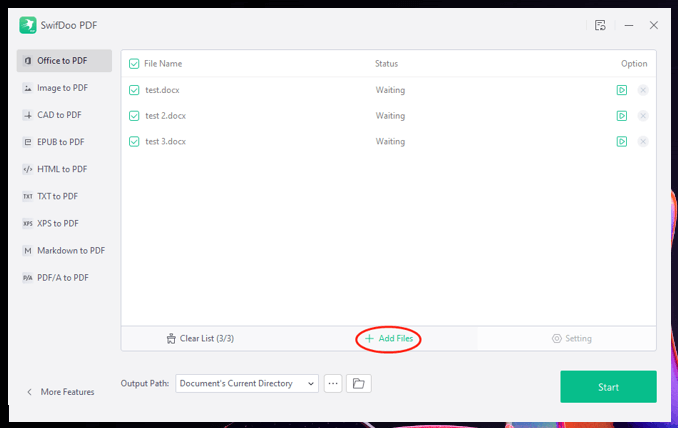
Converting Word documents to pdf files is a common task for many individuals, especially those who work with documents regularly. While online tools are readily available, there are situations where offline conversion is necessary or preferred. In this article, we will explore the various methods and tools for converting Word to PDF offline.
Choosing the Right Tool
When it comes to converting Word to PDF offline, you have several options to choose from. The most obvious choice is to use Microsoft Word itself, which has a built-in feature for saving documents as PDFs. However, there are also third-party tools and desktop applications that can help you achieve the same result.Microsoft Word
Microsoft Word is the most widely used word processing software, and it comes with a built-in feature for saving documents as PDFs. To convert a Word document to PDF using Microsoft Word, follow these steps:- Open your Word document in Microsoft Word.
- Click on the "File" menu.
- Select "Save As" from the dropdown menu.
- Choose a location to save the file.
- In the "Save as type" dropdown menu, select "PDF".
- Click "Save" to convert the document to PDF.
This method is straightforward and doesn't require any additional software. However, the output may not always be perfect, especially if your document contains complex formatting or graphics.
Third-Party Tools
There are many third-party tools and desktop applications available that can help you convert Word to PDF offline. Some popular options include: Adobe Acrobat: A powerful PDF editing and creation tool that can convert Word documents to PDFs with high accuracy.
PDF24 Creator: A free and open-source tool that can convert Word documents to PDFs, as well as create PDFs from other file types.
SmallPDF: A desktop application that can convert Word documents to PDFs, as well as compress and edit PDFs.
These tools often offer more advanced features and better output quality than Microsoft Word's built-in feature. However, they may require a one-time purchase or subscription.
Comparison of Methods
| Method | Ease of Use | Output Quality | Cost | | --- | --- | --- | --- | | Microsoft Word | Easy | Good | Free (if you already have Word) | | Adobe Acrobat | Medium | Excellent | Paid | | PDF24 Creator | Medium | Good | Free | | SmallPDF | Easy | Good | Paid |As you can see, each method has its tradeoffs. Microsoft Word is easy to use and free, but the output quality may not always be perfect. Adobe Acrobat offers high-quality output, but it's a paid tool. PDF24 Creator and SmallPDF offer a balance between ease of use and output quality, but may have limitations in their free versions.
Practical Considerations
When converting Word to PDF offline, there are several practical considerations to keep in mind. For example: File size: Large Word documents may take a long time to convert to PDF, especially if you're using a slower computer.
Formatting: Complex formatting may not always translate perfectly to PDF, especially if you're using a third-party tool.
Graphics: Images and graphics may not always display correctly in the converted PDF.
To avoid these issues, it's a good idea to:
Optimize your Word document: Before converting to PDF, make sure your Word document is optimized for conversion. This means checking for formatting issues, compressing images, and ensuring that all fonts are embedded.
Choose the right tool: Select a tool that can handle complex formatting and graphics, such as Adobe Acrobat or PDF24 Creator.
Test the output: Always test the converted PDF to ensure that it looks and reads as expected.
Security and Trust
When converting Word to PDF offline, security and trust are important considerations. You need to ensure that your tool or software is trustworthy and doesn't compromise your data. Look for reputable developers: Choose tools and software from reputable developers with a track record of producing high-quality products.
Check reviews and ratings: Read reviews and ratings from other users to get a sense of the tool's performance and any potential issues.
Be cautious of free tools: While free tools can be tempting, they may come with hidden costs or risks. Be cautious when using free tools, and make sure you understand their limitations and potential risks.
Frequently Asked Questions
Q: Can I convert Word to PDF offline without Microsoft Word?
Yes, you can use third-party tools and desktop applications, such as Adobe Acrobat, PDF24 Creator, or SmallPDF, to convert Word to PDF offline.
Q: What is the best tool for converting Word to PDF offline?
The best tool for converting Word to PDF offline depends on your specific needs and requirements. Adobe Acrobat offers high-quality output, while PDF24 Creator and SmallPDF offer a balance between ease of use and output quality.
Q: Can I convert large Word documents to PDF offline?
Yes, you can convert large Word documents to PDF offline, but it may take a long time, especially if you're using a slower computer. It's a good idea to optimize your Word document before conversion and choose a tool that can handle large files.
Q: Are there any risks associated with converting Word to PDF offline?
Yes, there are risks associated with converting Word to PDF offline, such as data compromise or formatting issues. To minimize these risks, choose a reputable tool or software, and always test the output.
