
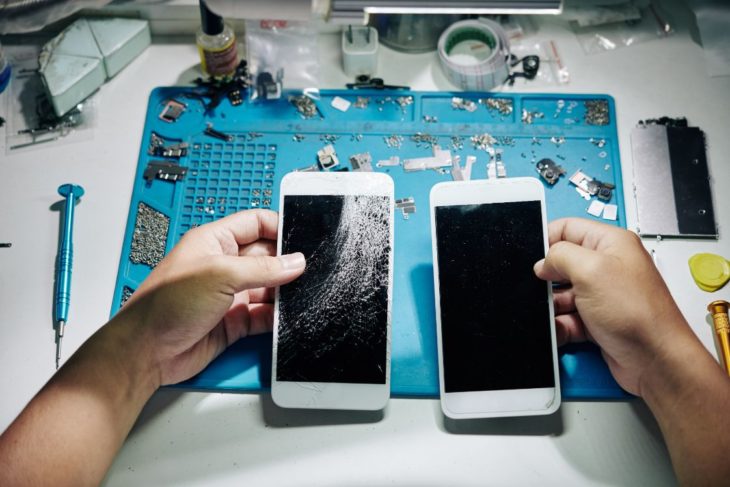
You're probably reading this because your phone has decided to play a frustrating game of limbo, stuck on the logo screen and refusing to budge. This annoying issue can happen to anyone, from the most tech-savvy individual to the casual smartphone user. The good news is that, in most cases, the problem can be resolved with some basic troubleshooting and, in some instances, a few simple fixes.
Understanding the Issue
When a phone gets stuck on the logo screen, it's usually a sign of a software or hardware issue. The logo screen, also known as the boot screen, is where your phone displays its manufacturer logo while it's starting up. If your phone freezes on this screen, it could be due to a variety of reasons such as a failed software update, corrupted system files, or even a problematic app.
Common Causes
There are several reasons why your phone might be stuck on the logo screen. Here are a few common causes:
Failed software update: If your phone's software update process was interrupted or didn't complete successfully, it could leave your phone stuck on the logo screen.
Corrupted system files: Corruption in the system files can prevent your phone from booting up properly, leading to a stuck logo screen.
Problematic app: A malicious or poorly coded app can cause your phone to freeze on the logo screen.
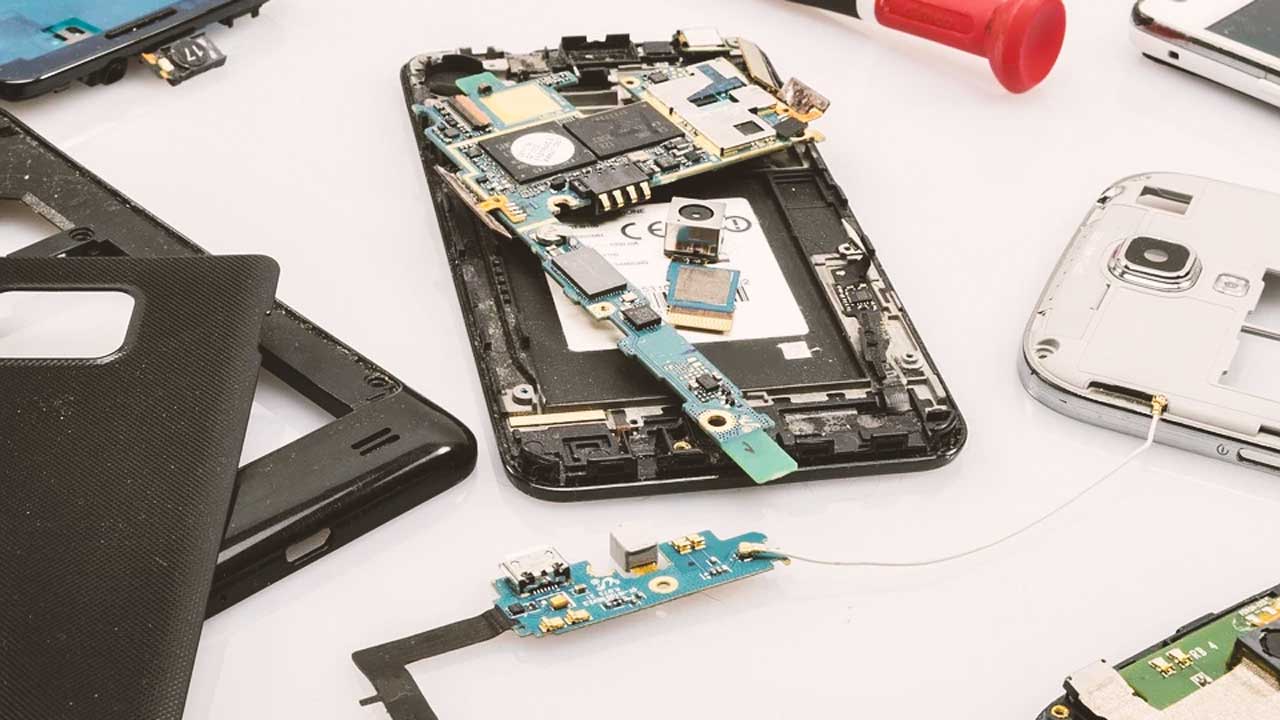
Hardware issues: In some cases, a faulty charging port, a dead battery, or other hardware problems can cause the issue.
Basic Troubleshooting Steps
Before you try any advanced fixes, let's start with some basic troubleshooting steps. These steps can help resolve the issue in many cases.
- Restart your phone: Sometimes, a simple restart can resolve the issue. Press and hold the power button until your phone turns off, then wait for a few seconds and turn it back on.
- Charge your phone: If your phone's battery is completely drained, it might not boot up properly. Try charging your phone for at least 30 minutes to ensure it has enough power.
- Check for software updates: If your phone is stuck on the logo screen due to a failed software update, checking for updates might resolve the issue.
Advanced Fixes
If the basic troubleshooting steps don't work, it's time to try some advanced fixes.
Force Restart
A force restart can help resolve the issue if your phone is stuck on the logo screen. The process varies depending on your phone's manufacturer and model. Here are the steps for some popular Android phones:
Samsung: Press and hold the power button and the volume down button simultaneously for 10-15 seconds.
Google Pixel: Press and hold the power button and the volume down button simultaneously for 10-15 seconds.
For iPhones, you can try the following:
iPhone X and later: Press and quickly release the volume up button, then press and quickly release the volume down button. Finally, press and hold the side button until the Apple logo appears.
iPhone 8 and earlier: Press and hold the power button and the home button simultaneously for 10-15 seconds.
Boot in Safe Mode
Booting your phone in safe mode can help you identify if a problematic app is causing the issue. Here's how:
Android: Press and hold the power button until your phone turns off, then press and hold the power button again until the logo appears. Release the power button and immediately press and hold the volume down button. Your phone will boot in safe mode.
iPhone: There's no safe mode for iPhones, but you can try disabling recently installed apps or resetting your phone.
Factory Reset
If all else fails, you might need to perform a factory reset. This will erase all data on your phone, so make sure to back up your data before proceeding.
Android: Go to the recovery mode by pressing and holding the power button and the volume down button simultaneously. Use the volume buttons to navigate to the "Wipe data/factory reset" option and select it using the power button.
iPhone: Connect your iPhone to a computer, open iTunes, and select your iPhone. Click "Restore iPhone" and follow the on-screen instructions.
Prevention Tips
To avoid getting stuck on the logo screen in the future, here are some prevention tips:
Regularly update your phone's software: Keeping your phone's software up to date can help prevent issues like this.
Be cautious when installing new apps: Make sure to read reviews and check the app's permissions before installing it.
Avoid interrupting software updates: Always complete software updates and avoid interrupting the process.
When to Seek Professional Help
If none of the above steps resolve the issue, it might be time to seek professional help. Here are some scenarios where you should consider visiting a repair shop:
Your phone is under warranty: If your phone is still under warranty, contact the manufacturer or your carrier for assistance.
You've tried all troubleshooting steps: If you've tried all the steps above and still can't resolve the issue, it's likely that there's a hardware problem that requires professional attention.
FAQs
Here are some frequently asked questions related to fixing a phone stuck on the logo screen:
Q: Why is my phone stuck on the logo screen?
There are several reasons why your phone might be stuck on the logo screen, including failed software updates, corrupted system files, and problematic apps.
Q: How do I fix a phone stuck on the logo screen?
Try basic troubleshooting steps like restarting your phone, charging it, and checking for software updates. If that doesn't work, try advanced fixes like force restarting, booting in safe mode, or performing a factory reset.
Q: Will a factory reset erase all my data?
Yes, a factory reset will erase all data on your phone, so make sure to back up your data before proceeding.
Final Check
Fixing a phone stuck on the logo screen can be a challenging task, but with the right troubleshooting steps and fixes, you can resolve the issue. Remember to always back up your data regularly and take preventative measures to avoid similar issues in the future. If you're still having trouble, don't hesitate to seek professional help. With a little patience and persistence, you should be able to get your phone up and running smoothly again.
