

Understanding GoDaddy Website Builder Templates
When you create a website with GoDaddy's website builder, you're presented with a range of templates to choose from. These templates are designed to help you get started quickly, with pre-built layouts and styles that can be customized to suit your needs. However, as your website evolves, you may find that you want to switch to a different template. This could be due to a change in your brand identity, a need for a different layout, or simply because you've found a template that better suits your vision.
Preparing for a Template Change
Before you change your GoDaddy website builder template, there are a few things to consider. Firstly, content compatibility is crucial. When you switch templates, your existing content will be preserved, but it's essential to review your site to ensure that everything looks and functions as intended. Some template changes may affect the layout of your content, so be prepared to make adjustments.
Here are some key areas to focus on when preparing for a template change:
Content review: Take stock of your existing content, including text, images, and other media.
Customization: Identify any custom elements you've added to your site, such as code or third-party integrations.
SEO settings: Check your SEO settings, including meta tags and descriptions, to ensure they're compatible with the new template.
Changing Your GoDaddy Website Builder Template
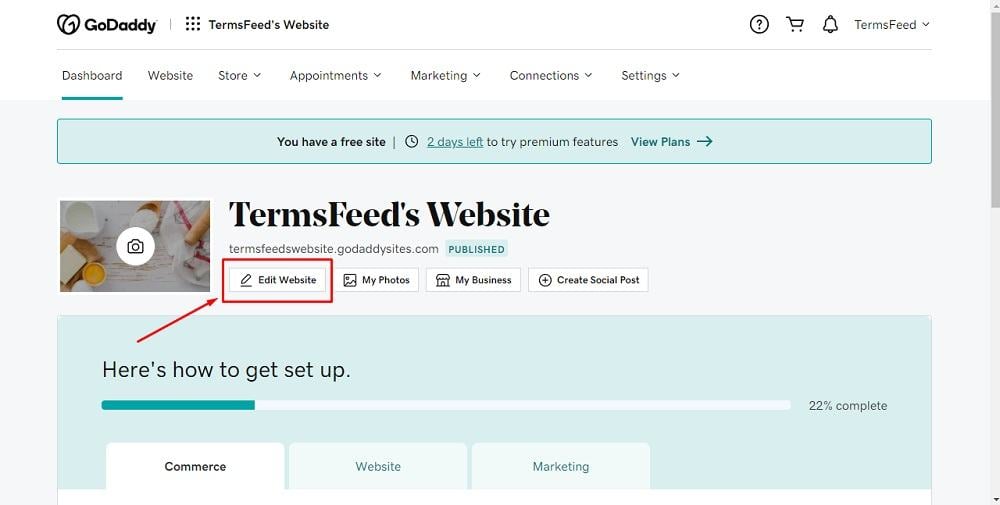
Changing your GoDaddy website builder template is a relatively straightforward process. Here's a step-by-step guide:
- Log in to your GoDaddy account and navigate to your website builder dashboard.
- Click on the Settings icon (usually represented by a gear or cog).
- Select Template from the dropdown menu.
- Browse the available templates and select the one you want to switch to.
- Click Save to apply the new template.
Tradeoffs of Switching Templates
While switching templates can breathe new life into your website, there are tradeoffs to consider. Here are a few key ones:
Content rework: Depending on the template change, you may need to rework some of your content to fit the new layout.
Customization reset: If you've made custom changes to your existing template, you may need to reapply them to the new template.
SEO impact: While rare, switching templates can potentially impact your SEO rankings. Monitor your site's performance after the switch.
Comparison of GoDaddy Website Builder Templates
| Template | Features | Benefits | Drawbacks |
|---|---|---|---|
| <strong>Modern Business</strong> | Responsive design, customizable layout | Professional look, easy to navigate | Limited creative freedom |
| <strong>E-commerce Starter</strong> | Integrated payment gateway, product catalog | Streamlined online store, easy to manage | Limited customization options |
| <strong>Personal Portfolio</strong> | Drag-and-drop functionality, customizable sections | Easy to create a personal website, flexible layout | Limited features for complex websites |
Potential Pitfalls and How to Avoid Them
When changing your GoDaddy website builder template, there are a few potential pitfalls to watch out for:
Losing custom code: If you've added custom code to your existing template, make sure to back it up before switching templates.
Breaking existing functionality: Test your site thoroughly after switching templates to ensure that all features are working as intended.
Best Practices for a Smooth Template Change
To ensure a smooth template change, follow these best practices:
Test thoroughly: Test your site on different devices and browsers to ensure compatibility.
Backup your content: Make a backup of your existing content, just in case.
- Review SEO settings: Double-check your SEO settings to ensure they're compatible with the new template.
Frequently Asked Questions
Q: Will changing my GoDaddy website builder template affect my SEO rankings?
While rare, switching templates can potentially impact your SEO rankings. Monitor your site's performance after the switch.
Q: Can I change my GoDaddy website builder template without losing my content?
Yes, your existing content will be preserved when you switch templates. However, you may need to make adjustments to ensure everything looks and functions as intended.
Q: How do I choose the best template for my website?
Consider your website's purpose, target audience, and brand identity when selecting a template. You can also browse GoDaddy's template gallery for inspiration.
Q: Can I customize my new template?
Yes, GoDaddy website builder templates are highly customizable. You can modify the layout, add or remove sections, and adjust the design to suit your needs.
Conclusion
Changing your GoDaddy website builder template can be a great way to refresh your website's design and functionality. By understanding the process, tradeoffs, and best practices, you can make an informed decision and ensure a smooth transition. Take your time to review your content, customize your new template, and test your site thoroughly to get the most out of your website.
Related: How to Manage Finances with a Simple Budget Template
