
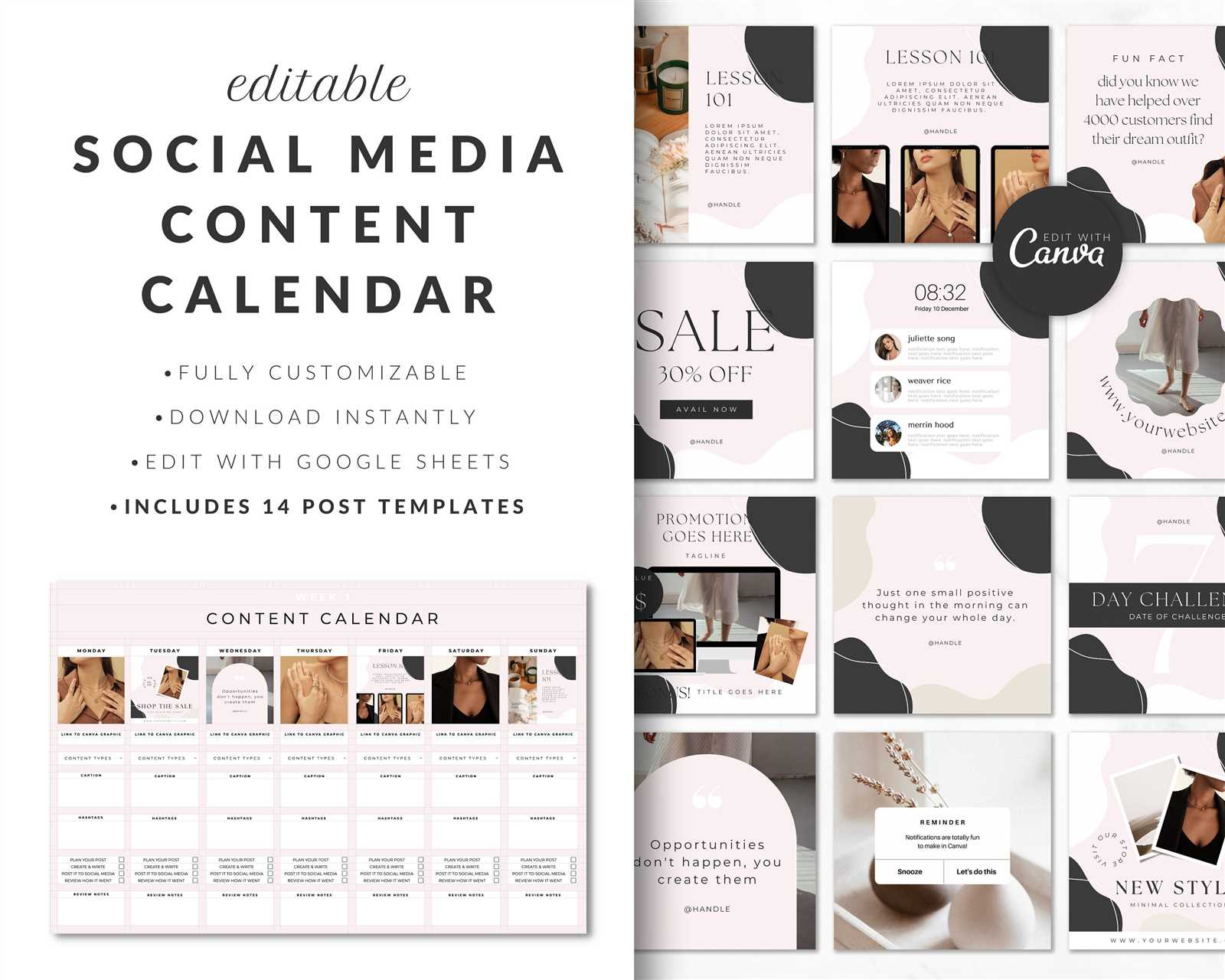
Getting Started with a Content Calendar Template in Canva
As a content creator, managing multiple social media platforms, blog posts, and marketing campaigns can be overwhelming. A content calendar template is an essential tool to help you stay organized, plan ahead, and ensure consistency across all your content channels. In this guide, we'll walk you through creating a content calendar template in Canva, a popular design platform that's free, intuitive, and versatile.
What is a Content Calendar Template?
A content calendar template is a pre-designed layout that helps you plan, schedule, and organize your content across various platforms. It typically includes columns for date, content type, platform, topic, status, and other relevant details. A well-crafted content calendar template enables you to:
Plan and visualize your content strategy
Assign tasks and deadlines to team members
Track progress and make adjustments as needed
Ensure consistency in tone, style, and branding
Choosing the Right Template in Canva
Canva offers a wide range of templates for various purposes, including content calendars. To find the perfect template, follow these steps:
- Log in to your Canva account and click on "Templates" in the top navigation bar.
- In the search bar, type "content calendar" or "editorial calendar" and press Enter.
- Browse through the search results and filter by category, industry, or design style.
- Click on a template that resonates with your needs and click "Use this template."
Some popular content calendar templates in Canva include:
Content Calendar Template by Canva: A simple, one-page template with columns for date, content type, platform, and status.
Editorial Calendar Template by Canva: A more detailed template with sections for topic, author, and publication date.
Customizing Your Content Calendar Template
Once you've chosen a template, it's time to customize it according to your needs. Here are some essential elements to include:
Date range: Set the date range for your content calendar, whether it's a week, month, or quarter.
Content types: Define the types of content you'll be creating, such as blog posts, social media posts, email newsletters, or videos.
Platforms: Identify the social media platforms or channels you'll be publishing on.
Columns and sections: Add or remove columns and sections as needed to fit your content strategy.
Adding Columns and Sections
To add a new column or section, follow these steps:
- Click on the template and select the "Text" tool.
- Click on the "+" icon to add a new text box.
- Type in the column or section header, such as "Topic" or "Status."
- Adjust the width and alignment of the text box as needed.
Tips for Effective Content Planning
A content calendar template is only as effective as the content you put into it. Here are some tips for effective content planning:
Plan ahead: Schedule your content at least a week or two in advance to ensure consistency and reduce last-minute scrambles.
Be flexible: Leave some buffer room in your calendar for unexpected events or changes in your content strategy.
- Repurpose content: Consider repurposing content across different platforms to maximize your efforts.
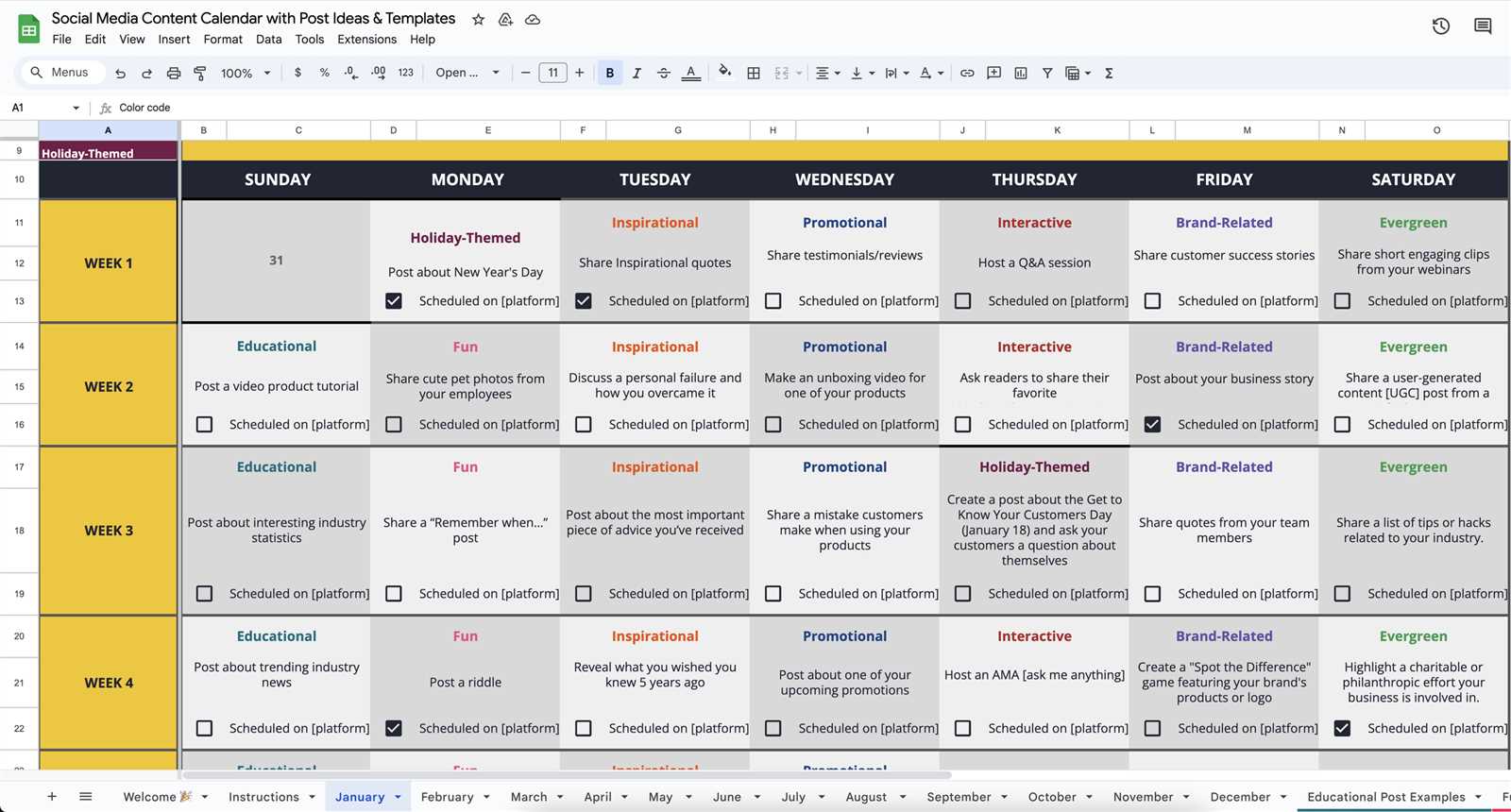
Comparison: Canva vs. Other Content Calendar Tools
Canva is not the only tool available for creating content calendars. Here's a comparison with other popular tools:
| Tool | Features | Pricing |
|---|---|---|
| Canva | Drag-and-drop editor, customizable templates, free | Free, with optional paid upgrades |
| Google Sheets | Collaborative spreadsheet, automatic formatting | Free |
| Trello | Visual board, drag-and-drop interface, integrations | Free, with optional paid upgrades |
| Hootsuite | Social media scheduling, content calendar, analytics | Paid plans starting at $19/month |
While each tool has its strengths and weaknesses, Canva offers a unique combination of ease of use, customization options, and affordability.
FAQs
Here are some frequently asked questions about creating a content calendar template in Canva:
Q: What is the best format for a content calendar?
The best format for a content calendar depends on your specific needs and preferences. Canva offers a range of templates in PDF, PNG, and editable formats.
Q: Can I use Canva for free?
Yes, Canva offers a free plan with limited features and templates. You can upgrade to a paid plan for additional features and support.
Q: How do I share my content calendar with team members?
Canva allows you to share your content calendar template with team members via email or link. You can also export your calendar as a PDF or CSV file.
Q: Can I integrate Canva with other tools?
Yes, Canva offers integrations with various tools, including Google Drive, Dropbox, and social media platforms.
Conclusion
Creating a content calendar template in Canva is a practical and effective way to streamline your content planning and boost productivity. By following these steps and tips, you can create a customized template that meets your specific needs and helps you achieve your content goals. Start planning your content today and see the benefits for yourself!
Related: How to Plan Your Content with a Calendar Template
Related: 5 Useful Things to Know About Free Microsoft Word Resume
Related: Boost Productivity with a Free Digital Weekly Planner Template
