
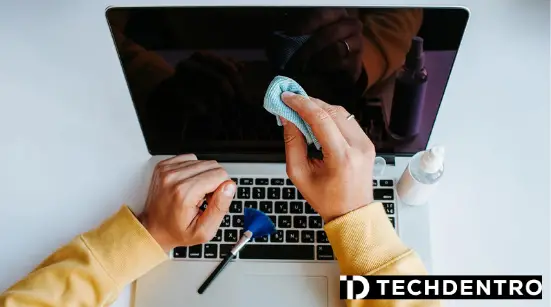
You've probably been there - you're working on a project, watching a video, or scrolling through social media on your laptop, and suddenly, you notice a smudge or streak on the screen. It's frustrating, right? A dirty laptop screen can be a real distraction, but before you reach for a random cloth or cleaning solution, hold on. Cleaning your laptop screen requires some care to avoid damaging it. In this article, we'll walk you through the safest and most effective ways to clean your laptop screen at home.
Assessing the Situation: Why Cleaning Your Laptop Screen Matters
A clean laptop screen is not just about aesthetics; it's also about maintaining the overall health of your device. Dust, dirt, and grime can accumulate on the screen and potentially damage it over time. Moreover, a clean screen reduces eye strain and makes it easier to work or enjoy your favorite content. So, how do you clean your laptop screen safely?Gathering Your Cleaning Arsenal
Before you start cleaning, make sure you have the right tools for the job. You'll need: A microfiber cloth (specifically designed for cleaning screens)
Distilled water
A 50/50 mix of white vinegar and distilled water (optional)
A specialized screen cleaning solution (optional)
Avoid using household cleaners, paper towels, or tissues, as they can damage the screen's coating or scratch the surface.
The Cleaning Process: Step by Step
Cleaning your laptop screen is a straightforward process. Here's how to do it:- Turn off your laptop and unplug it: This ensures your safety while cleaning the screen and prevents any accidental power-ons.
- Remove any loose debris: Gently brush off any loose dust or dirt from the screen using a soft-bristled brush or a dry microfiber cloth.
- Dampen your microfiber cloth: If you're using a microfiber cloth, slightly dampen it with distilled water. Make sure it's not soaking wet, as excess moisture can damage the screen.
- Wipe the screen: Gently wipe the screen in a circular motion, starting from the top and working your way down. Avoid applying too much pressure, which can damage the screen's coating.
- Tackle tough spots: If there are any stubborn spots or streaks, you can use a 50/50 mix of white vinegar and distilled water on your microfiber cloth. However, be cautious and test a small area first to ensure the solution doesn't damage the screen.
- Dry the screen: Use a dry section of your microfiber cloth to wipe away any remaining moisture and prevent streaks.

Choosing the Right Cleaning Solution
When it comes to cleaning solutions, you have a few options. Here's a brief comparison:| Solution | Pros | Cons |
|---|---|---|
| Distilled water | Safe, effective, and free | May not tackle tough spots |
| 50/50 white vinegar and distilled water | Effective against tough spots | May leave a slight residue |
| Specialized screen cleaning solutions | Designed specifically for screens | May contain chemicals, more expensive |
While distilled water is a great starting point, a 50/50 mix of white vinegar and distilled water can be more effective against tough spots. Specialized screen cleaning solutions are also available, but make sure to read reviews and follow the manufacturer's instructions.
Avoiding Common Cleaning Mistakes
When cleaning your laptop screen, it's essential to avoid common mistakes that can damage the screen or harm your device. Here are a few things to watch out for: Avoid using household cleaners: They can damage the screen's coating or harm the device's internal components.
Don't spray cleaning solutions directly on the screen: Instead, apply the solution to your microfiber cloth to prevent excess moisture from seeping into the device.
Don't use paper towels or tissues: They can scratch the screen or leave behind lint.
Maintaining Your Laptop Screen's Health
Cleaning your laptop screen is just one part of maintaining its overall health. Here are a few additional tips to keep your screen in top condition: Use a screen protector: A screen protector can help prevent scratches and damage from dust and debris.
Adjust your screen's brightness and contrast: This can help reduce eye strain and prevent fatigue.
Avoid exposing your laptop to extreme temperatures: Extreme temperatures can damage the screen and other internal components.
Frequently Asked Questions
Q: Can I use Windex to clean my laptop screen?
No, it's not recommended to use Windex or other household cleaners on your laptop screen. They can damage the screen's coating or harm the device's internal components.
Q: How often should I clean my laptop screen?
It's a good idea to clean your laptop screen every 1-2 weeks, or more often if you notice it's getting dirty or streaky.
Q: Can I use a paper towel to clean my laptop screen?
No, paper towels can scratch the screen or leave behind lint. Instead, use a microfiber cloth specifically designed for cleaning screens.
Q: What's the best way to clean a stubborn spot on my laptop screen?
For tough spots, try using a 50/50 mix of white vinegar and distilled water on your microfiber cloth. However, be cautious and test a small area first to ensure the solution doesn't damage the screen.
Final Tips and Reminders
Cleaning your laptop screen safely and effectively is a simple process that requires the right tools and a bit of care. By following these steps and avoiding common mistakes, you can keep your laptop screen crystal-clear and in top condition. Remember to clean your screen regularly, use the right cleaning solutions, and take care to avoid damaging the screen or harming your device. With a clean and well-maintained screen, you'll be able to enjoy a distraction-free computing experience.Related: Touchscreen Not Responding Sometimes? Here's How to Fix It
Related: 5 Useful Things to Know About Online Course Creation Tools
