
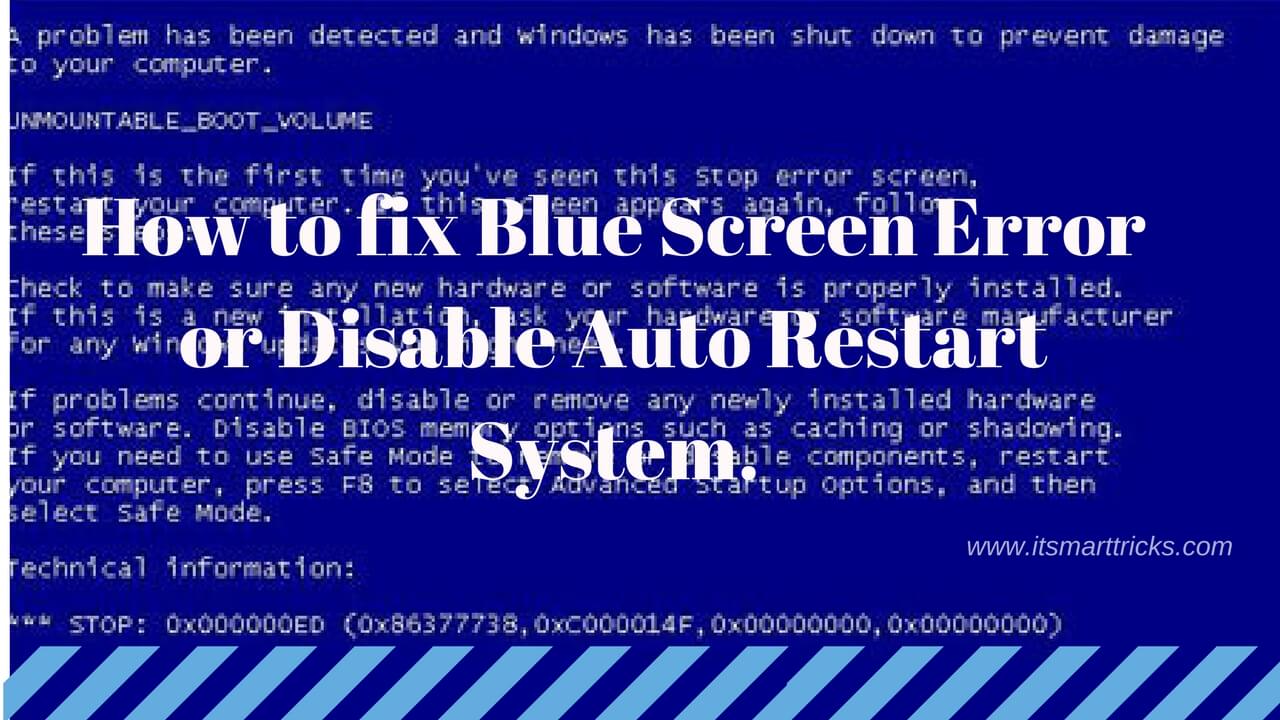
The infamous blue screen error – a sight that can strike fear into the hearts of computer users everywhere. Also known as the Blue Screen of Death (BSOD), this critical error screen appears when Windows encounters a problem it cannot recover from, forcing your computer to shut down. But fear not; understanding and fixing the blue screen error is within your reach. In this article, we'll walk you through basic steps and techniques to help you troubleshoot and resolve these frustrating errors.
Understanding the Blue Screen Error
Before diving into fixes, it's essential to grasp what causes the blue screen error. The BSOD is Windows' way of protecting your computer from potential hardware or software issues that could lead to data loss or further damage. These errors can stem from various sources, including faulty hardware, problematic software, or even issues with Windows itself.
Basic Troubleshooting Steps
When faced with a blue screen error, start with these basic troubleshooting steps. They often provide a quick resolution or valuable clues for more complex issues.
- Reboot Your Computer: Sometimes, a simple reboot can resolve the issue, especially if it was a one-time glitch.
- Check for Loose Connections: Ensure all internal components (like RAM and the graphics card) are securely connected.
- Run a Virus Scan: Malware can cause system instability. Use a reputable antivirus program to scan your computer.
- Update Windows and Drivers: Outdated drivers or Windows can lead to compatibility issues. Make sure everything is up-to-date.
Advanced Troubleshooting Techniques
If basic steps don't resolve the issue, it's time to dig deeper.
Analyzing the Blue Screen Error
The blue screen error message provides valuable information:
- Error Code: Look for specific error codes or messages. These can be crucial in identifying the problem.
- File Name: Sometimes, a problematic file name is listed, which can help pinpoint the issue.
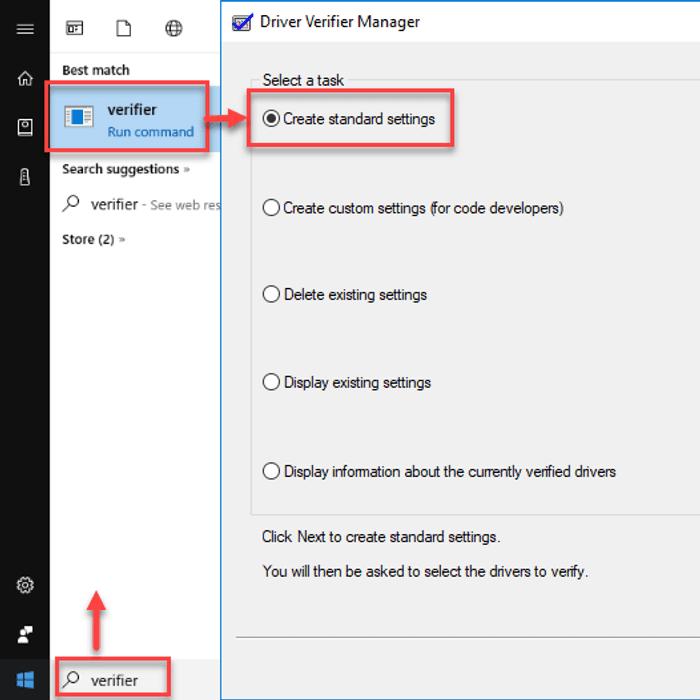
Using System Tools
Windows offers several built-in tools to help diagnose and fix problems:
- Event Viewer: This tool logs system events, including errors. It can provide insight into what happened before the blue screen appeared.
- System File Checker (SFC): This tool checks for and replaces corrupted system files.
- Memory Diagnostic: If you suspect RAM issues, this tool tests your memory for problems.
Practical Steps for Common Blue Screen Errors
Let's address a few common scenarios:
Dealing with Driver-Related Errors
Driver issues are a common cause of blue screen errors. Here's how to tackle them:
- Boot in Safe Mode: This loads Windows with minimal drivers.
- Uninstall Recent Drivers: If you've recently installed or updated a driver, try uninstalling it.
- Update Drivers: Use Windows Update or the device manufacturer's website to ensure you have the latest drivers.
Addressing Hardware Failures
Hardware issues can also cause BSODs:
- Run Hardware Diagnostics: Many computer manufacturers offer diagnostic tools to test hardware components.
- Test Your RAM: Faulty RAM can cause numerous issues. Consider using a third-party tool like MemTest86+.
- Check for Overheating: Ensure your computer's cooling system is working properly.
Prevention is Key
Preventing blue screen errors involves maintaining your computer's health:
- Regularly Update Software and Drivers: Stay current to avoid compatibility issues.
- Use Reliable Software: Only install software from trusted sources.
- Monitor Your Computer's Temperature: Prevent overheating by ensuring good airflow around your computer.
When to Seek Professional Help
Sometimes, despite your best efforts, the issue persists. If you've tried the steps above and still encounter blue screen errors, it might be time to seek professional help. This is especially true if:
- You're Not Comfortable Performing Advanced Troubleshooting: Don't risk causing further damage if you're unsure.
- The Problem Seems to Be Hardware-Related: Professional technicians have the tools and expertise to diagnose and repair hardware issues.
Frequently Asked Questions
Q: What does a blue screen error mean?
A blue screen error, or BSOD, indicates Windows has encountered a critical error it cannot recover from, often due to hardware or software issues.
Q: Can a blue screen error cause data loss?
While the blue screen error itself doesn't directly cause data loss, the underlying issue might. Regular backups are always a good idea.
Q: How do I find out what caused my blue screen error?
Look for error codes or messages on the blue screen, and use Windows tools like Event Viewer for more detailed information.
Q: Can outdated BIOS cause blue screen errors?
Yes, an outdated BIOS can lead to compatibility issues and potentially cause blue screen errors.
Closing
Fixing the blue screen error might seem daunting, but with a systematic approach, you can often resolve these issues on your own. Remember, prevention is key – keeping your system updated and running regular checks can help minimize the risk of encountering a blue screen error. When in doubt, don't hesitate to seek professional help to ensure your computer's stability and your peace of mind.
Related: unique instagram name ideas minimal
Related: dog dental health tips
Related: nickname ideas aesthetic one word
Related: what to say in awkward silence
