

The internet has become an essential part of our daily lives. We rely on it for work, entertainment, communication, and accessing information. However, there's nothing more frustrating than your internet connection constantly disconnecting. You're in the middle of an important project, and suddenly, your connection drops. You're about to stream your favorite show, and the internet cuts out. It's not just annoying; it can also be a significant productivity killer.
Understanding Internet Disconnections
Before we dive into fixing the issue, let's understand what causes internet disconnections. There are several reasons why your internet might keep disconnecting. It could be due to problems with your Internet Service Provider (ISP), issues with your router or modem, or even interference from other devices.
Common Causes of Internet Disconnections
Some of the most common causes include:
- Router or Modem Issues: Your router or modem could be malfunctioning or not configured correctly.
- ISP Outages: There might be an outage in your area due to maintenance or technical issues.
- Interference from Other Devices: Devices like cordless phones, microwaves, and neighboring Wi-Fi networks can interfere with your internet connection.
- Outdated Firmware or Software: If your router's firmware or your device's software is outdated, it can cause connectivity issues.
Troubleshooting Your Internet Connection
When your internet keeps disconnecting, the first step is to troubleshoot your connection. This involves checking for any immediate issues that could be causing the problem.
Step-by-Step Troubleshooting Guide
- Restart Your Router and Modem: This is the simplest and often most effective step. Turn off your router and modem, wait for about 30 seconds, and then turn them back on. This can resolve issues caused by temporary glitches.
- Check for ISP Outages: Visit your ISP's website or contact their customer service to see if there are any known outages in your area.
- Inspect Your Cables: Ensure all cables are securely connected to the correct ports on your router, modem, and computer.
- Update Your Router's Firmware: Check the manufacturer's website for any firmware updates and follow their instructions to update.
- Reduce Interference: Move your router to a central location and away from other devices that could cause interference.
Optimizing Your Network Settings
Sometimes, the issue isn't with the hardware but with how your network is configured. Optimizing your network settings can improve stability and prevent disconnections.
Adjusting Your Wi-Fi Channel
If you're using a dual-band router, try switching to the less crowded band. You can also use tools like Wi-Fi Analyzer to find the least crowded channel and adjust your router's settings accordingly.
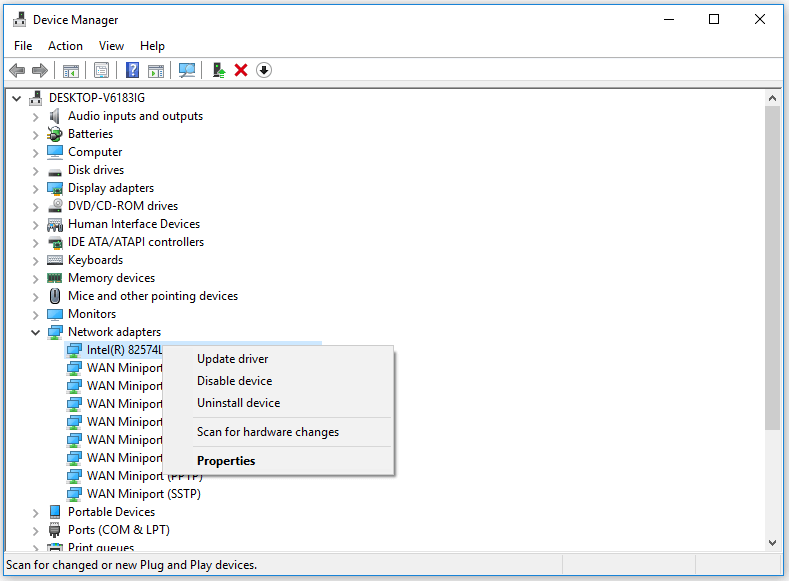
Configuring Your DNS Settings
DNS (Domain Name System) translates domain names into IP addresses. Using a public DNS service like Google's (8.8.8.8 and 8.8.4.4) can sometimes improve speed and reliability.
Advanced Solutions
If the basic troubleshooting steps don't resolve your issue, it might be time to consider more advanced solutions.
Replacing Your Router or Modem
If your router or modem is old or was provided by your ISP and is known to have issues, consider replacing it. Make sure to choose a device that is compatible with your ISP and meets your speed requirements.
Upgrading Your Internet Plan
If you're consistently experiencing disconnections and slow speeds, it might be worth upgrading your internet plan. Consider your household's internet usage and choose a plan that offers higher speeds and more bandwidth.
Real-World Example: Overcoming Persistent Disconnections
John, a freelance writer, was experiencing persistent internet disconnections. Despite restarting his router and modem, the issue persisted. He contacted his ISP and discovered that there was an outage in his area due to maintenance. Once the maintenance was completed, his connection stabilized. However, to prevent future issues, John upgraded his router to a newer model and adjusted his Wi-Fi channel to reduce interference.
Comparison of Internet Plans
| Plan | Speed | Bandwidth | Price |
|---|---|---|---|
| Basic | Up to 100 Mbps | 1 device | $30/month |
| Standard | Up to 500 Mbps | 5 devices | $50/month |
| Premium | Up to 1 Gbps | 10 devices | $70/month |
Pull-Quote: A Key Insight
"The key to a stable internet connection lies in understanding the root cause of the disconnection and taking a systematic approach to troubleshooting and resolving the issue."
Compact Checklist for Preventing Future Issues
- Regularly restart your router and modem
- Keep your router's firmware and device software up to date
- Monitor your internet usage and upgrade your plan if necessary
- Reduce interference by moving your router to a central location
Frequently Asked Questions
Q: Why does my internet keep disconnecting at the same time every day?
This could be due to scheduled maintenance by your ISP or interference from other devices. Try to identify if there's a pattern and contact your ISP if necessary.
Q: Can a VPN cause internet disconnections?
Sometimes, a VPN can cause connectivity issues. Try disabling your VPN to see if it resolves the issue.
Q: How do I know if my router is the problem?
If you've tried troubleshooting and still experience issues, try using a different router or contacting the manufacturer for assistance.
Final Steps and Recommendations
Fixing internet disconnections requires patience and a systematic approach. By understanding the common causes, troubleshooting your connection, optimizing your network settings, and considering advanced solutions, you can enjoy a stable and reliable internet connection. Remember, if you're still experiencing issues, don't hesitate to contact your ISP or a professional for assistance.
In dealing with internet disconnections, you've taken the first step by seeking solutions. Now, take control of your internet experience and say goodbye to frustrating disconnections.
Related: how to fix dns error on browser
Related: Laptop Fan Noise Fix: What Actually Makes Sense?
Related: 5 Useful Things to Know About Free Daily Checklist Apps
