
Recovering Deleted Files on Your Phone: A Step-by-Step Guide
Understanding the Problem: Why Files Get Deleted and Why Recovery Matters
Deleted files on your phone can be a nightmare, especially if they contain valuable information, cherished memories, or critical data. Whether you accidentally hit the delete button, experienced a software glitch, or had your phone stolen, the need to recover deleted files is a common concern for many mobile users. In this article, we'll explore the reasons behind file deletion, the likelihood of recovery, and most importantly, provide a step-by-step guide on how to recover deleted files on your phone.
Methods for Recovering Deleted Files on Android Devices
Android users have several options to recover deleted files, ranging from using built-in features to employing third-party apps. Here are some of the most effective methods:
Using Google Drive
If you've enabled Google Drive on your Android device, you might be able to recover deleted files from the Google Drive trash.
- Open the Google Drive app on your device.
- Tap on the menu icon (three horizontal lines) and select "Trash."
- Find the file you want to recover, tap on it, and then tap on the "Restore" button.
Utilizing Third-Party Recovery Apps
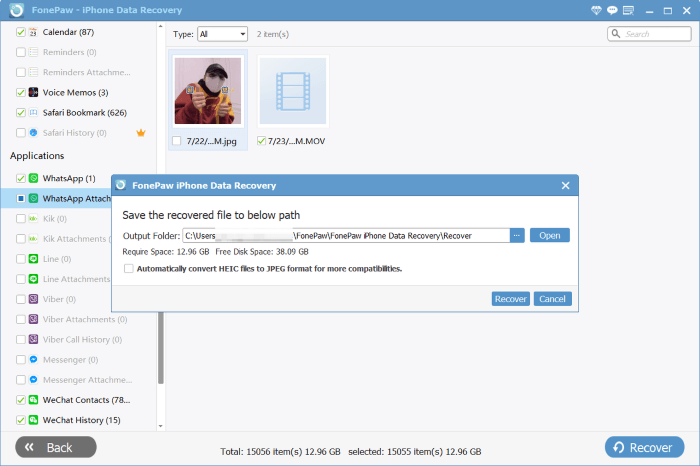
Several third-party apps are available that can help you recover deleted files. Some popular options include:
DiskDigger: A powerful recovery app that can scan your device's storage for deleted files and recover them.
Dr.Fone: A comprehensive recovery tool that supports data recovery from Android devices, including photos, contacts, and messages.
When choosing a third-party app, consider the following factors:
Effectiveness: Look for apps with high success rates in recovering deleted files.
Safety: Ensure the app is safe to use and doesn't pose a risk to your device or data.
Ease of use: Opt for apps with user-friendly interfaces that guide you through the recovery process.

Recovering Deleted Files on iOS Devices
iOS users also have options to recover deleted files, primarily through iCloud and iTunes backups. Here are the steps:
Restoring from iCloud Backup
If you've enabled iCloud backups on your iPhone, you can restore your device from a previous backup to recover deleted files.
- Go to Settings > \[your name] > iCloud > iCloud Backup.
- Check if a backup is available and if it was made before the files were deleted.
- If a suitable backup exists, restore your device from that backup.
Using iTunes Backup
Alternatively, you can use iTunes to restore your device from a backup.
- Connect your iPhone to your computer and open iTunes.
- Select your device and click on Restore Backup.
- Choose a backup that was made before the files were deleted.
Comparison of Recovery Methods
| <strong>Method</strong> | <strong>Success Rate</strong> | <strong>Ease of Use</strong> | <strong>Safety</strong> |
|---|---|---|---|
| Google Drive | High | Easy | High |
| Third-Party Apps | Varies | Medium | Medium |
| iCloud Backup | High | Easy | High |
| iTunes Backup | High | Medium | High |
"The key to successful file recovery is to act quickly and avoid overwriting the deleted files. The sooner you attempt to recover your files, the higher the chances of success."
Preventing Future Data Loss
While recovering deleted files is possible, preventing data loss in the first place is always better. Here are some tips to help you safeguard your mobile data:
Regularly back up your device: Use cloud services like Google Drive, iCloud, or external storage devices to store your files.
Use a file manager: Keep track of your files and avoid accidental deletion.
Be cautious with app permissions: Only grant necessary permissions to apps to minimize the risk of data loss.
Common Mistakes to Avoid
When attempting to recover deleted files, avoid the following common mistakes:
Continuing to use your device: This can lead to overwriting the deleted files, making recovery more challenging.
Using unreliable recovery apps: Choose reputable apps to avoid causing further data loss.
- Restoring from an outdated backup: Ensure you're restoring from a backup made before the files were deleted.
Frequently Asked Questions
Q: Can I recover deleted files from a stolen phone?
If your phone was stolen, it's challenging to recover deleted files directly. However, if you've enabled cloud backups, you can restore your files from the backup.
Q: How long do deleted files stay on my device?
The duration depends on the device and storage type. Generally, deleted files remain on the device until they're overwritten by new data.
Q: Can I recover files deleted from a microSD card?
Yes, you can recover files deleted from a microSD card using recovery apps or by connecting the card to a computer and using recovery software.
Q: Are there any free file recovery apps?
Yes, some free file recovery apps are available, such as DiskDigger and EaseUS MobiSaver. However, they might have limitations in terms of features or effectiveness.
Final Steps and Recommendations
Recovering deleted files on your phone requires prompt action, the right tools, and a bit of knowledge. By understanding the causes of file deletion and using the methods outlined in this guide, you can increase your chances of recovering your valuable data. To prevent future data loss, make sure to regularly back up your device, use a file manager, and be cautious with app permissions. With these tips and techniques, you'll be well-equipped to handle file recovery and protect your mobile data.
Related: Creating a Simple To - Do List for Better Productivity
Related: What to Know About Fixing Screen Resolution Problems in
Related: 5 Useful Things to Know About Fixing Your Keyboard Typing
Related: How to Fix "File Not Supported" Error on Your Phone
Related: Best Online Course Platforms for Affordable Learning
