
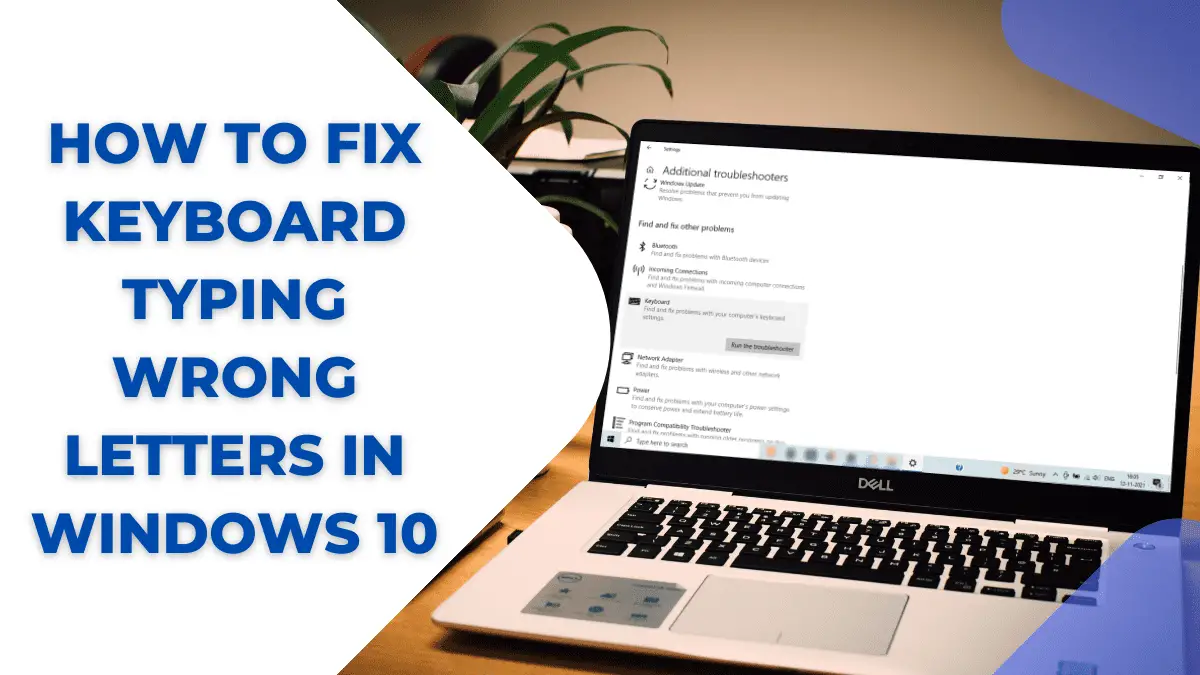
When Keyboards Go Rogue
You're in the middle of an important document or email, and suddenly, your keyboard starts typing wrong letters. It's frustrating, to say the least. You try pressing the keys again, but the problem persists. What could be causing this issue, and more importantly, how can you fix it? In this article, we'll explore five useful things to know about fixing your keyboard typing wrong letters.
Understanding the Possible Causes
Before diving into the solutions, it's essential to understand the possible causes of this issue. There are several reasons why your keyboard might be typing wrong letters:
Hardware issues: A faulty keyboard or a loose connection can cause this problem.
Software issues: A misconfigured keyboard setting or a problematic driver can also lead to typing errors.
Malware or viruses: Malicious software can interfere with your keyboard settings, causing it to type wrong letters.
Simple Troubleshooting Steps
Sometimes, the simplest solutions are the most effective ones. Here are a few troubleshooting steps to try:
Restart your computer: This might seem obvious, but restarting your computer can often resolve the issue.
Check your keyboard connections: Make sure your keyboard is properly connected to your computer. If you're using a wireless keyboard, try replacing the batteries or re-pairing the keyboard.
Disable and re-enable your keyboard: Go to your computer's Device Manager, find your keyboard, and disable it. Then, wait for a few seconds and enable it again.
Advanced Solutions
If the simple troubleshooting steps don't work, it's time to dig deeper. Here are a few advanced solutions to try:

Updating Your Keyboard Driver
An outdated keyboard driver can cause a range of issues, including typing wrong letters. To update your keyboard driver:
Go to your computer manufacturer's website
Search for keyboard driver updates
Download and install the latest driver
Changing Your Keyboard Settings
Sometimes, a misconfigured keyboard setting can cause typing errors. To check your keyboard settings:
Go to your computer's Control Panel
Click on "Ease of Access"
Select "Make the keyboard easier to use"
Ensure that the "Turn on Filter Keys" and "Turn on Sticky Keys" options are disabled
Real-Life Scenarios and Solutions
Let's take a look at a few real-life scenarios and their solutions:

Scenario 1: The Num Lock Key Conundrum
You've accidentally enabled the Num Lock key, and now your keyboard is typing numbers instead of letters. To fix this:
Press the Num Lock key to disable it
Check your keyboard settings to ensure that the Num Lock key is not set to be enabled by default
Scenario 2: The Keyboard Layout Issue
You've changed your keyboard layout, and now your keyboard is typing wrong letters. To fix this:
Go to your computer's Control Panel
Click on "Regional and Language Options"
Select the correct keyboard layout
Expert Advice and Prevention
To prevent keyboard typing wrong letters in the future, here are a few expert tips:
Regularly clean your keyboard: Dust and debris can accumulate on your keyboard and cause issues.
Use a keyboard cover: A keyboard cover can protect your keyboard from spills and dust.
Back up your data: Regularly back up your important documents to prevent data loss in case your keyboard issues persist.
Comparison of Solutions
| Solution | Ease of Implementation | Effectiveness |
|---|---|---|
| Restarting your computer | Easy | High |
| Checking keyboard connections | Easy | Medium |
| Disabling and re-enabling your keyboard | Easy | Medium |
| Updating your keyboard driver | Medium | High |
| Changing your keyboard settings | Medium | High |
FAQ
Here are a few frequently asked questions about fixing keyboard typing wrong letters:
Q: Why is my keyboard typing wrong letters?
There are several reasons why your keyboard might be typing wrong letters, including hardware issues, software issues, and malware or viruses.
Q: How do I fix my keyboard typing wrong letters?
Try simple troubleshooting steps like restarting your computer, checking your keyboard connections, and disabling and re-enabling your keyboard. If these steps don't work, try advanced solutions like updating your keyboard driver and changing your keyboard settings.
Q: Can I fix my keyboard typing wrong letters without restarting my computer?
Yes, you can try disabling and re-enabling your keyboard, updating your keyboard driver, and changing your keyboard settings without restarting your computer.
Final Check
Fixing keyboard typing wrong letters can be a frustrating experience, but with these five useful things to know, you can troubleshoot and resolve the issue quickly. Remember to regularly clean your keyboard, use a keyboard cover, and back up your data to prevent future issues. By following these tips and solutions, you can get your keyboard working correctly again and avoid the stress of typing errors.
Related: Open BIN Files on Your Phone: A Step - by - Step Guide
Related: What to Know About Random Phone Vibrations
Related: Fast File Transfer: Phone to PC in Minutes
Related: How to Fix Slow Internet on Your Phone Without the Hassle
Related: Master Online Learning: 12 Study Tips for Success
Related: What to Know About Cleaning White Shoes Without Bleach
Related: 5 Useful Things to Know About Fixing Screen Flickering on
Related: 5 Useful Things to Know About Why PDF Files Can't Be Edited
Related: Finding the Perfect Name: YouTube Channel Name Ideas to Stand
Related: Cleaning Your Laptop Screen Safely at Home for a Crystal
Related: What to Know About Cleaning Sticky Keyboard Keys Without
