

Updating drivers can be a daunting task, especially for those who aren't tech-savvy. However, it's a crucial part of maintaining your computer's performance and ensuring that all hardware components function properly. Outdated drivers can lead to a range of issues, from slow performance and crashes to compatibility problems and security vulnerabilities.
Why Driver Updates Matter
Drivers are essentially software components that allow your operating system to communicate with hardware devices such as graphics cards, sound cards, and network adapters. When a driver becomes outdated, it may not be able to take full advantage of the hardware's capabilities, leading to reduced performance and potential system instability. Moreover, outdated drivers can leave your system exposed to security risks, as newer drivers often include patches for known vulnerabilities.
The Challenges of Manual Driver Updates
Manually updating drivers can be a time-consuming and frustrating process. It involves identifying the drivers that need to be updated, searching for the latest versions, and then installing them. This process can be complex, especially for users who are not familiar with computer hardware and software.
How to Update Drivers Automatically
Fortunately, there are several tools and methods available that can update drivers automatically, making the process much simpler and less prone to errors. Here are some of the most effective ways to do so:
Using Built-in Tools
Both Windows and macOS have built-in tools that can help update drivers automatically.
Windows: Windows Update is a built-in tool that can update drivers automatically. To use it, go to Settings > Update & Security > Windows Update, and then click Check for updates.
macOS: macOS also has a built-in tool called Software Update that can update drivers. To use it, go to System Preferences > Software Update.
Third-Party Driver Update Tools
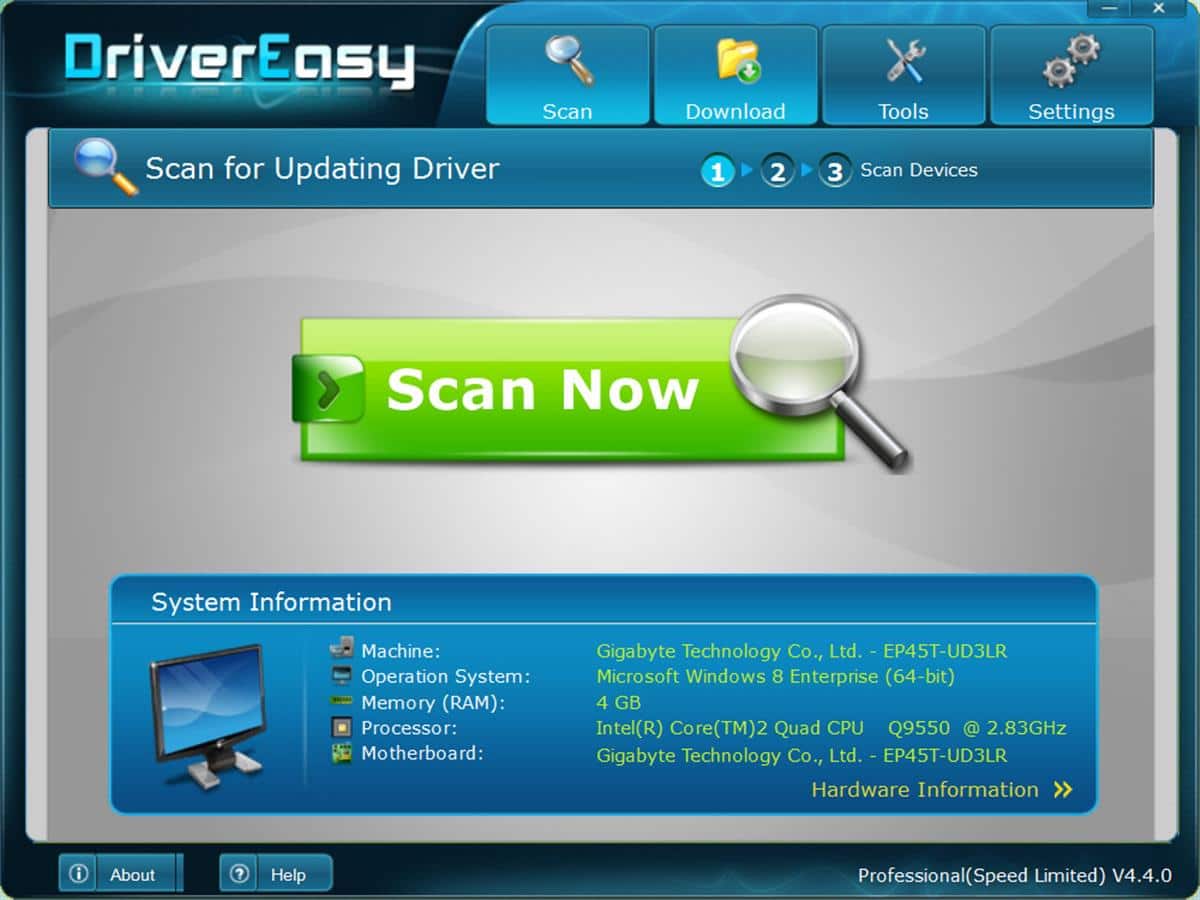
There are also several third-party tools available that can update drivers automatically. Some popular options include:
Driver Booster: A popular tool that can scan your system for outdated drivers and update them with the latest versions.
Driver Talent: A tool that can update drivers automatically and also backup and restore drivers.
Snappy Driver Installer: A free tool that can update drivers automatically and also provide detailed information about your system's hardware.
Choosing the Right Tool
When choosing a tool to update drivers automatically, there are several factors to consider. Here are some key considerations:
Ease of use: Look for a tool that is easy to use and has a user-friendly interface.
Effectiveness: Choose a tool that can effectively scan your system for outdated drivers and update them with the latest versions.
Safety: Ensure that the tool is safe to use and does not bundle malware or other unwanted software.
Comparison of Driver Update Tools
| Tool | Ease of Use | Effectiveness | Safety | Cost |
|---|---|---|---|---|
| Driver Booster | Easy | High | Safe | $29.95 |
| Driver Talent | Medium | High | Safe | $29.95 |
| Snappy Driver Installer | Easy | High | Safe | Free |
Practical Example: Updating Drivers with Driver Booster
Here's a step-by-step guide on how to update drivers using Driver Booster:
- Download and install Driver Booster from the official website.
- Launch Driver Booster and click Scan to scan your system for outdated drivers.
- Once the scan is complete, Driver Booster will display a list of outdated drivers. Click Update to update the drivers.
Insights and Comparisons
When it comes to updating drivers automatically, there are several insights and comparisons to keep in mind. Here are a few:
Automatic vs. manual updates: Automatic updates are generally easier and less prone to errors than manual updates. However, manual updates can provide more control over the update process.
Free vs. paid tools: Free tools like Snappy Driver Installer can be effective, but may not provide the same level of support and features as paid tools like Driver Booster.
Trust-Building: Best Practices for Driver Updates
To ensure that driver updates are done safely and effectively, here are some best practices to follow:
Regularly update drivers: Regularly updating drivers can help ensure that your system runs smoothly and efficiently.
Use reputable tools: Use reputable tools that are known to be safe and effective.
- Backup drivers: Backup drivers before updating them, in case something goes wrong.
Frequently Asked Questions
Q: What are the risks of not updating drivers?
Not updating drivers can lead to a range of issues, including slow performance, crashes, compatibility problems, and security vulnerabilities.
Q: How often should I update drivers?
It's a good idea to update drivers regularly, ideally once a month.
Q: Can I update drivers manually?
Yes, you can update drivers manually, but this process can be complex and time-consuming.
Q: Are third-party driver update tools safe to use?
Most third-party driver update tools are safe to use, but it's essential to choose a reputable tool and follow best practices.
Closing
Updating drivers automatically can seem daunting, but it's a crucial part of maintaining your computer's performance and ensuring that all hardware components function properly. By using built-in tools or third-party driver update tools, you can update drivers easily and safely. Regularly updating drivers can help ensure that your system runs smoothly and efficiently, and following best practices can help minimize risks.
Related: What to Know About Converting Word to PDF Offline
Related: What to Know About Fixing WiFi Connected but No Internet
Related: Boost Productivity with Free Digital Planner Templates
