
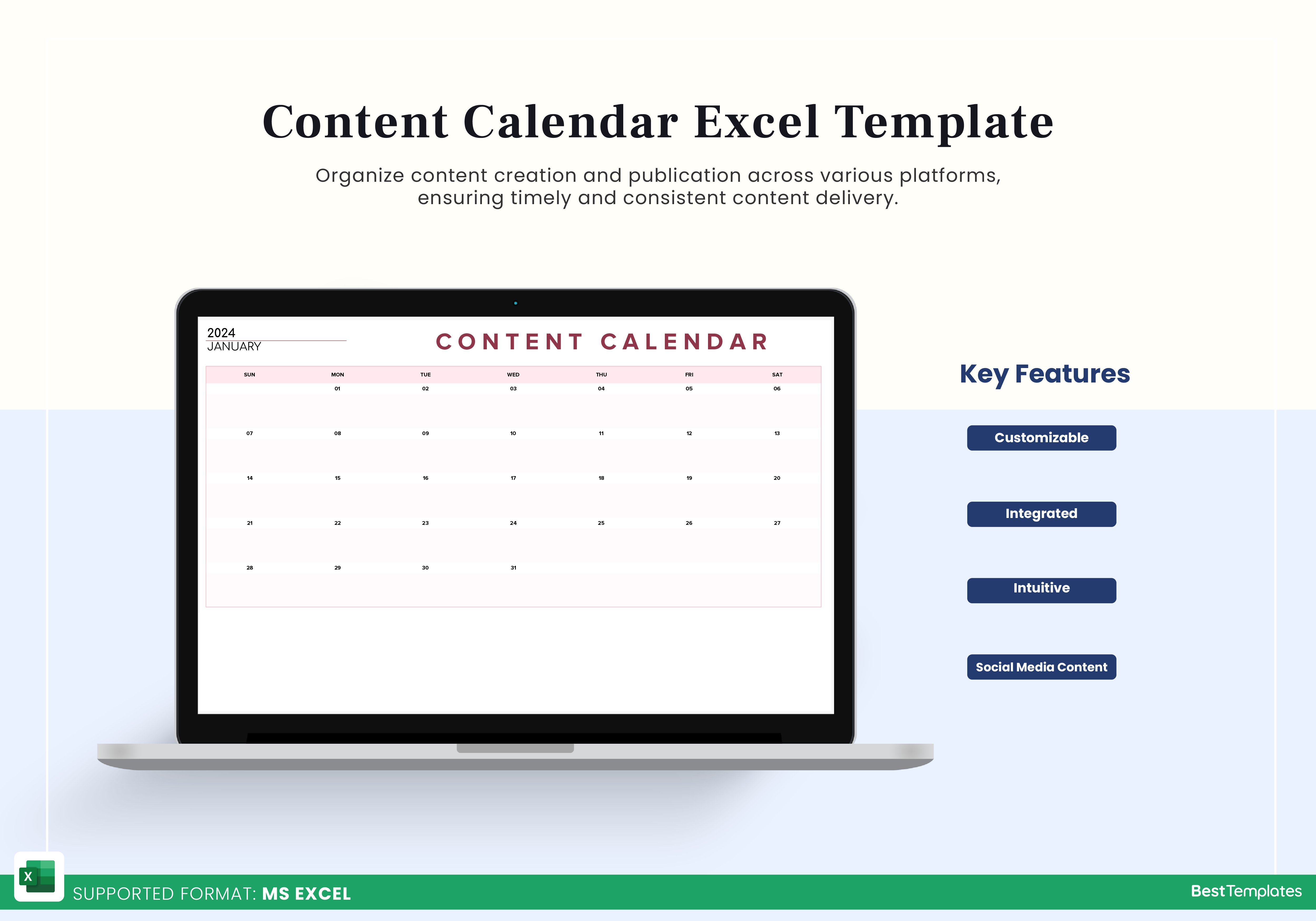
Why Excel for Content Calendars?
When it comes to planning and organizing content, having a solid content calendar is essential. It helps ensure consistency, efficiency, and alignment with your marketing goals. While there are many tools available for creating content calendars, Excel remains a popular choice due to its flexibility, familiarity, and cost-effectiveness. Whether you're a solo content creator or part of a large marketing team, Excel's versatility makes it an ideal platform for crafting a customized content calendar that suits your needs.
Setting Up Your Content Calendar in Excel
Creating a content calendar in Excel starts with setting up a basic structure. Here's a simple approach:
- Open a New Spreadsheet: Start with a blank spreadsheet. You can choose to use a template, but for maximum customization, starting from scratch is best.
- Define Your Columns: Typically, a content calendar will have columns for:
- Enter Your Data: Start filling in your calendar with upcoming content. You can organize it by date, content type, or any other system that makes sense for your strategy.
Advanced Content Calendar Features in Excel
Once you have the basics down, you can start leveraging more advanced Excel features to enhance your content calendar:
- Conditional Formatting: Use colors to indicate different statuses or content types at a glance.
- Filters and Sorting: Easily rearrange your calendar to focus on specific types of content or tasks.
- Formulas: Automate calculations, such as counting the number of published posts or tracking deadlines.
Example of a Content Calendar Setup
Let's say you're a marketing manager for a blog that publishes three articles a week. Here's a simple example of what your Excel content calendar might look like:
| Date | Content Type | Topic | Status | Author | Channel |
|---|---|---|---|---|---|
| 2023-04-01 | Blog Post | Spring Trends | Draft | John | Website |
| 2023-04-03 | Social Media | Product Launch | Scheduled | Emily | |
| 2023-04-05 | Video | Tutorial | Filming | David | YouTube |
Tips for Maximizing Efficiency
- Regular Updates: Make it a habit to update your calendar regularly. This ensures that everyone involved is on the same page and that deadlines are met.
- Collaboration: Share your calendar with team members and consider using Excel's collaboration features to allow multiple users to view or edit the calendar simultaneously.
- Review and Adjust: Periodically review your content calendar to assess its effectiveness and make adjustments as needed.
Comparison with Other Tools
While Excel is a powerful tool for creating content calendars, it's not the only option. Here's a quick comparison with two popular alternatives:
| <strong>Feature</strong> | <strong>Excel</strong> | <strong>Google Calendar</strong> | <strong>Trello</strong> |
|---|---|---|---|
| <strong>Cost</strong> | Included with Microsoft Office | Free with Google account | Free, with paid upgrades |
| <strong>Ease of Use</strong> | Moderate | High | High |
| <strong>Collaboration</strong> | Good, with sharing and co-editing | Excellent, real-time | Excellent, through boards and cards |
| <strong>Customization</strong> | High | Moderate | High |
Each tool has its strengths. Excel offers deep customization and control, Google Calendar excels in real-time collaboration and integration with other Google tools, and Trello provides a visual, Kanban-style approach to project management.
Insight: Choosing the Right Tool for Your Needs
"The best content calendar tool is not about features, but about finding a tool that your team will actually use. Consider your team's workflow, preferences, and needs when selecting a tool."
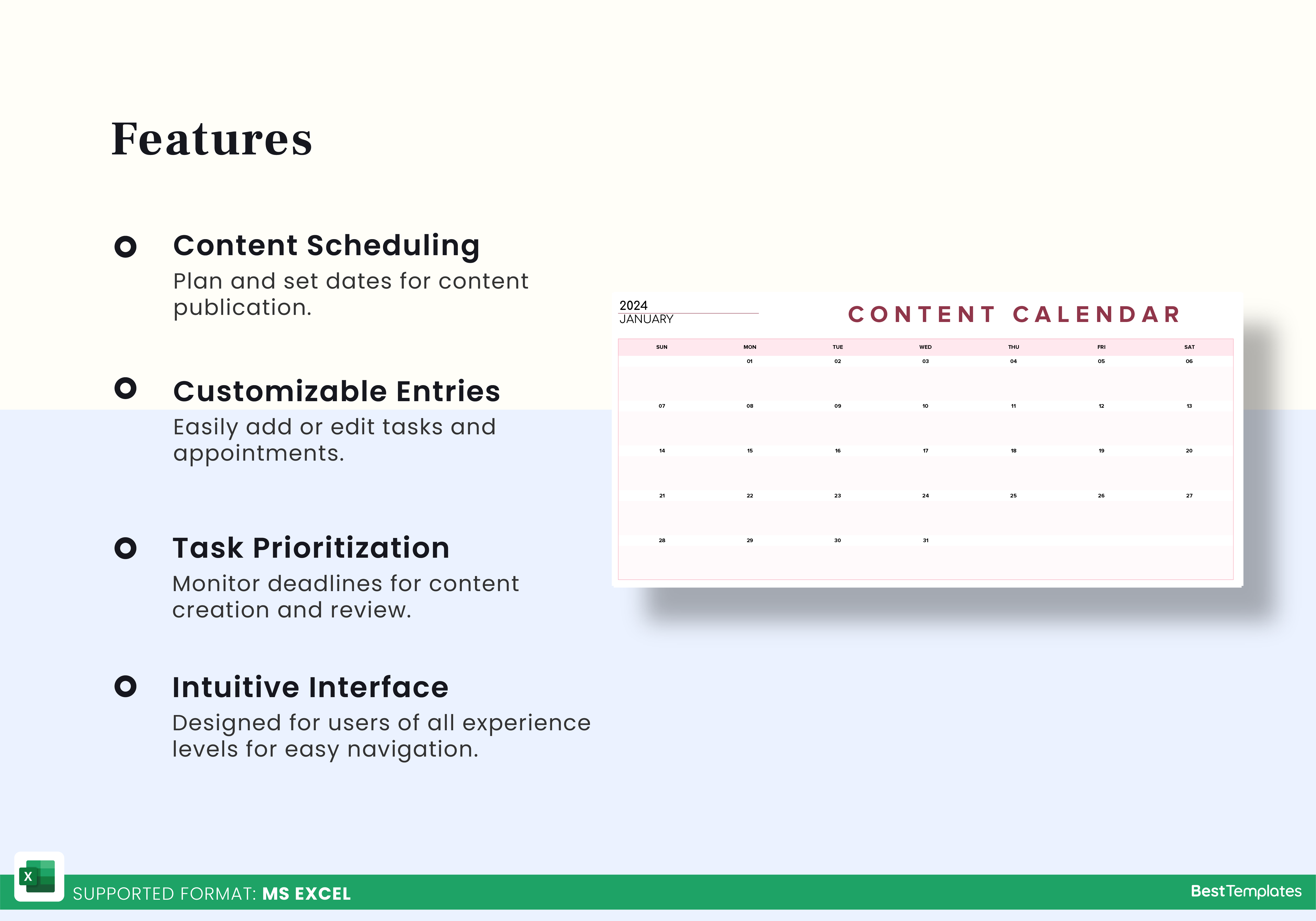
Checklist for Creating a Content Calendar in Excel
- Define your content strategy and goals
- Identify key team members and their roles
- Set up your Excel spreadsheet with relevant columns
- Populate your calendar with upcoming content
- Use advanced Excel features for efficiency
- Regularly update and review your calendar
FAQs
Q: How do I make a content calendar in Excel?
Start by setting up a spreadsheet with columns for date, content type, topic, status, author, and channel. Populate it with your content plan and use Excel features to enhance organization.
Q: What is the best format for a content calendar?
The best format depends on your specific needs, but a table format in Excel or Google Sheets often works well for its simplicity and ease of use.
Q: Can I use Excel to schedule posts?
While Excel is great for planning, it may not be ideal for scheduling posts directly. Consider integrating it with scheduling tools like Hootsuite or Buffer for social media posts.
Finalizing Your Content Calendar Strategy
Creating a content calendar in Excel is a straightforward process that can significantly enhance your content planning and execution. By leveraging Excel's features and customizing your calendar to fit your needs, you can ensure a more organized, efficient, and productive content creation process. Whether you're working solo or leading a team, a well-crafted content calendar is a key component of any successful content strategy.
Related: A Practical Guide to the Best Free Online Design Tools
Related: How to Choose an Online Course Website Template Without
