
TITLE: What to Know About Fixing a Mouse Not Working Properly
META_DESC: Learn to troubleshoot and fix common mouse issues, from simple cleaning to advanced driver updates, and get your mouse working smoothly again.
TAGS: mouse not working, fix mouse issues, computer troubleshooting, peripheral problems, tech support, mouse repair, computer maintenance, DIY fixes
CATEGORY: Technology
A Sudden Loss of Control: When Your Mouse Stops Working
Imagine being in the middle of an important project, and your mouse suddenly stops responding. The cursor freezes, and you're left wondering what went wrong. This frustrating experience is all too common, but the good news is that most mouse issues can be resolved with some basic troubleshooting and simple fixes. In this article, we'll walk you through the steps to identify and fix common mouse problems, getting you back to work in no time.
Simple Checks: The First Line of Defense
Before diving into complex solutions, it's essential to rule out the obvious causes. Here are a few simple checks to get you started:
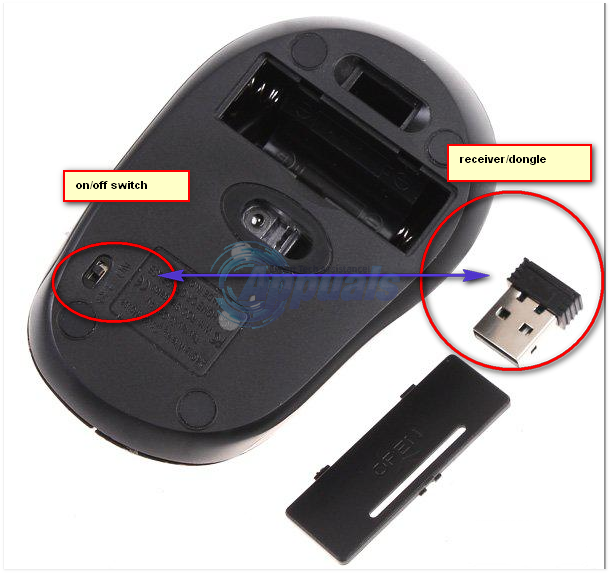
Ensure your mouse is properly connected to your computer. Check that the USB connector is securely plugged in, and try a different port if you're using a desktop computer.
If you're using a wireless mouse, check the battery levels and replace them if necessary. Sometimes, a simple battery swap can resolve the issue.
Inspect your mouse for dust, dirt, or debris accumulation. A can of compressed air or a soft cloth can help clean out any blockages.
Cleaning and Maintenance: A Crucial Step
A dirty mouse can cause a range of problems, from erratic cursor movement to complete failure. Regular cleaning can help prevent these issues. Here's a step-by-step guide on how to clean your mouse:
Use compressed air to blow out any loose debris from the mouse and its sensor.
Dampen a cloth with water, but make sure it's not soaking wet. Gently wipe down the mouse, paying attention to the sensor and any areas with visible buildup.
Use a cotton swab to clean hard-to-reach areas, such as the scroll wheel and buttons.
Driver Issues: A Common Culprit
Outdated or corrupted drivers can cause your mouse to malfunction. Here's how to check and update your mouse drivers:
On Windows, go to the Device Manager (Press the Windows key + X and select Device Manager). Expand the "Mice and other pointing devices" section, right-click on your mouse, and select "Update driver."
On macOS, go to System Preferences > Software Update. If an update is available, install it and restart your computer.
Advanced Troubleshooting: Digging Deeper
If the simple checks and cleaning haven't resolved the issue, it's time to dig deeper. Here are some advanced troubleshooting steps:
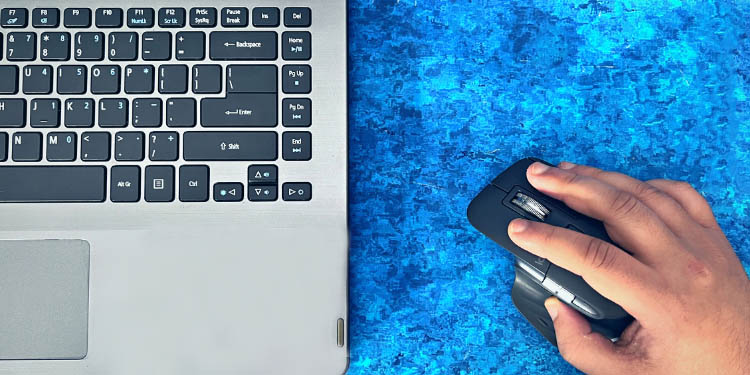
Try using your mouse on a different surface or a mousepad. Some mice may have issues with certain surfaces, such as glass or reflective materials.
If you're using a wireless mouse, try replacing the batteries or re-pairing the mouse with your computer.
Check for conflicts with other devices. If you're using a USB hub, try connecting your mouse directly to your computer.
Real-World Scenarios: Learning from Others
Let's take a look at some real-world scenarios where users encountered mouse issues and how they resolved them:
The Case of the Frozen Cursor: A user reported that their cursor was frozen on a specific area of the screen. After cleaning the mouse and updating the drivers, the issue was resolved.
The Wireless Woes: Another user experienced intermittent connectivity issues with their wireless mouse. After replacing the batteries and re-pairing the mouse, the problem was fixed.
Comparison of Common Mouse Issues and Fixes
| Issue | Possible Cause | Solution |
|---|---|---|
| Mouse not responding | Connection issues, dead batteries | Check connections, replace batteries |
| Erratic cursor movement | Dirty sensor, outdated drivers | Clean the mouse, update drivers |
| Intermittent connectivity | Weak wireless signal, interference | Move the receiver, replace batteries |
FAQs
Q: Why is my mouse not working even after I've tried everything?
If you've tried the above steps and your mouse still isn't working, it's possible that there's a hardware issue. Try using a different mouse or consulting the manufacturer's support resources.
Q: Can I use a USB mouse on a laptop?
Yes, you can use a USB mouse on a laptop. Simply plug it into an available USB port, and your laptop should recognize it.
Q: How often should I clean my mouse?
It's a good idea to clean your mouse every 1-2 months, or more often if you notice issues with its performance.
A Final Check: Ensuring Your Mouse is Working Smoothly
By following these steps and troubleshooting tips, you should be able to identify and fix common mouse issues. Remember to regularly clean and maintain your mouse to prevent future problems. If you're still experiencing issues, don't hesitate to reach out to the manufacturer's support team or consider consulting a professional for further assistance. With a little patience and troubleshooting, you'll be back to navigating your computer with ease in no time.
Related: Taking Control of Your Spending Habits for a Healthier
Related: A Practical Guide to Household Pet Care Tips
Related: free simple budget planner template
