
Simple and Effective Ways to Backup Your Phone Data
As we increasingly rely on our smartphones for daily activities, the data stored on these devices becomes more valuable. From cherished photos and videos to critical contacts and documents, losing this information can be devastating. Therefore, it's crucial to have a reliable backup system in place. In this article, we'll explore straightforward methods to ensure your phone data remains safe.
Understanding Your Backup Needs
Before diving into the backup methods, it's essential to understand what data you need to backup. Typically, this includes:
- Contacts
- Photos and videos
- Calendar events
- Notes
- Apps and their data (if possible)
- Music and other files
Knowing what you want to save helps you choose the right backup solution.
Cloud-Based Backup Solutions
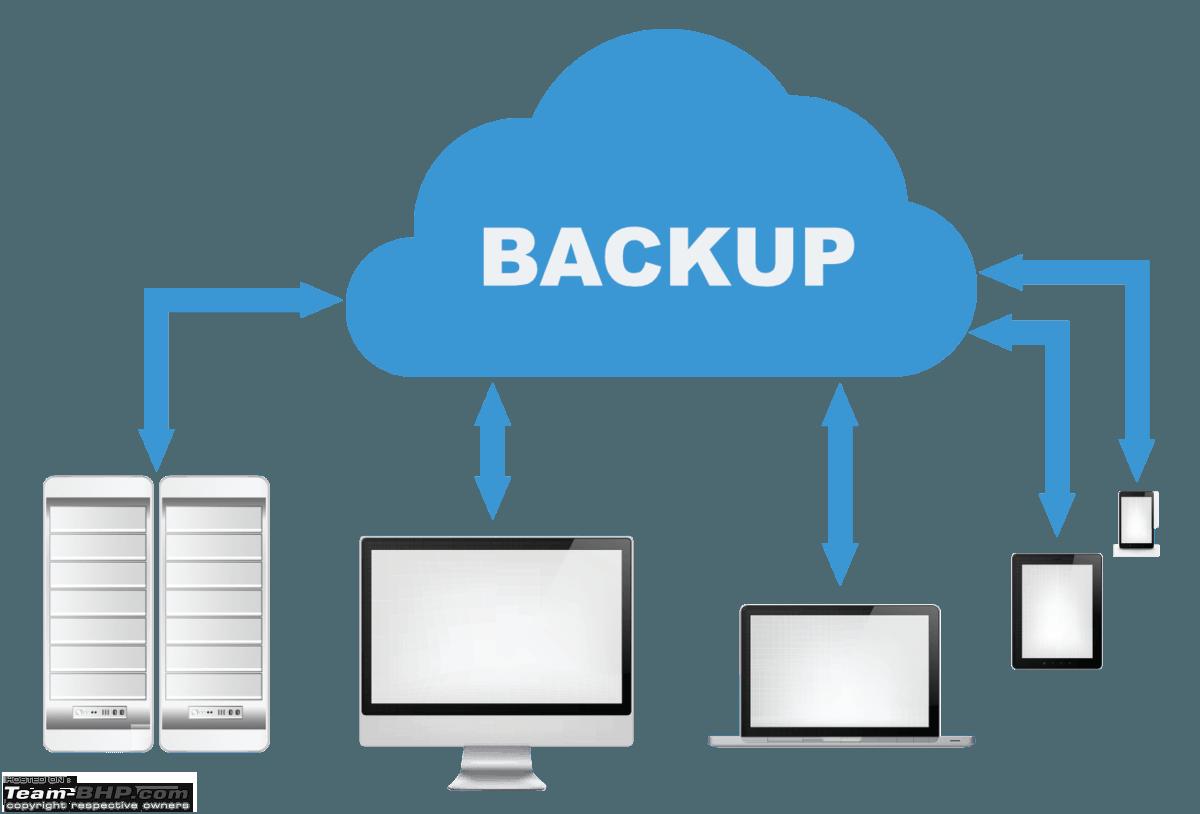
Cloud storage is one of the most convenient ways to backup your phone data. Services like Google Drive, iCloud, and Dropbox offer seamless integration with your smartphone, allowing you to store your data online.
Google Drive for Android Users
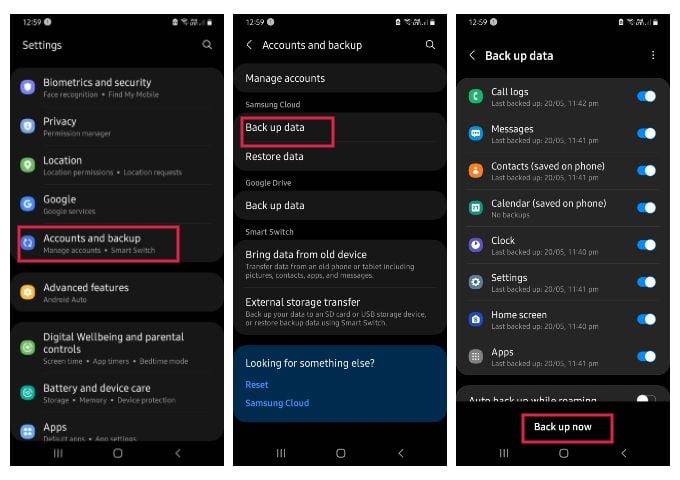
For Android users, Google Drive is a straightforward option. You can easily set up automatic backups for your contacts, photos, and other data.
- Go to your phone's Settings.
- Select "Backup & reset" or "Backup & settings."
- Choose "Google Account" and ensure that the backup option is turned on.
iCloud for iPhone Users
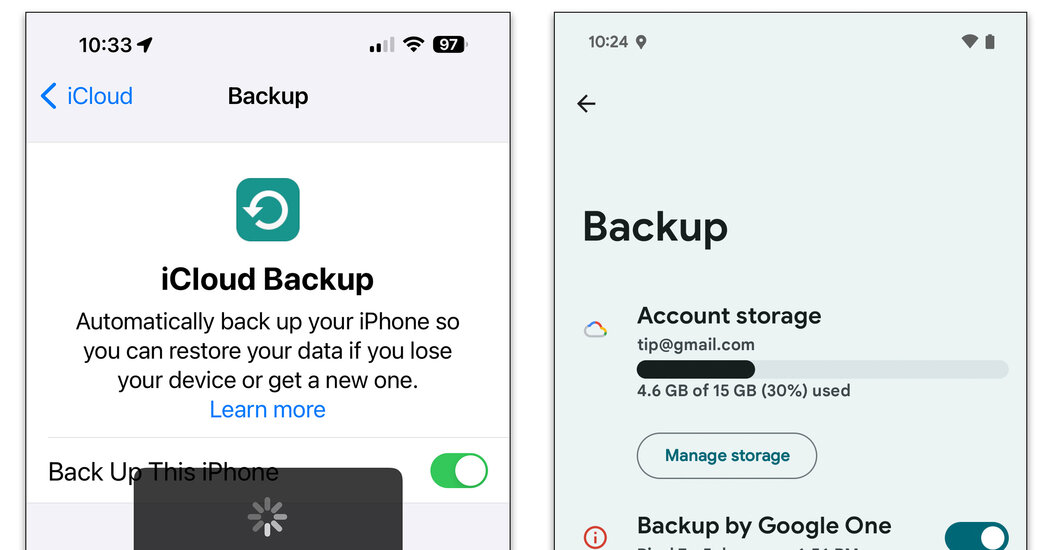
iPhone users have iCloud as a native option. iCloud can automatically backup your device over Wi-Fi.
- Go to your iPhone's Settings.
- Tap on your name at the top.
- Select "iCloud."
- Turn on "iCloud Backup."
Physical Backup Methods
While cloud backups are convenient, having a physical copy of your data can be reassuring.
Using a Computer
You can connect your smartphone to a computer and transfer files directly. This method is useful for large files like videos and music.
- For Android: Use a USB cable to connect your phone to the computer. Enable USB debugging if prompted.
- For iPhone: Use iTunes to sync your device and create a backup.
External Hard Drives and SD Cards
For those with a lot of data, external hard drives or SD cards can be a practical solution.
- SD Cards: Ideal for Android users who want to expand their storage or backup data externally.
- External Hard Drives: Suitable for users with large amounts of data. Some external hard drives come with mobile apps for easy data transfer.
Comparison of Backup Methods
| Backup Method | Ease of Use | Cost | Accessibility |
|---|---|---|---|
| Cloud Storage | High | Varies | High |
| Computer Backup | Medium | Free | Medium |
| External Devices | Low-Medium | Varies | Low-Medium |
Best Practices for Backup
To ensure your data remains safe:
- Regularly Update Your Backups: Make it a habit to backup your data at least once a week.
- Use the 3-2-1 Rule: Have three copies of your data, on two different types of media, with one offsite copy.
- Test Your Backups: Occasionally check your backups to ensure they're complete and accessible.
Common Mistakes to Avoid
- Relying on a Single Method: Diversify your backup methods to minimize risk.
- Ignoring Update Notifications: Keep your backup software and apps updated to protect against data loss.
FAQs
Q: How often should I backup my phone?
It's recommended to backup your phone data at least once a week. However, if you frequently create or modify data, consider backing up daily.
Q: Can I backup my WhatsApp chats?
Yes, you can backup your WhatsApp chats to Google Drive (for Android) or iCloud (for iPhone). Go to WhatsApp > Settings > Chats > Chat backup.
Q: Is cloud backup safe?
Cloud backup is generally safe, with providers implementing robust security measures. However, it's crucial to use strong passwords and enable two-factor authentication.
Q: Can I backup my phone without internet?
Yes, you can backup your phone to a computer or external storage devices without an internet connection.
Conclusion
Backing up your phone data doesn't have to be complicated. By understanding your needs, choosing the right methods, and following best practices, you can ensure your valuable information remains secure. Whether you prefer the convenience of cloud storage or the reliability of physical backups, the key is to find a system that works for you and to use it consistently.
Related: 5 Useful Things to Know About Online Checklist Apps for
