
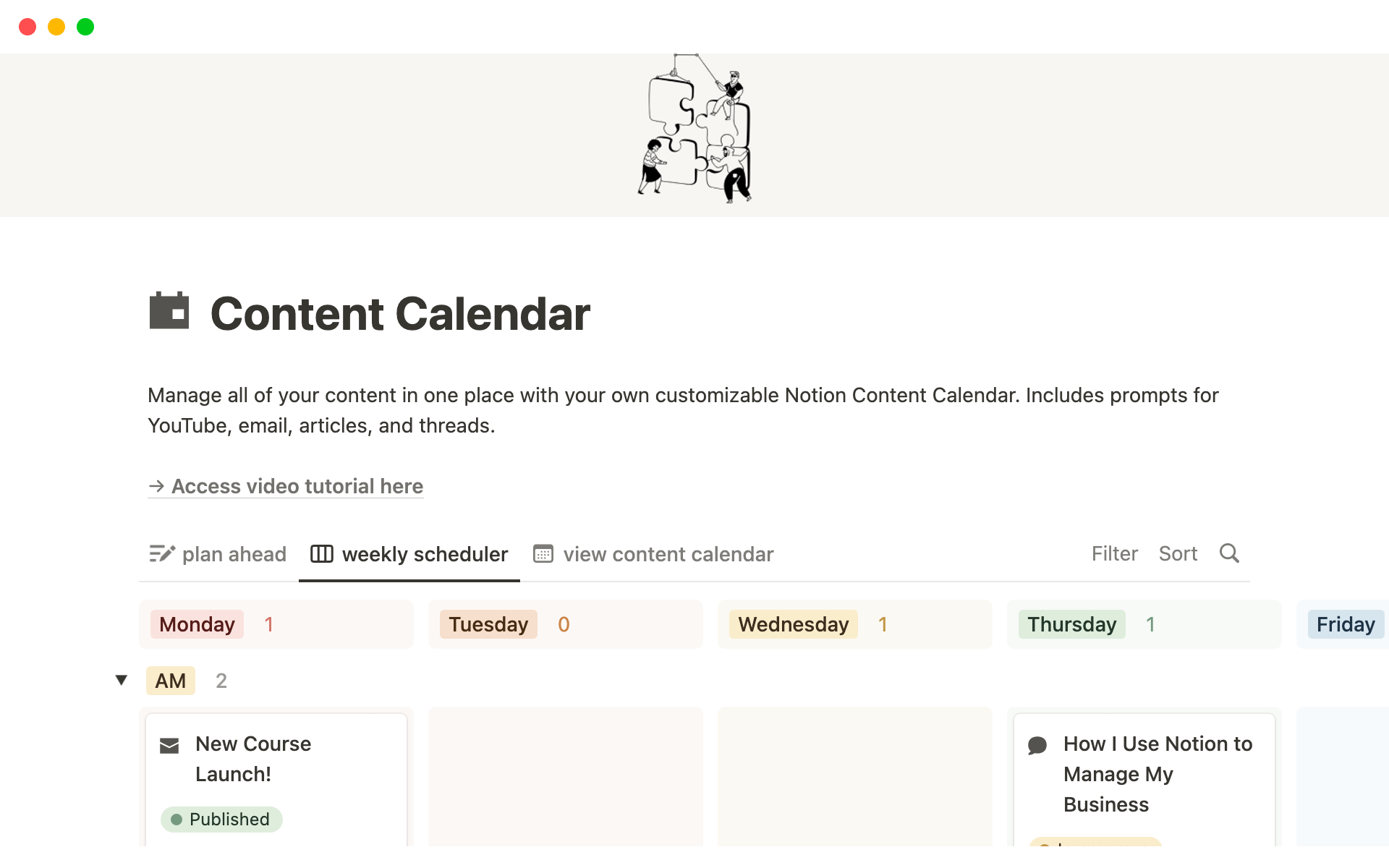
Creating a Content Calendar in Notion: A Game Plan for Success
When it comes to planning and organizing content, a well-crafted content calendar is indispensable. For businesses and individuals looking to streamline their content creation process, Notion offers a versatile platform to build a customized content calendar. A Notion content calendar template can help you visualize your content strategy, ensuring that your posts are timely, relevant, and aligned with your marketing goals.
Understanding Notion's Versatility
Notion is an all-in-one workspace that allows users to take notes, manage databases, and create templates for various tasks. Its flexibility makes it an ideal tool for creating a content calendar that can be tailored to your specific needs. With Notion, you can create a content calendar that integrates with other parts of your workflow, such as project management, note-taking, and task assignment.
Benefits of Using a Content Calendar Template in Notion
Centralized Planning
A content calendar template in Notion provides a centralized location for planning and organizing your content. This means you can easily access and update your content plan from anywhere, at any time.
Customization
Notion's drag-and-drop interface and block-based structure make it easy to customize your content calendar template. You can add or remove sections, change the layout, and adapt the template to fit your specific needs.
Collaboration
Notion allows for real-time collaboration, making it easy to work with team members on content planning. You can assign tasks, leave comments, and track changes, ensuring that everyone is on the same page.
Building Your Content Calendar Template in Notion
Step 1: Setting Up Your Template
To create a content calendar template in Notion, start by creating a new page and selecting the "Table" block. This will serve as the foundation for your content calendar.
Step 2: Defining Your Content Calendar Structure
Determine the columns and sections you need for your content calendar. Common columns include:
Content type (blog post, social media, video, etc.)
Topic
Date
Status (draft, published, scheduled, etc.)
- Author
Step 3: Customizing Your Template
Add or remove columns as needed, and customize the layout to fit your workflow. You can also add filters, sorts, and views to help you manage your content.
Practical Tips for Using Your Content Calendar Template
Consistency is Key
Regularly update your content calendar to ensure that your content plan stays on track. Set reminders or schedule regular check-ins to review your calendar.

Use Filters and Views
Use Notion's filtering and viewing capabilities to focus on specific aspects of your content calendar. For example, you can create a view that shows only upcoming posts or only posts assigned to a specific author.
Integrate with Other Tools
Consider integrating your content calendar with other tools, such as Google Calendar or social media scheduling platforms. This can help streamline your workflow and reduce duplicate work.
Common Mistakes to Avoid
Over-Complicating Your Template
Avoid adding too many columns or sections to your content calendar template. This can make it overwhelming and difficult to use.
Not Updating Your Calendar
Failing to regularly update your content calendar can lead to missed deadlines and disorganized content planning.
Not Collaborating with Your Team
Notion's collaboration features are one of its strongest benefits. Make sure to take advantage of these features to ensure that your team is aligned and working together effectively.
Comparison of Content Calendar Tools
| Tool | Notion | Trello | Asana | Google Calendar |
|---|---|---|---|---|
| Customization | High | Medium | Medium | Low |
| Collaboration | High | High | High | Medium |
| Integration | High | Medium | High | High |
| Cost | Free/Paid | Free/Paid | Free/Paid | Free |
Real-World Example: How a Small Business Uses Notion for Content Planning
A small business owner uses Notion to manage her content calendar, creating a customized template that integrates with her project management workflow. She can easily assign tasks to her team members, track progress, and ensure that her content is published on time.
FAQs
Q: How do I create a content calendar in Notion?
To create a content calendar in Notion, start by creating a new page and selecting the "Table" block. Then, define your content calendar structure and customize the template to fit your needs.
Q: Can I collaborate with my team on a Notion content calendar?
Yes, Notion allows for real-time collaboration, making it easy to work with team members on content planning.
Q: How do I integrate my content calendar with other tools?
Consider using Notion's integration features or third-party apps to connect your content calendar with other tools, such as Google Calendar or social media scheduling platforms.
Q: What are some common mistakes to avoid when using a content calendar template in Notion?
Common mistakes to avoid include over-complicating your template, not updating your calendar, and not collaborating with your team.
Putting it All Together
A well-crafted content calendar template in Notion can be a powerful tool for streamlining your content planning and creation process. By understanding Notion's versatility, benefits, and best practices, you can create a customized content calendar that meets your specific needs and helps you achieve your marketing goals. Take the time to set up your template, customize it to fit your workflow, and regularly update it to ensure that your content plan stays on track.
Related: Monthly Content Calendar Template in Excel for Efficient
