
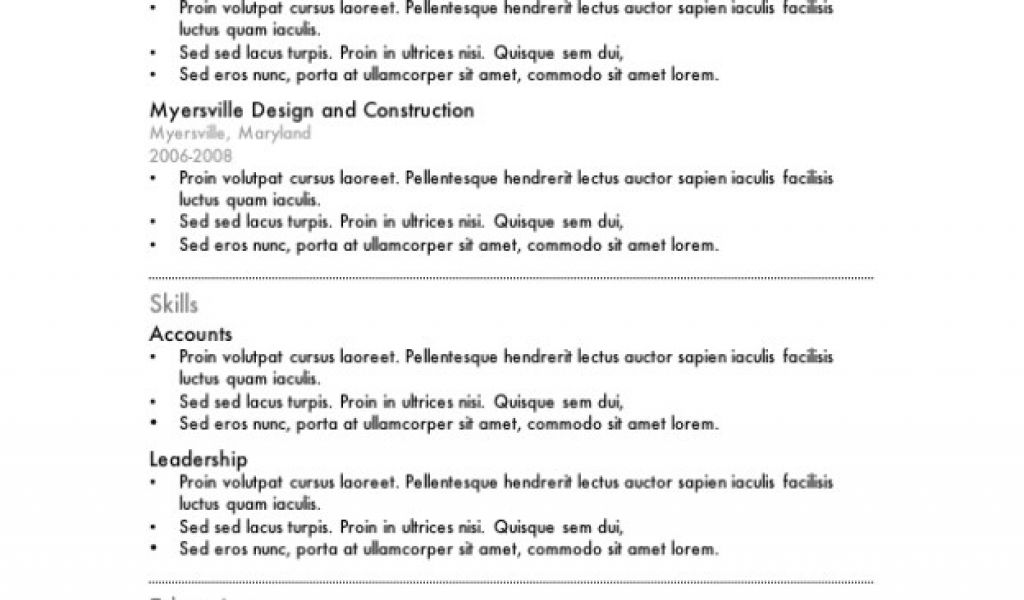
Finding the Perfect Free Microsoft Word Resume Template
When you're on the hunt for a job, having a standout resume is crucial. But creating one from scratch can be daunting, especially if you're not design-savvy. That's where free Microsoft Word resume templates come in – a convenient, cost-effective solution to help you craft a professional-looking resume. With numerous options available, it's essential to know what to look for and how to make the most of these templates.
Benefits and Drawbacks of Using Free Templates
Free Microsoft Word resume templates offer several benefits. They're easily accessible, customizable, and can save you time and effort. However, there are some tradeoffs to consider. free templates might lack originality, and you may end up with a resume that looks similar to others. Additionally, some templates might not be optimized for applicant tracking systems (ATS), which could hinder your chances of getting past the initial screening.
Top Free Microsoft Word Resume Templates
Here are some popular free Microsoft Word resume templates:
Microsoft Word's Built-in Templates: Microsoft offers a range of free resume templates within Word. To access them, open Word, click on "File," and then select "New." In the search bar, type "resume" or "CV," and browse through the available templates.
Resume Template by Hloom: This template offers a clean, modern design and is compatible with Word 2010 and later versions.
Free Resume Template by Canva: Canva provides a range of free resume templates, including some great options for Microsoft Word.
How to Choose the Right Template
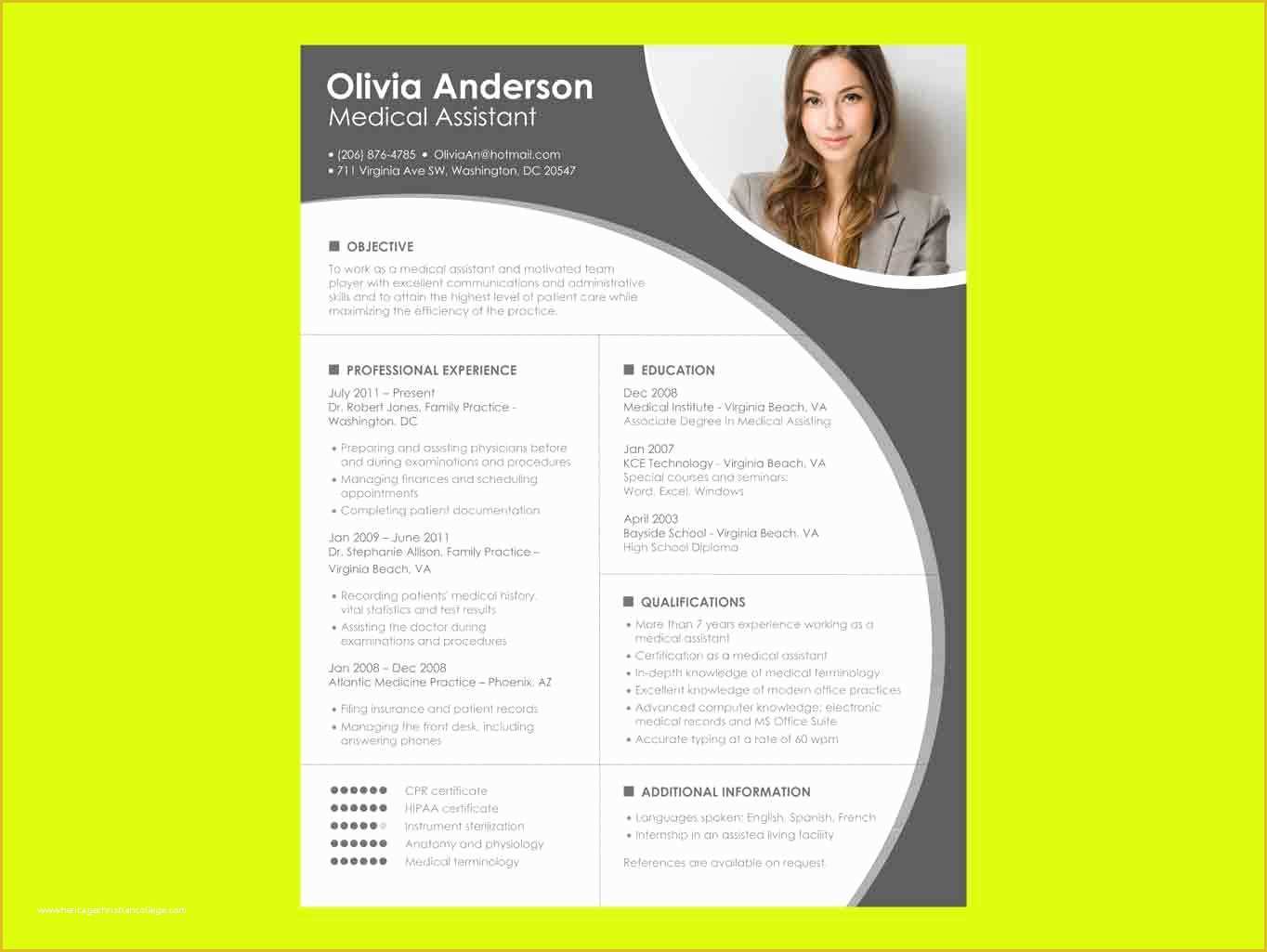
With so many free Microsoft Word resume templates available, it's essential to choose one that suits your needs. Consider the following factors:
Industry: Different industries have different expectations when it comes to resume design. For example, a creative field might allow for more visual experimentation, while a corporate job might require a more traditional approach.
Experience level: If you're entry-level, a simpler template might be more suitable. For more experienced professionals, a template with more sections and visual hierarchy might be more effective.
Personal style: Choose a template that reflects your personality and style, but also ensures readability and clarity.
Customizing Your Template
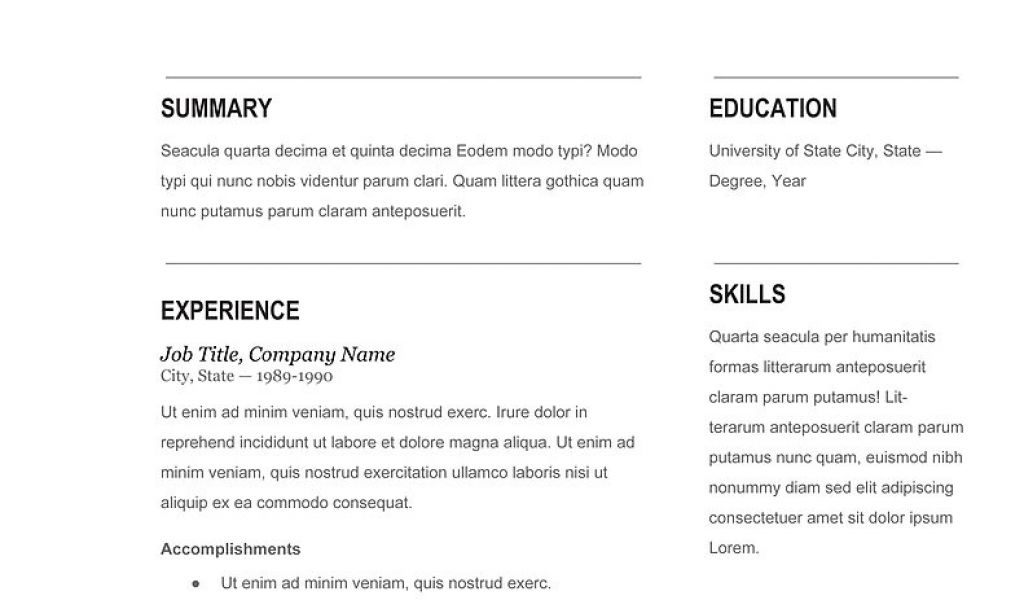
Once you've selected a template, it's time to customize it. Here are some tips:
Tailor your objective: Make sure your objective statement aligns with the job you're applying for.
Highlight your achievements: Emphasize your achievements and qualifications rather than just listing job responsibilities.
Use keywords: Use relevant keywords from the job posting to help your resume pass through ATS.
Common Mistakes to Avoid
When using free Microsoft Word resume templates, avoid the following common mistakes:
Overusing fonts and colors: Stick to a simple font and color scheme to ensure readability.
Inconsistent formatting: Make sure your formatting is consistent throughout the resume.
Typos and grammatical errors: Carefully proofread your resume to catch any errors.
FAQs
Here are some frequently asked questions about free Microsoft Word resume templates:
Q: Are free Microsoft Word resume templates really free? Yes, these templates are genuinely free, but some might offer optional paid upgrades or services.
Q: Can I use a free template for a professional job application?
Yes, but make sure you customize it to showcase your skills and experience.
Q: How do I know if a template is compatible with ATS?
Look for templates with clear headings, bullet points, and a simple layout.
Final Tips for Success
To make the most of free Microsoft Word resume templates, remember to:
Keep it concise: Keep your resume to one or two pages, depending on your experience level.Use action verbs: Use action verbs like "managed," "created," and "developed" to describe your achievements.
Proofread: Carefully proofread your resume to catch any errors.
By following these tips and choosing the right free Microsoft Word resume template, you'll be well on your way to creating a standout resume that helps you land your dream job.
