
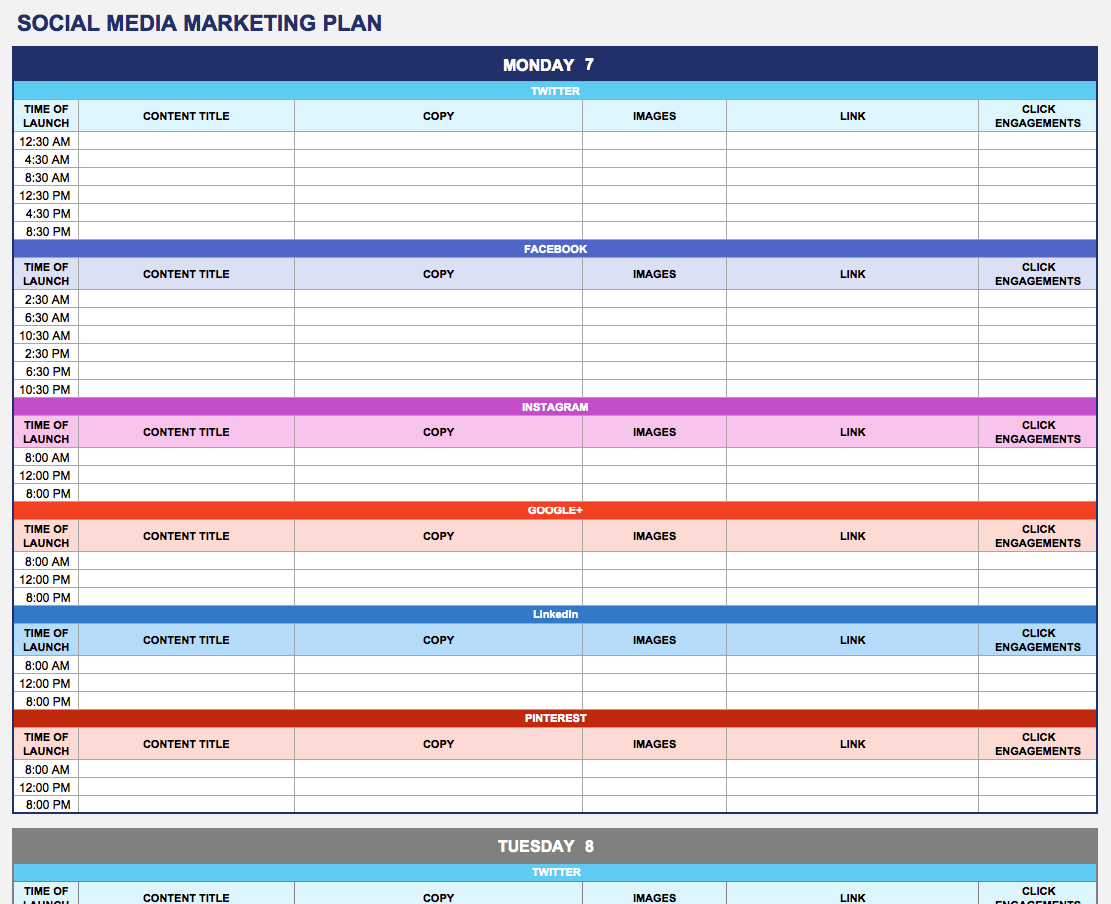
Why a Marketing Content Calendar Template in Excel Makes Sense
As a marketer, you're likely no stranger to the chaos of managing multiple content pieces across various channels. A marketing content calendar template in Excel can be a lifesaver, helping you streamline your content planning, and improve team collaboration. But what makes a good template, and how can you set yourself up for success?
The Benefits of Using an Excel Template for Your Content Calendar
Using an Excel template for your content calendar offers several benefits. For one, Excel is a familiar tool for most marketers, making it easy to get started. Additionally, Excel templates are highly customizable, allowing you to tailor your content calendar to your specific needs.
Key Benefits:
Easy to use and customize Familiar tool for most marketers Highly flexible and adaptableChoosing the Right Template for Your Needs
When it comes to selecting a marketing content calendar template in Excel, there are several options to consider. You can either create your own template from scratch, use a pre-made template from Microsoft or other sources, or adapt a template from another tool like Google Sheets or Trello.
Here are some popular options:
Microsoft's Built-in Templates: Microsoft offers several pre-made content calendar templates that you can download and use in Excel. These templates are a great starting point, but may require some customization to fit your specific needs.Template Marketplaces: Websites like TemplateLab, Vertex42, and TemplateArchive offer a wide range of Excel templates, including content calendars. These templates often come with pre-built formulas and formatting, saving you time and effort.
Setting Up Your Content Calendar Template
Once you've chosen a template, it's time to set it up. Here are some key elements to include:
Content Types: Identify the types of content you'll be creating, such as blog posts, social media posts, email newsletters, and more.Channels: List the channels you'll be publishing on, including your website, social media platforms, email, and more.
Publishing Dates: Schedule your content in advance using a calendar view.
Responsibilities: Assign tasks and responsibilities to team members.
Example of a Basic Content Calendar Template
| Content Type | Channel | Publishing Date | Responsible Team Member |
|---|---|---|---|
| Blog Post | Website | 2023-03-01 | John |
| Social Media Post | Facebook, Twitter | 2023-03-02 | Jane |
| Email Newsletter | 2023-03-03 | Bob |
Tips for Effective Content Calendar Management
To get the most out of your content calendar template, follow these best practices:
Keep it Up-to-Date: Regularly update your content calendar to reflect changes in your content strategy or publishing schedule.Collaborate with Your Team: Share your content calendar with your team and encourage collaboration and feedback.
Use Conditional Formatting: Use Excel's conditional formatting feature to highlight important deadlines or tasks.
Common Mistakes to Avoid
When creating and managing your content calendar template, avoid these common mistakes:
Over-Complicating Your Template: Keep your template simple and easy to use. Avoid adding too many features or complexity.
Not Updating Your Template: Regularly update your template to reflect changes in your content strategy or publishing schedule.
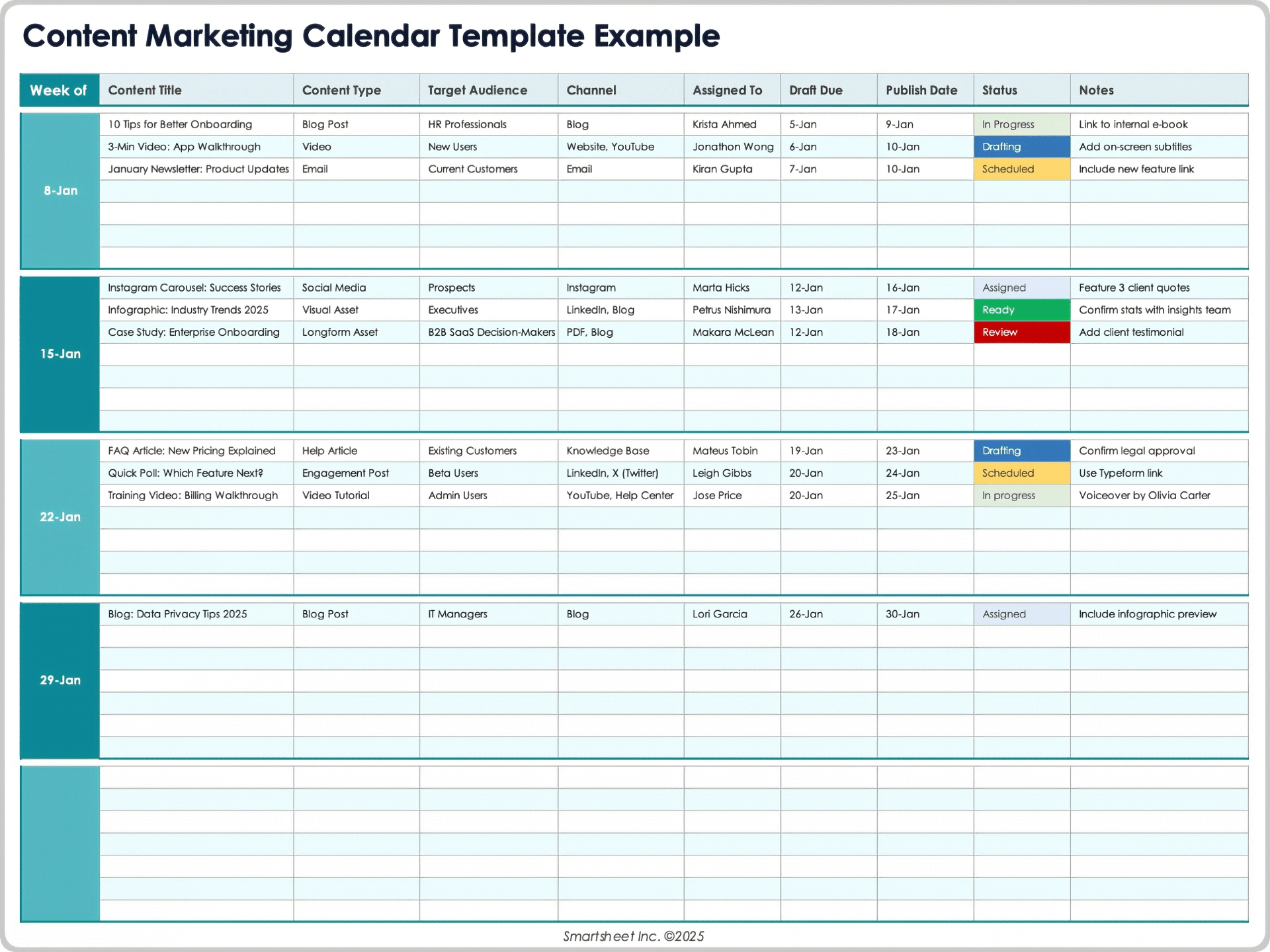
Comparing Excel to Other Content Calendar Tools
While Excel is a popular choice for content calendars, it's not the only option. Other tools like Asana, Trello, and CoSchedule offer robust content calendar features. Here's a comparison of the pros and cons of each:
Comparison Table
| Tool | Pros | Cons |
|---|---|---|
| Excel | Familiar tool, highly customizable, flexible | Can be complex, requires manual updates |
| Asana | Robust features, easy to use, collaborative | Limited customization options |
| Trello | Visual interface, easy to use, flexible | Limited features for complex content calendars |
| CoSchedule | Robust features, easy to use, affordable | Limited customization options |
FAQs
Q: How do I create a content calendar in Excel?
Start by choosing a template or creating a new spreadsheet. Add columns for content type, channel, publishing date, and responsible team member.
Q: What are the benefits of using a content calendar template in Excel?
Using a content calendar template in Excel can help streamline your content planning, improve team collaboration, and increase productivity.
Q: Can I use Excel to manage my social media content calendar?
Yes, Excel can be used to manage your social media content calendar. Simply add columns for social media platforms and schedule your posts in advance.
Q: How do I choose the right content calendar template for my needs?
Consider your specific needs, such as the types of content you'll be creating and the channels you'll be publishing on. Choose a template that is highly customizable and easy to use.
Conclusion
A marketing content calendar template in Excel can be a powerful tool for streamlining your content planning and improving team collaboration. By choosing the right template, setting it up correctly, and following best practices, you can create a effective content calendar that helps you achieve your marketing goals.
Related: What to Know About Content Calendar Templates in Word
Related: 5 Useful Things to Know About Creating a Content Calendar
Related: A Practical Guide to Building a Website Online
Related: 5 Useful Things to Know About Building a Comparison Website
