

When you're on the hunt for a job, your resume is often the first impression you make on a potential employer. It's crucial that it stands out for all the right reasons. A well-designed resume can make a significant difference, but not everyone has the design skills or budget to create one from scratch. That's where free resume templates for Microsoft Word come in – a practical solution to help you create a professional-looking resume without breaking the bank.
Choosing the Right Template
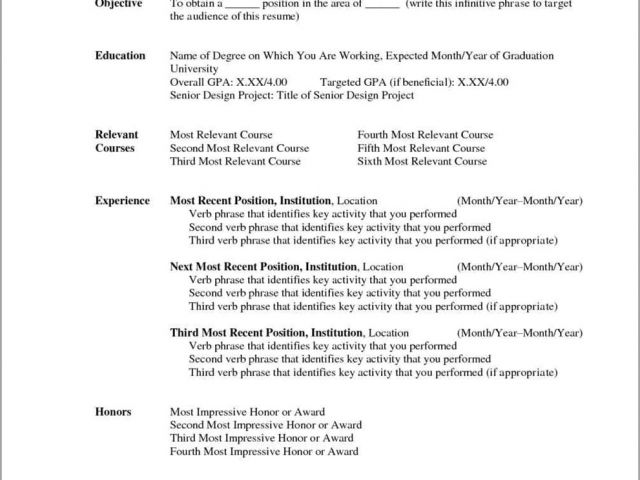
With countless free resume templates available online, selecting the right one can be overwhelming. You want a template that is clean, easy to read, and suitable for your industry. Here are a few tips to keep in mind:
- Consider your industry: Different industries have different norms when it comes to resume design. For example, if you're in a creative field, you might opt for a more innovative template, while a traditional industry might call for something more straightforward.
- Keep it simple: Avoid templates with too much clutter or overly complex designs. Your goal is to make it easy for the hiring manager to see your qualifications at a glance.
- Look for ATS compatibility: Many companies use Applicant Tracking Systems (ATS) to screen resumes before they even reach a human recruiter. Choose a template that is ATS-friendly, which usually means using a clean layout and standard fonts.
Customizing Your Template
Once you've chosen a template, it's time to customize it. This is where you make the template your own and highlight your unique qualifications and experiences.
- Tailor your objective: Begin by crafting a compelling objective or summary statement that captures your professional identity and career goals.
- Highlight achievements: Instead of just listing job responsibilities, focus on your achievements and the impact you made in your previous roles.
- Quantify your accomplishments: Use numbers and statistics to give concrete evidence of your success. For example, instead of saying "increased sales," say "increased sales by 25%."
- Customize your skills section: Make sure your skills section is aligned with the job you're applying for. Use keywords from the job description to help your resume pass through ATS and catch the eye of the hiring manager.
Practical Tips for Using Microsoft Word Templates
Microsoft Word offers a wide range of free resume templates that you can access directly from the application. Here's How to Find and use them:
- Open Microsoft Word: Start by opening Microsoft Word on your computer.
- Search for templates: Click on "File" > "New" to open the template search window. Type "resume" in the search bar and press Enter.
- Browse templates: Browse through the available templates. You can filter by category or use the search bar to find something specific.
- Select a template: Click on a template that interests you to see a preview. If you like it, click "Create" to open it in Word.
- Customize: Follow the tips from the previous section to customize the template.
Common Mistakes to Avoid
When using free resume templates, there are a few common mistakes to watch out for:
- Over-customization: While it's essential to make your resume stand out, over-customizing can make it look unprofessional. Stick to standard fonts and avoid using too many colors or graphics.
- Ignoring ATS: As mentioned earlier, many companies use ATS to screen resumes. Ignoring ATS compatibility can mean your resume never reaches a human recruiter.
- Generic resumes: Avoid using a one-size-fits-all approach. Customize your resume for each job you apply to, highlighting the skills and experiences most relevant to the position.
Insights and Comparisons
When it comes to free resume templates for Microsoft Word, there are several pros and cons to consider:
Pros:
- Cost-effective: Free templates save you money compared to hiring a professional designer.
- Time-efficient: Templates save you time, as you don't have to start from scratch.
- Professional designs: Many free templates are designed by professionals, ensuring your resume looks polished.
Cons:
- Limited uniqueness: Using a popular template might mean your resume looks similar to others.
- Customization challenges: Some templates can be difficult to customize, especially if you're not familiar with Word's advanced features.
Trust Building: Why Free Templates Can Be a Good Start
Free resume templates for Microsoft Word can be a great starting point for your job search. They offer a cost-effective, efficient way to create a professional-looking resume. However, it's essential to remember that your resume is a personal marketing document. It should reflect your brand and career story.
Frequently Asked Questions
Q: Are free resume templates for Microsoft Word really free?
Yes, many websites offer free resume templates for Microsoft Word. However, some may offer premium versions for a fee.
Q: Can I use a free template for a professional job application?
Absolutely. Many free templates are designed to be professional and suitable for job applications.
Q: How do I know if a template is ATS-friendly?
Look for templates with clean layouts and standard fonts. Avoid templates with too much graphics or complex tables.
Q: Can I customize a template to fit my industry?
Yes, most templates are highly customizable. You can change fonts, colors, and layouts to fit your industry's norms.
Final Tips for Standing Out
Your resume is a critical tool in your job search. By choosing the right free resume template for Microsoft Word and customizing it to showcase your skills and achievements, you can increase your chances of standing out. Remember to:
- Keep it concise and focused on achievements
- Tailor your resume to each job application
- Proofread carefully to avoid errors
By following these tips and leveraging free resume templates, you can create a compelling resume that helps you land your next job.
