
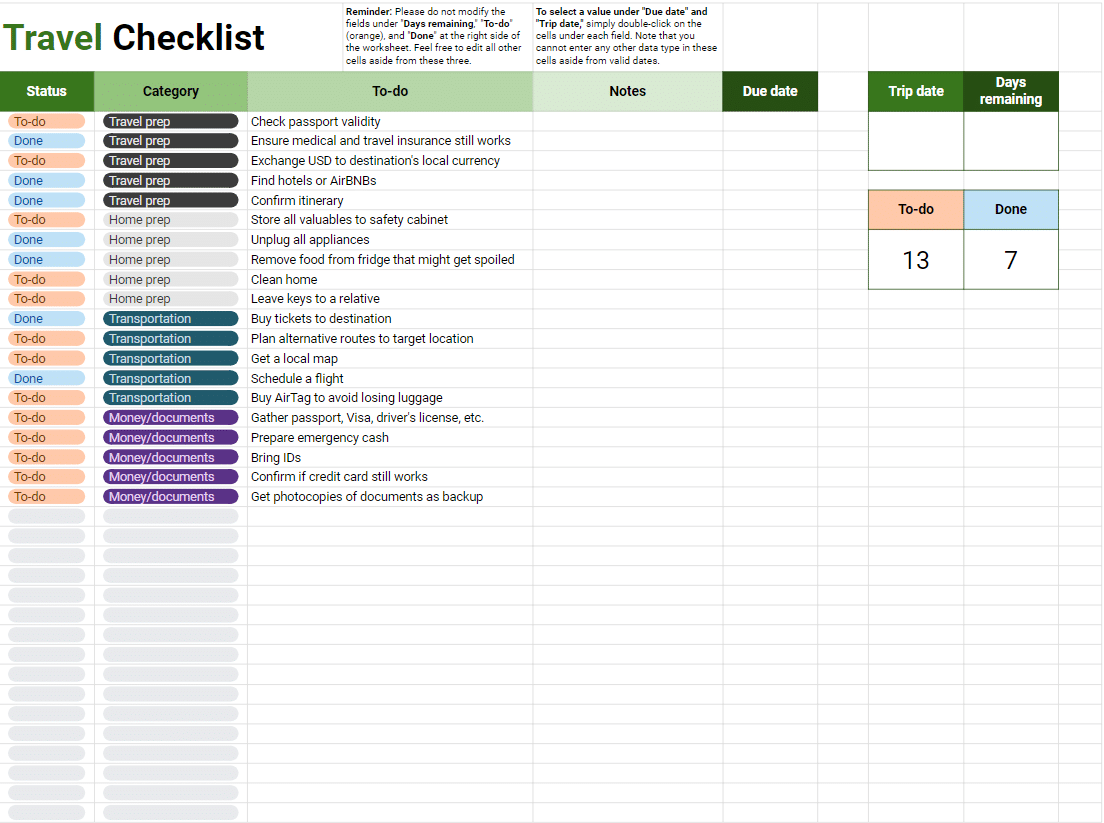
Why You Need a Travel Checklist Template
When planning a trip, it's easy to get overwhelmed by the number of things you need to do and remember. From booking flights and accommodations to packing and arranging transportation, the process can be daunting. A travel checklist template can help you stay organized, ensure that nothing is forgotten, and make your trip more enjoyable. In this article, we'll show you how to create a travel checklist template in Excel that you can customize to fit your needs.Setting Up Your Excel Template
To create a travel checklist template in Excel, start by opening a new spreadsheet and giving it a descriptive name, such as "Travel Checklist Template." You can then set up the following columns: Task: This column will list the tasks you need to complete, such as "Book flights" or "Pack clothing."
Status: This column will track the status of each task, such as "Not started," "In progress," or "Completed."
Notes: This column can be used to add additional notes or details about each task.
You can also add other columns as needed, such as a Due date column to track deadlines or a Priority column to indicate the importance of each task.
Creating Your Checklist
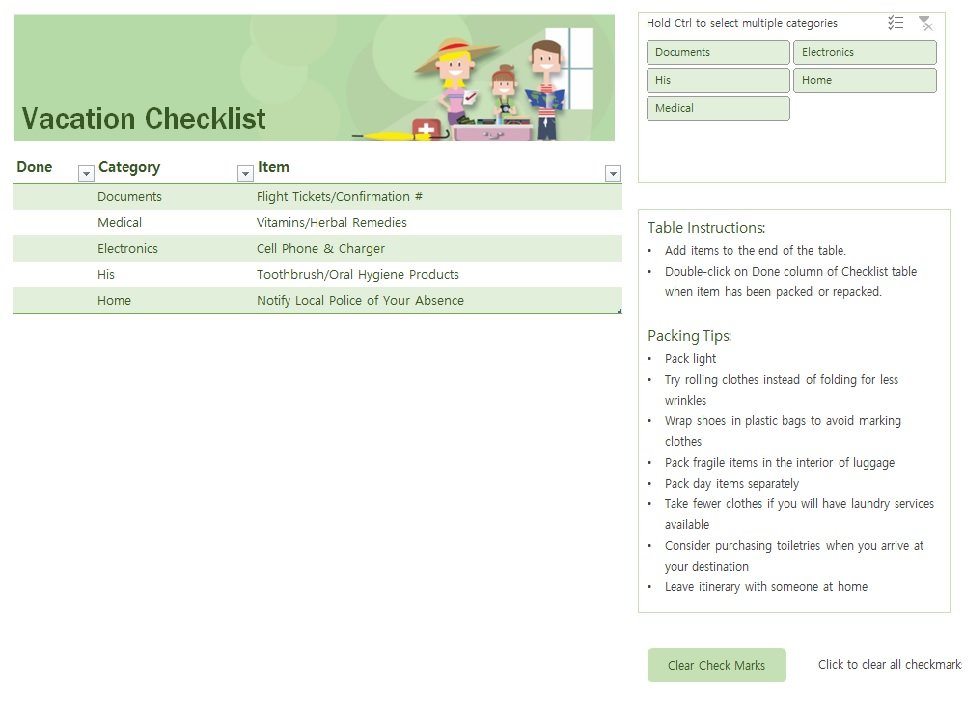
Once you have set up your columns, you can start creating your checklist. Begin by brainstorming all the tasks you need to complete before and during your trip. Consider the following categories: Pre-trip planning: booking flights and accommodations, arranging transportation, purchasing travel insurance, etc.
Packing: clothing, toiletries, electronics, etc.
Documents: passport, visa, driver's license, etc.
As you add tasks to your checklist, use the Status column to track your progress. You can also use the Notes column to add additional details or reminders.
Using Conditional Formatting to Highlight Important Tasks
Conditional formatting is a powerful feature in Excel that allows you to highlight cells based on specific conditions. You can use conditional formatting to highlight important tasks, such as: Tasks that are overdue or have a nearing deadline
Tasks that have not been started or are in progress
Tasks that require special attention or have specific requirements
To apply conditional formatting, select the cells you want to format, then go to the Home tab and click on Conditional formatting. Choose the type of formatting you want to apply, such as Highlight cells rules or Top/Bottom rules, and set the conditions accordingly.
Comparison of Digital and Printed Checklists
| Feature | Digital Checklist (Excel) | Printed Checklist | | --- | --- | --- | | Accessibility | Can be accessed on multiple devices | Can be easily lost or damaged | | Customization | Easy to edit and customize | Difficult to edit or customize | | Collaboration | Can be shared and edited by multiple people | Difficult to share or collaborate | | Space | Takes up minimal space | Takes up physical space |While both digital and printed checklists have their advantages, a digital checklist in Excel offers more flexibility and convenience.
Tips and Tricks for Using Your Travel Checklist Template
Here are some tips and tricks for using your travel checklist template: Review and update regularly: Review your checklist regularly to ensure that everything is complete and up-to-date.
Use filters and sorting: Use filters and sorting to quickly find specific tasks or track your progress.
Add checklists for specific trips: Create separate checklists for specific trips or categories of trips, such as business trips or family vacations.
"A checklist is not just a list of things to do; it's a tool to help you stay focused and ensure that nothing falls through the cracks." - Unknown
Common Mistakes to Avoid When Creating a Travel Checklist Template
When creating a travel checklist template, there are several common mistakes to avoid: Not customizing the template: Failing to customize the template to fit your specific needs and travel style.
Not reviewing and updating regularly: Failing to review and update your checklist regularly to ensure that everything is complete and up-to-date.
- Not prioritizing tasks: Failing to prioritize tasks based on importance and urgency.
FAQs
Q: What is the best way to create a travel checklist template in Excel?
The best way to create a travel checklist template in Excel is to start by setting up columns for tasks, status, and notes, and then adding tasks and tracking progress.
Q: Can I use a travel checklist template for multiple trips?
Yes, you can use a travel checklist template for multiple trips by creating separate sheets or workbooks for each trip or category of trips.
Q: How can I share my travel checklist template with others?
You can share your travel checklist template with others by sending them a copy of the Excel file or by using a cloud-based sharing service such as Google Drive or Dropbox.
Q: Can I use a travel checklist template on my mobile device?
Yes, you can use a travel checklist template on your mobile device by using the Excel app or a cloud-based spreadsheet app.
Conclusion
Creating a travel checklist template in Excel can help you stay organized, ensure that nothing is forgotten, and make your trips more enjoyable. By following the tips and tricks outlined in this article, you can create a customized template that fits your specific needs and travel style. Whether you're a frequent business traveler or an occasional vacationer, a travel checklist template in Excel can be a valuable tool in your travel planning arsenal.Related: 5 Useful Things to Know About Effective Exam Preparation
Related: What to Know About Studying for the GED Online: Tips
