

Understanding the Power of Online Resume Templates
When it comes to creating a resume, many job seekers find themselves stuck, unsure of how to present their skills and experiences in a clear and compelling way. This is where online Word templates come into play, offering a convenient and customizable solution. With a vast array of templates available online, it's easier than ever to craft a professional-looking resume that stands out from the competition.
Choosing the Right Template for Your Needs
The first step in using online Word templates effectively is to select a design that aligns with your industry, experience level, and personal style. For instance, if you're in a creative field, you may opt for a template with a bold and modern aesthetic. On the other hand, if you're in a more traditional industry, a clean and classic design might be more suitable.
Some popular online resources for resume templates include:
Microsoft Word's built-in template gallery
Template.net
ResumeGenius
Canva
When browsing through these resources, consider the following factors:
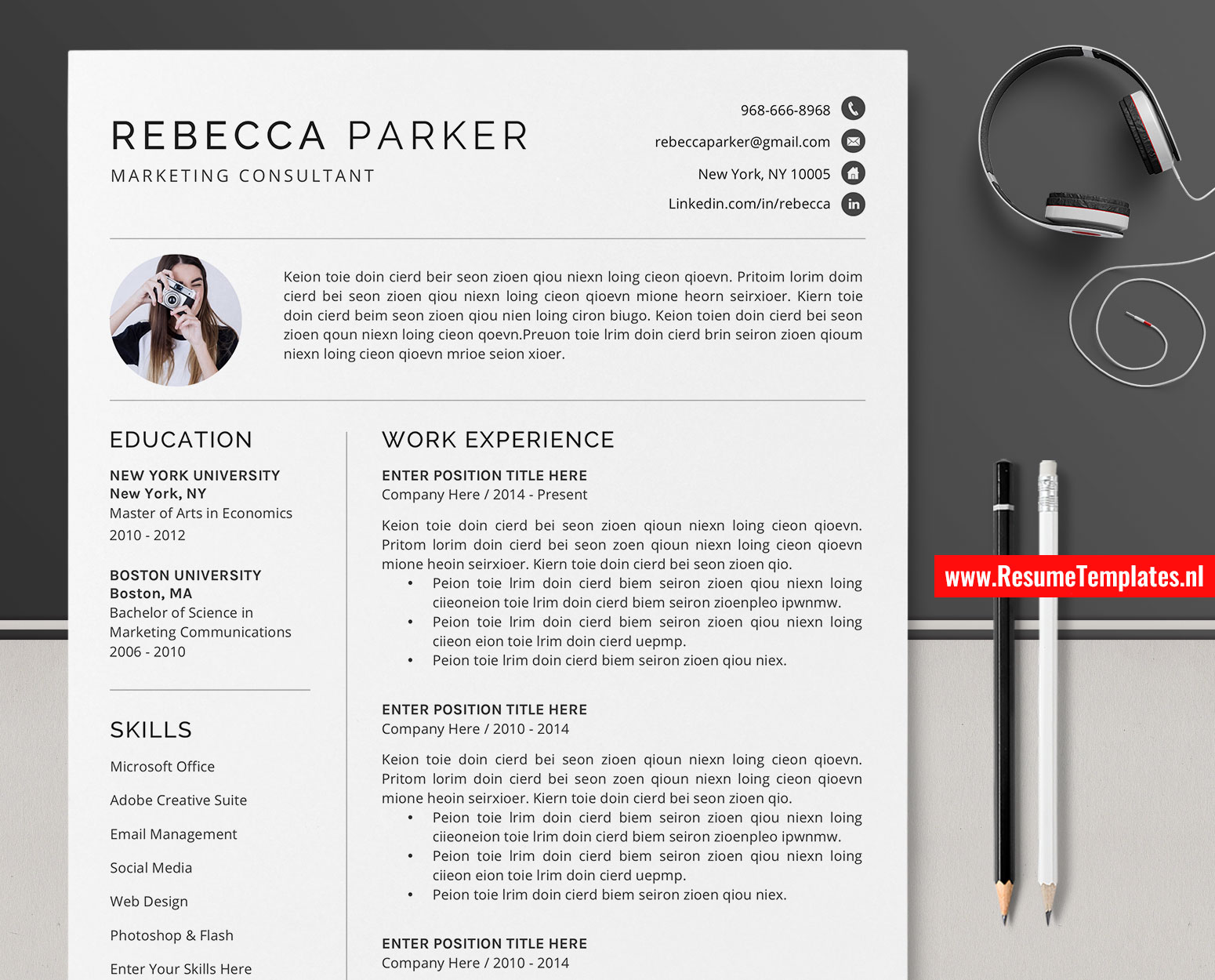
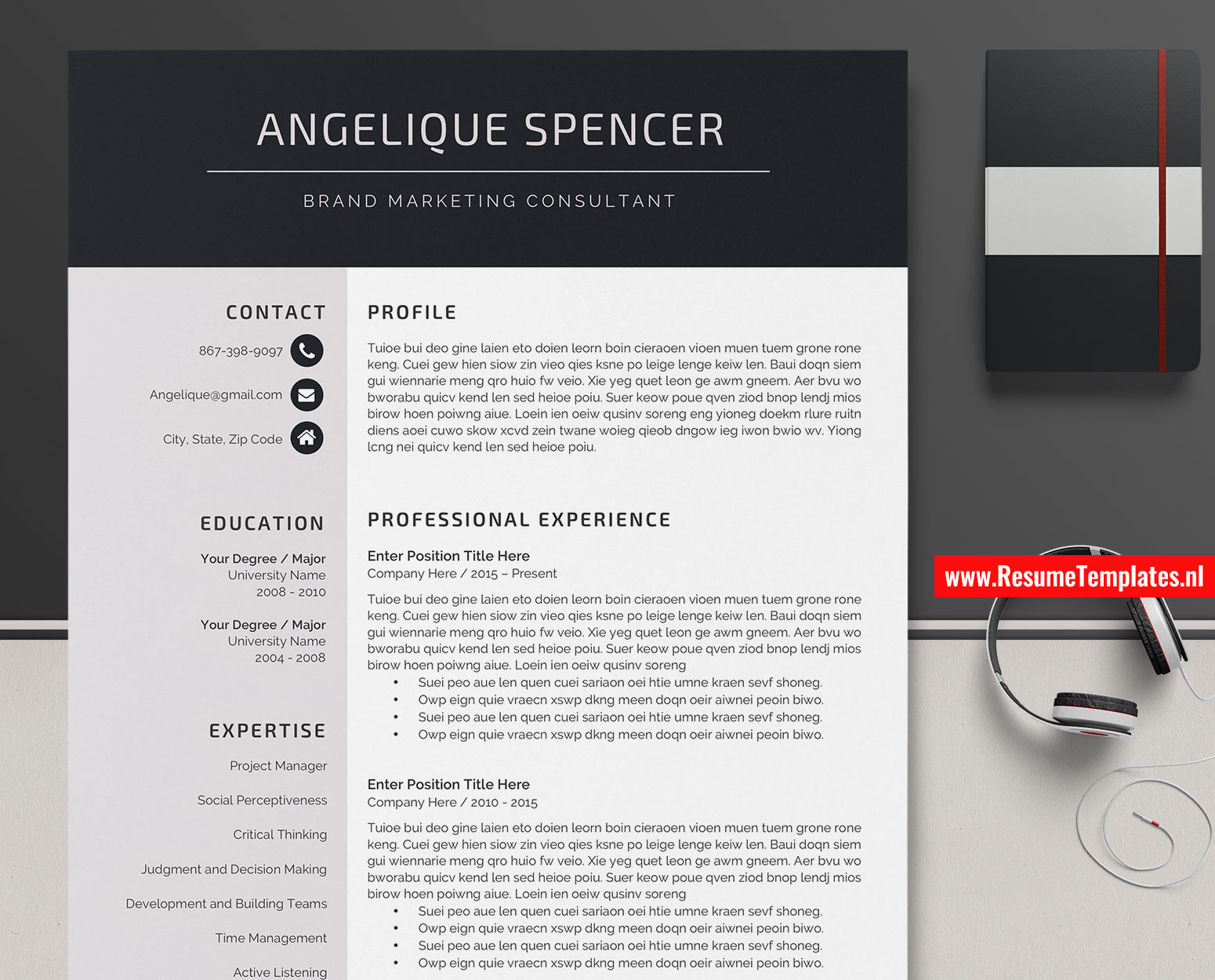
Layout: Look for a template with a clear and easy-to-read layout, with distinct sections for your work experience, education, and skills.
Customization: Opt for a template that allows for easy customization, with adjustable font sizes, colors, and margins.
Industry relevance: Choose a template that's specifically designed for your industry or job function.
Customizing Your Template for Maximum Impact
Once you've selected a template, it's time to tailor it to your specific needs. This involves:
Adding your personal details: Make sure to include your full name, contact information, and professional summary or objective statement.
Highlighting your achievements: Emphasize your achievements and qualifications by using specific numbers and metrics wherever possible.
Emphasizing transferable skills: Even if you're changing careers, highlight the transferable skills you've developed in previous roles.
Here's an example of how you might customize a template:
| <strong>Section</strong> | <strong>Original Template</strong> | <strong>Customized Version</strong> |
|---|---|---|
| Professional Summary | Results-driven professional with 5+ years of experience | Results-driven marketing professional with 5+ years of experience in digital marketing |
| Work Experience | Managed a team of 10 people | Managed a team of 10 people, increasing team productivity by 25% within 6 months |
Common Mistakes to Avoid When Using Online Templates
While online templates can be a huge help, there are some common pitfalls to watch out for:
Over-customization: Avoid over-customizing your template, which can make it look cluttered and unprofessional.
Lack of originality: Steer clear of templates that are too generic or overused, which can make your resume blend in with the crowd.
Typos and grammatical errors: Make sure to proofread your resume multiple times to catch any typos or grammatical errors.
Optimizing Your Resume for Applicant Tracking Systems (ATS)
In today's digital age, many companies use ATS to screen and filter resumes before they're even seen by human eyes. To increase your chances of getting past the ATS, make sure to:
Use keywords: Incorporate relevant keywords from the job description into your resume, especially in your professional summary and skills section.
Use a clear format: Use a clear and easy-to-read format, with distinct sections and bullet points.
Final Tips and Next Steps
Creating a winning resume takes time and effort, but with the right tools and strategies, you can increase your chances of standing out in a crowded job market. Remember to:
Keep it concise: Keep your resume to one or two pages, depending on your level of experience.
- Tailor it to the job: Customize your resume for each job you apply to, highlighting the skills and qualifications that match the job description.
By following these tips and using online Word templates effectively, you can create a resume that showcases your skills and helps you land your dream job.
Frequently Asked Questions
Q: What's the best way to find online Word templates for my resume?
You can find online Word templates through Microsoft Word's built-in template gallery, Template.net, ResumeGenius, Canva, and other resources.
Q: How do I customize a template to fit my specific needs?
To customize a template, add your personal details, highlight your achievements, and emphasize transferable skills.
Q: What are some common mistakes to avoid when using online templates?
Common mistakes to avoid include over-customization, lack of originality, and typos and grammatical errors.
Q: How can I optimize my resume for ATS?
To optimize your resume for ATS, use keywords from the job description, and use a clear format with distinct sections and bullet points.
Related: A Practical Guide to Creating a Photography Resume Template
Related: 5 Useful Things to Know About Welding Resume Templates
